Guide
Lyxvo AI from start to finish
No design experience needed. This guide walks through every feature in order, with real screenshots. Read it top to bottom once, then come back to any section.
1. Sign up and log in
Open lyxvo.ai and press Start designing free. Log in with Google or with your email: an account keeps your designs, lets you download them and lets you work with others. You can try a design without an account; it is kept in your browser until you log in. The studio speaks 12 languages: pick yours with the flag at the top right.
2. Home: everything in one place
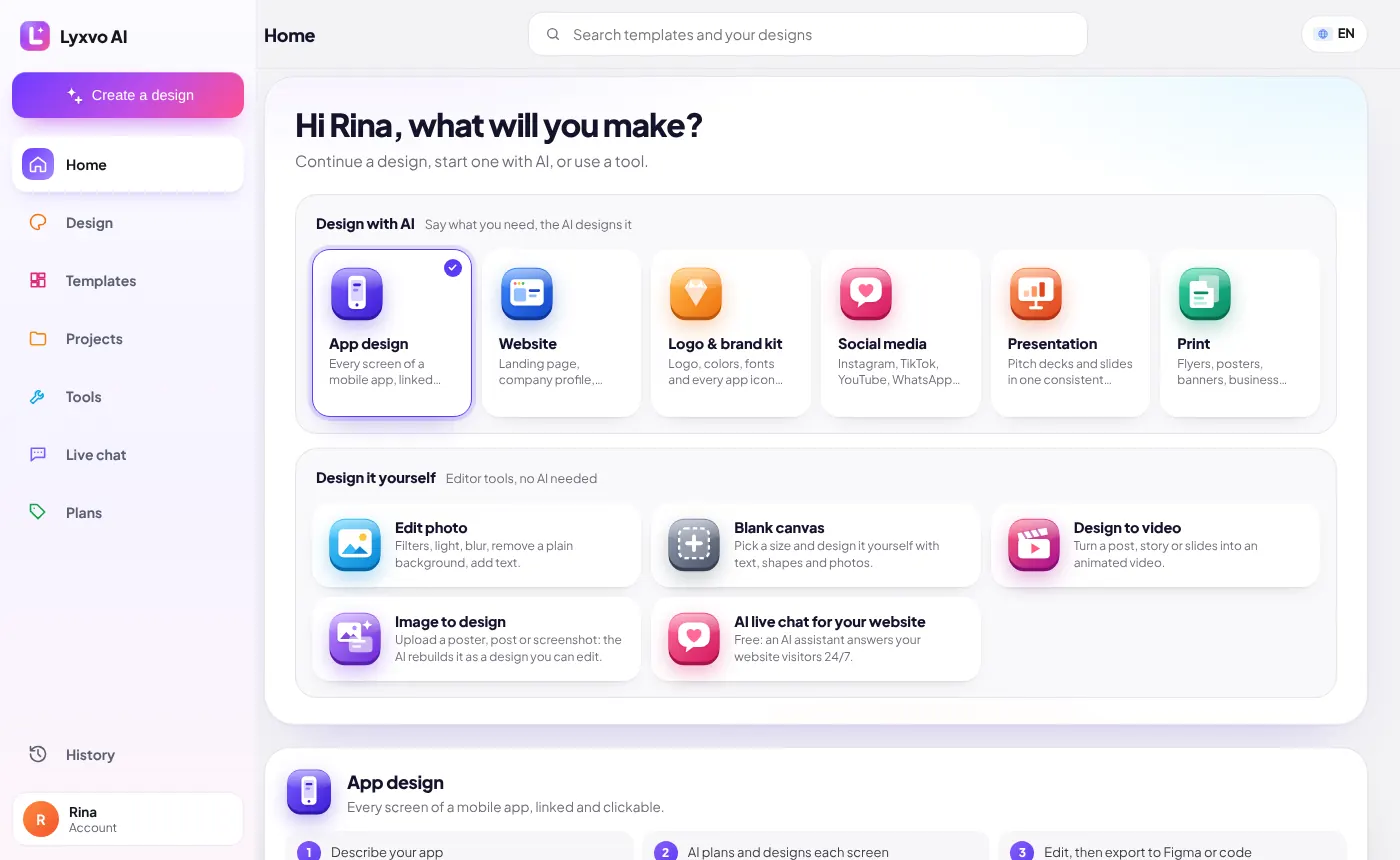
Home is the first screen after you log in. From top to bottom:
- Design with AI: the six things AI can make for you (app, website, logo & brand kit, social media, presentation, print). Click one to start.
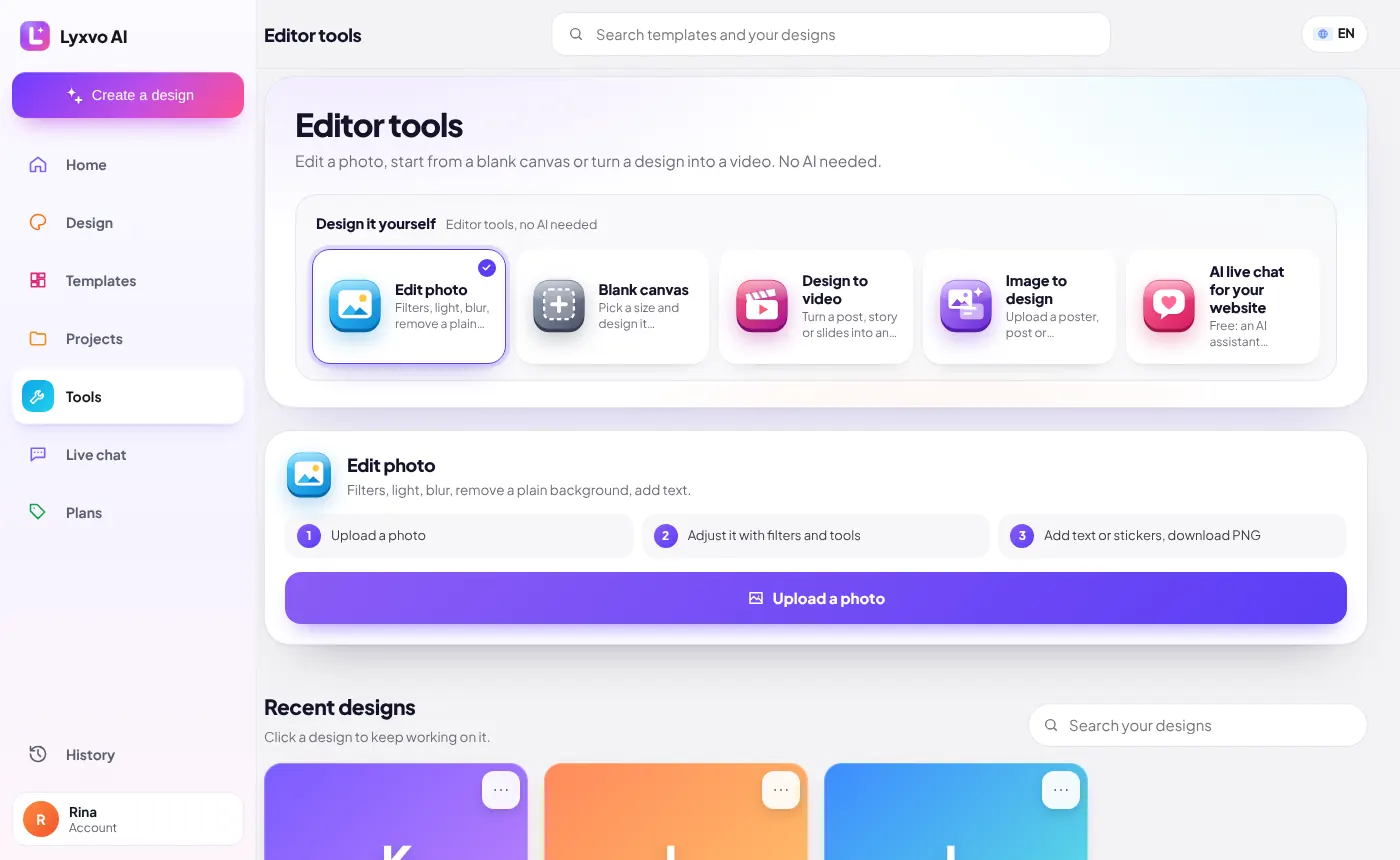
- Design yourself: editor tools without AI (edit a photo, blank canvas, design to video, image to design, AI live chat).
- Work together: designs you share with other people.
- Recent: your designs, newest first. Click one to open it, or use ⋯ to rename, move or delete.
- Projects: folders that keep the designs of one brand or client together.
3. Design with AI
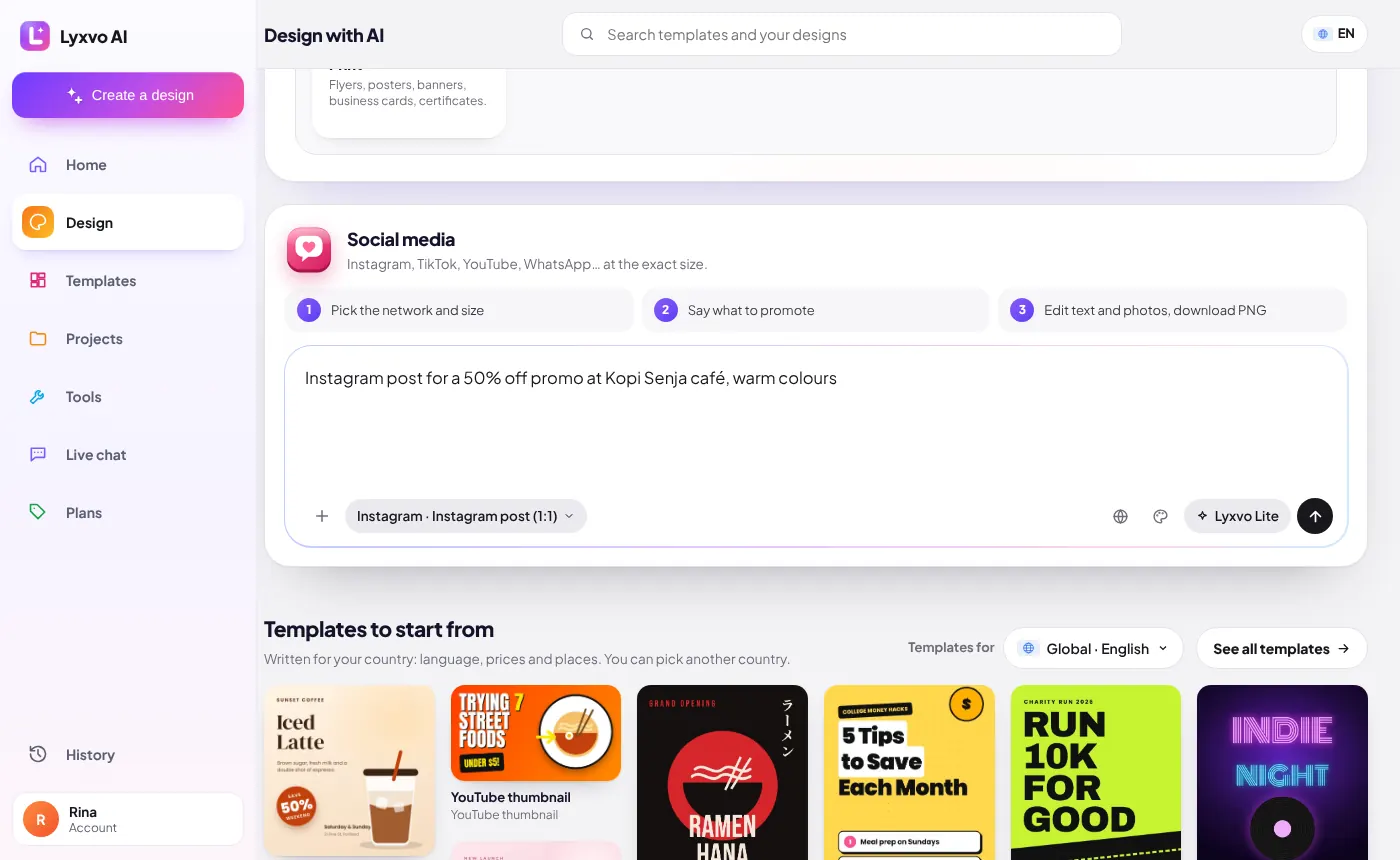
Pick what you want to make, describe it in your own words, and press the arrow. The AI plans the design, then designs it in front of you; you watch every step in the agent log on the right. You don't need special words: write it the way you would explain it to a designer.
- Click a card, for example Social media.
- Pick the size if it asks (Instagram post, Story, TikTok, YouTube thumbnail…).
- Write what it is for: the business, the offer, the mood or colours, any text that must appear.
- Press the arrow (or Enter). In about a minute the design is on the canvas, ready to edit.
- App: “A coffee ordering app for Kopi Senja: menu, cart, checkout with QRIS, order status, profile.”
- Website: “A one-page website for a Bali villa: hero photo, rooms with prices, facilities, reviews section, WhatsApp booking button.”
- Logo: “A logo for Toko Hijau, an eco grocery shop in Bandung, leaf shape, green and cream.”
- Social: “Instagram post for 50% off iced coffee this weekend at Kopi Senja, warm colours.”
- Slides: “A 6-slide pitch deck for a laundry app startup.”
- Print: “An A5 flyer for a yoga class every Saturday at 7 am, calm and minimal.”
4. Editing a design
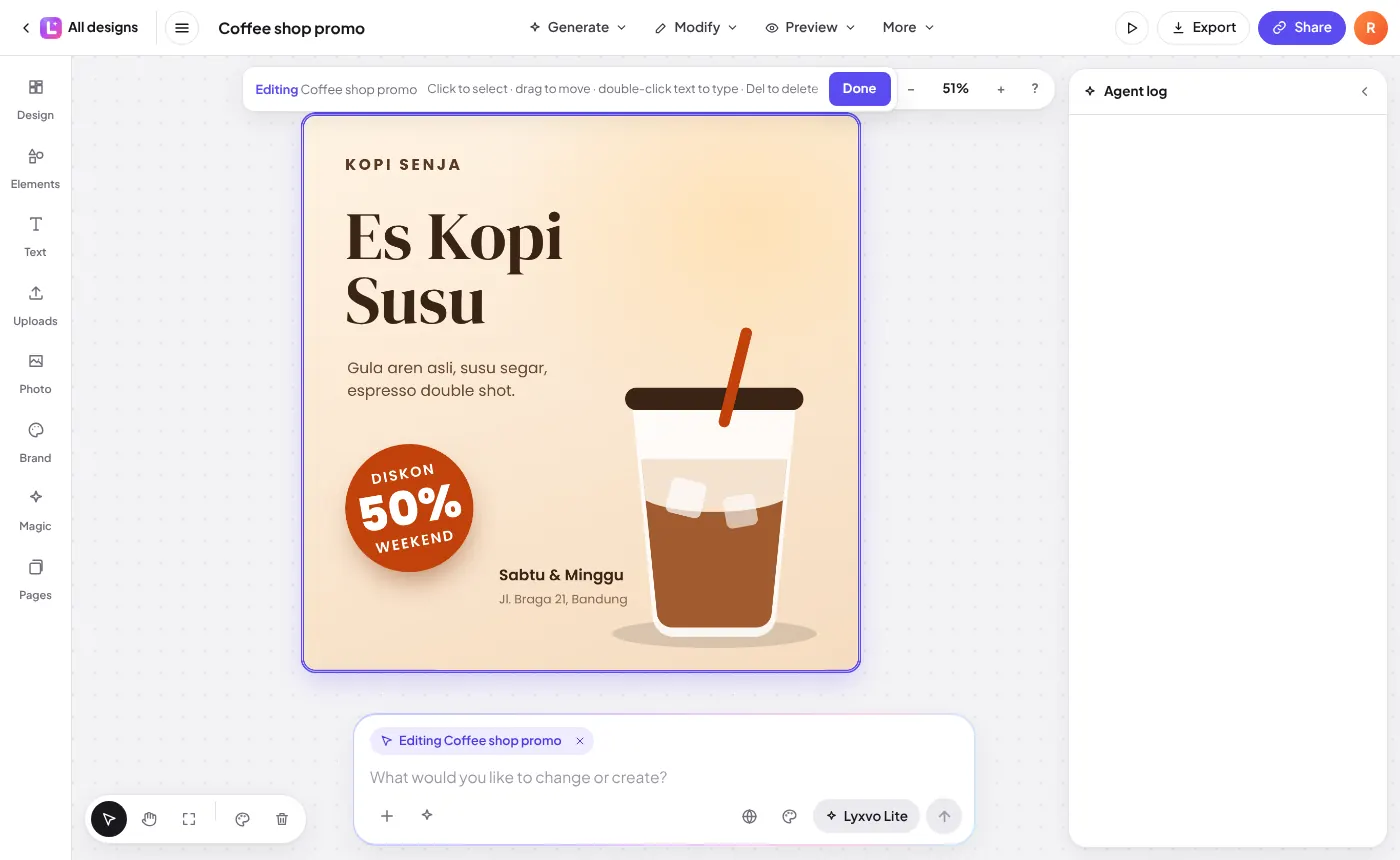
Every design opens on the canvas, and everything in it can be changed. There are two ways: edit directly, or ask the AI.
- Double-click the design to edit it. Click any text, photo or shape to select it, drag to move it, use the corner to resize.
- Double-click a text to type. Press Del to delete the selected element, Ctrl+D to duplicate, arrow keys to nudge, Esc to finish.
- The left rail adds things: Design (templates), Elements (shapes, icons, charts), Text, Uploads (your photos and logo), Photo (filters, remove a plain background), Brand (your colours and logo), Magic (AI tools: rewrite text, translate, resize to another format), Pages.
- Or type in the box at the bottom, for example “make the background dark green” or “change the price to Rp25.000”. The AI changes only what you asked.
Tip: right-click a design for more actions, such as Make a video.
5. Templates
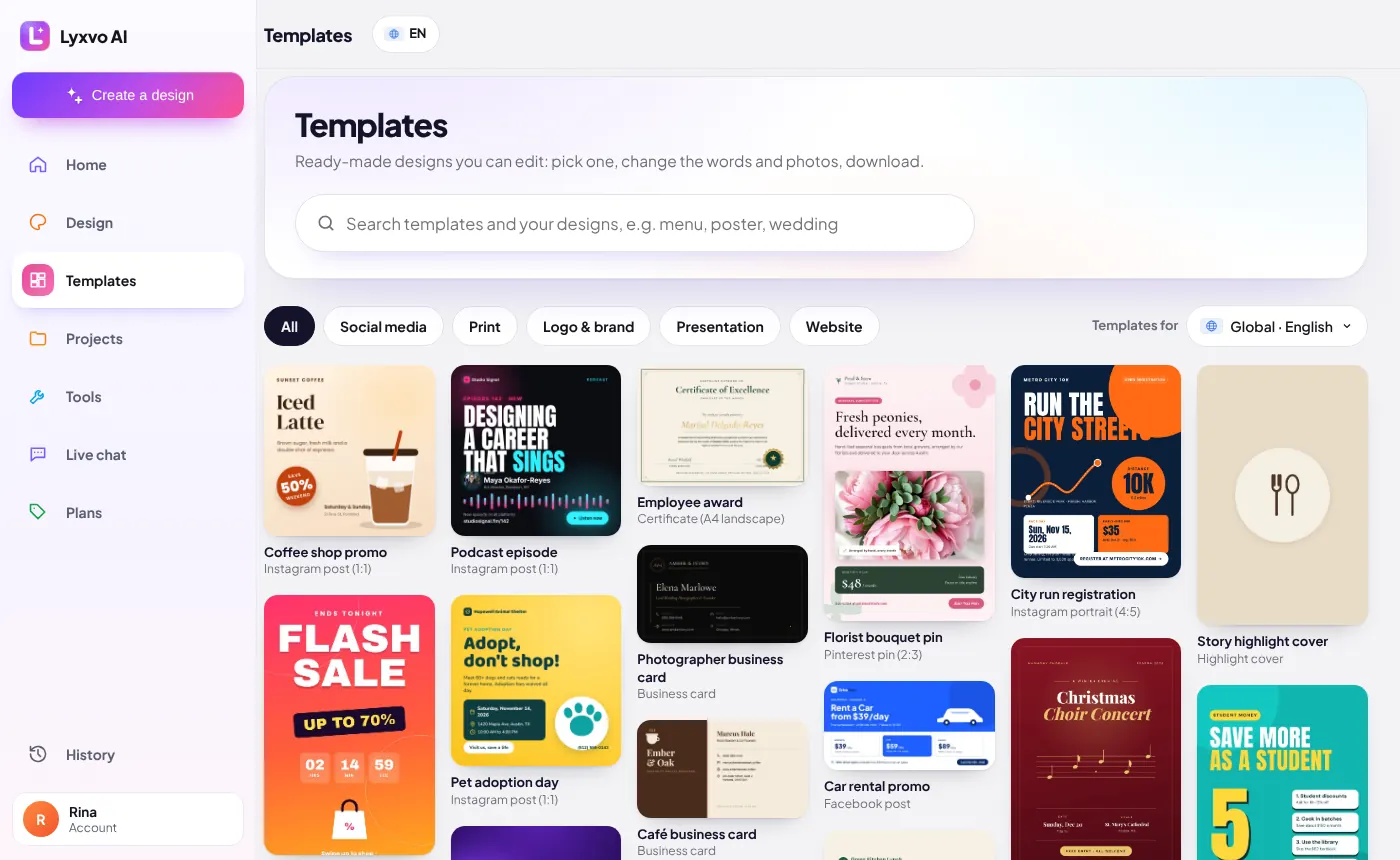
Ready-made designs written for your country: the language, prices and places fit. Open Templates in the menu, pick a country at the top if you like, search, and click a template: it opens ready to edit. Change the words and photos and it is yours.
6. Tools
Editor tools for when you want to do it yourself:
- Edit photo: upload a photo, adjust light, colour, blur and corners, add text, remove a plain background.
- Blank canvas: pick a size (Instagram, A4, banner…) and design with text, shapes and photos.
- Design to video: turn a post, story or slides into an animated video (MP4, or WebM on some browsers), with music and timing per scene.
- Image to design: upload a poster or screenshot and the AI rebuilds it as an editable design.
- AI live chat for your website: see section 10.
7. Projects (folders)
Keep the designs of one brand, client or campaign together. On Home, under Projects, press New project and give it a name. To move a design into it, open the ⋯ menu on the design and choose the project.
8. Download and export
Press Export at the top right of an open design and choose the format. What you can download depends on your plan (see Pricing).
- PNG: a picture of each page, ready to post or print.
- Figma: editable SVG layers plus design tokens.
- Code: HTML, Flutter or Kotlin (Jetpack Compose) for developers.
- Brand kit: your logo in every size and colour, plus the colour and font sheet (zip).
- Video: Export → Video turns the design into an animated video.
9. Share and work together
Press Share at the top right of an open design.
- Work together: type a person's email and press Invite. They get an email with the link; the design appears on their Home under Work together, and you both edit it live.
- Public link: switch the design to Public to get a lyxvo.ai/d/… link anyone can view (they can't edit).
- One page: pick a page and publish it alone as a lyxvo.ai/p/… link.
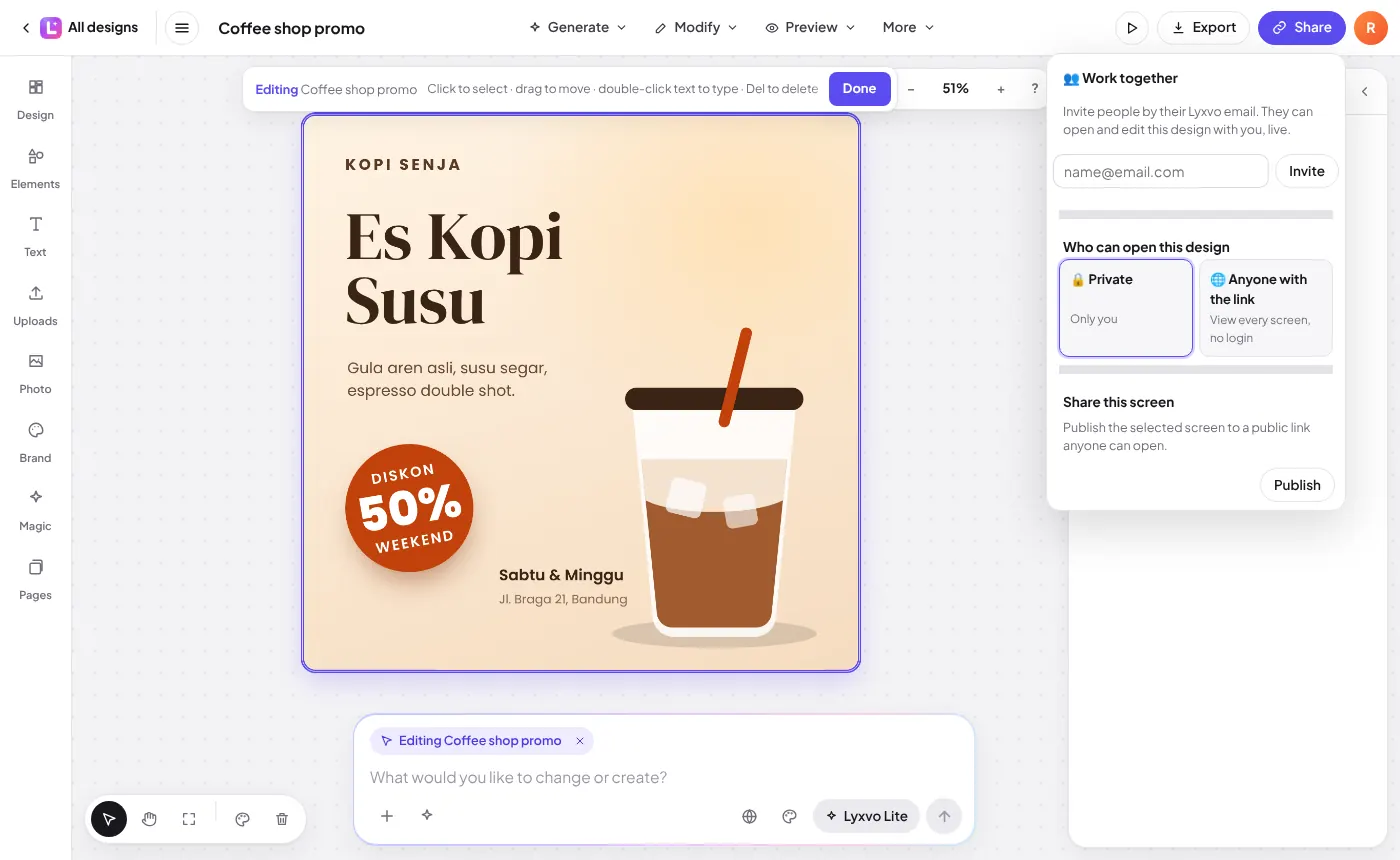
The people you invite need a Lyxvo AI account with the same email.
10. AI live chat for your website
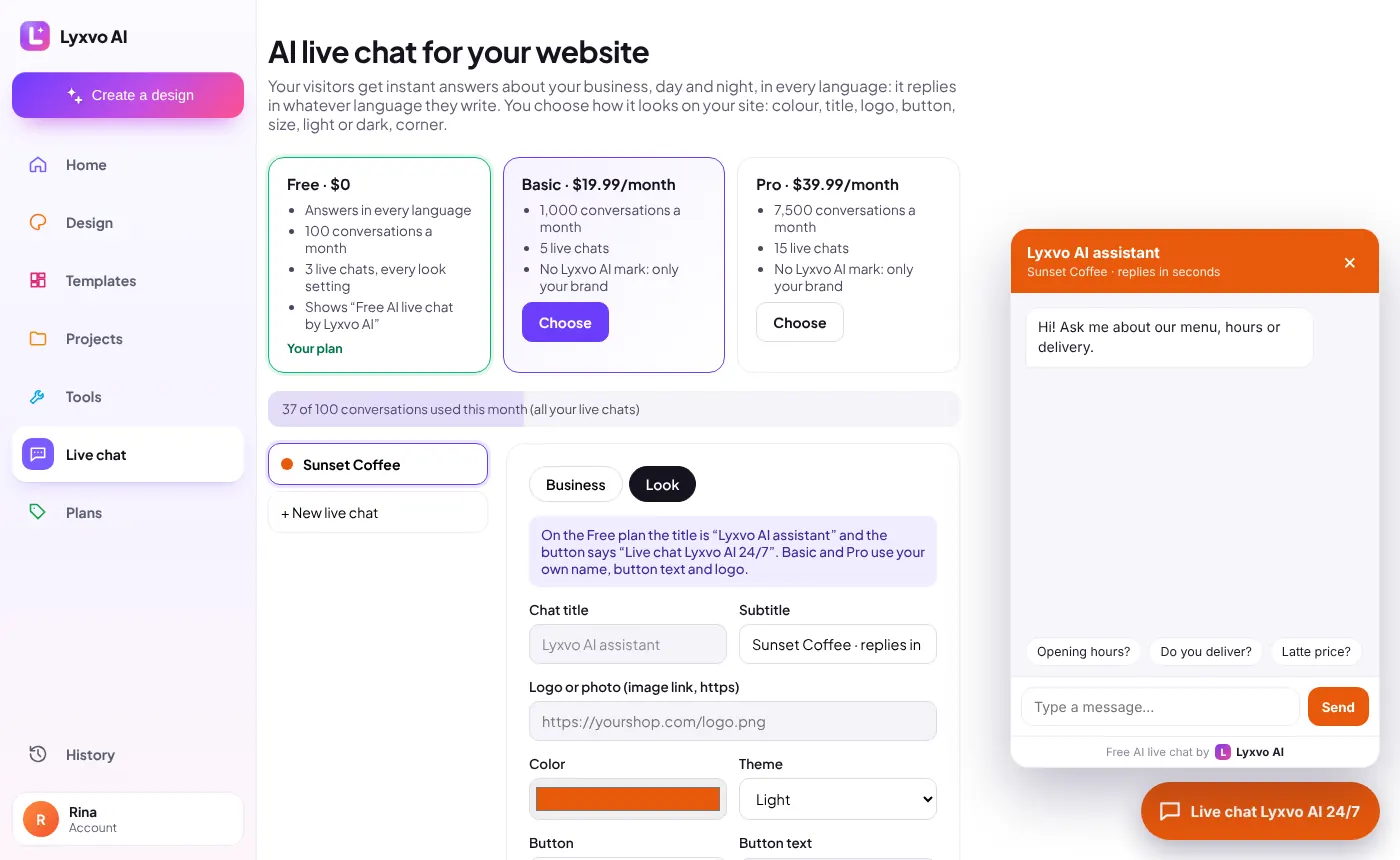
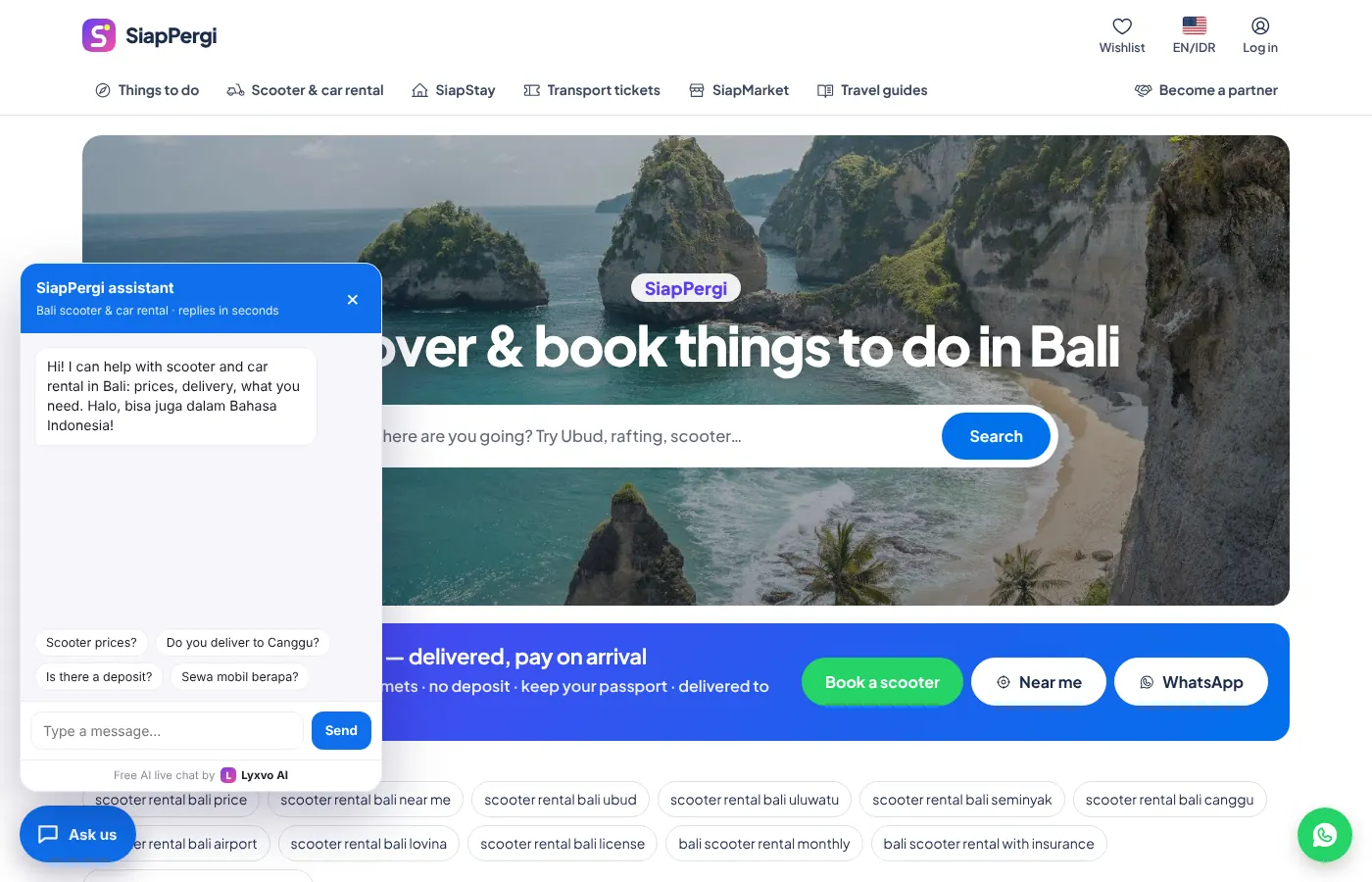
A chat button on your own website that answers your visitors 24/7, in every language, from the facts you write about your business. Our AI is smart: it can answer any question about your products, prices, opening hours, delivery or booking, and when it doesn't know it gives your contact instead of guessing. The free plan works on up to 3 websites with 100 conversations a month.
- Open Live chat in the menu.
- Business tab: write your business name and the facts (start from an example if you're not sure), add your website domain, save.
- Look tab: choose the colour, button, size and corner; the preview shows it live.
- Copy the one line of code and paste it on your website (WordPress, Shopify, Wix, any HTML, or your own code).
11. Plans and payment
You can start free. Paid plans add more designs, downloads and features; the Lyxvo Engine adds whole apps and websites with many pages; Live chat Basic and Pro remove the Lyxvo AI mark and add conversations. Prices are always on the Pricing page. Payment is in USDT (on Solana, BNB Chain, Polygon, Arbitrum, Avalanche or Ethereum): choose a plan in Account → Plans, the pay page shows the exact amount and address (with a QR code), and the plan switches on by itself once the payment arrives, usually within a minute. New to crypto? Buy USDT in an app such as Pintu or Indodax and withdraw it on one of these networks.
Need help?
Ask the chat at the bottom of lyxvo.ai, or email hello@lyxvo.ai.