AI App Design for Restaurant Table Reservation Kiosk
AI app design for restaurant table reservation kiosk lets a restaurant go from a rough idea to working screens for a self-service check-in and booking touchscreen in hours instead of weeks. This guide walks through the screens a kiosk needs, how to lay them out for a standing guest, and how to produce finished designs with Lyxvo AI.
What a reservation kiosk app has to do
A table reservation kiosk sits in a lobby or at the host stand. A guest walks up, taps a few times, and either books a table for later or checks in for a table that is already reserved. The software behind it is simple, but the interface has to work for someone who has never used it before, is often standing, may be in a hurry, and may have a child or a shopping bag in one hand.
Before you design anything, write down the three jobs the kiosk must do well:
- Book a table for a future time, party size and seating preference.
- Check in a guest who has a reservation, or join a walk-in waitlist.
- Show status so guests know their wait and can see when a table is ready.
Everything else, such as menus, promotions or ordering, is optional. Keeping the scope tight makes the design easier to test and faster to ship.
Map the screen flow first
A good kiosk flow has very few decisions per screen. A typical booking flow looks like this:
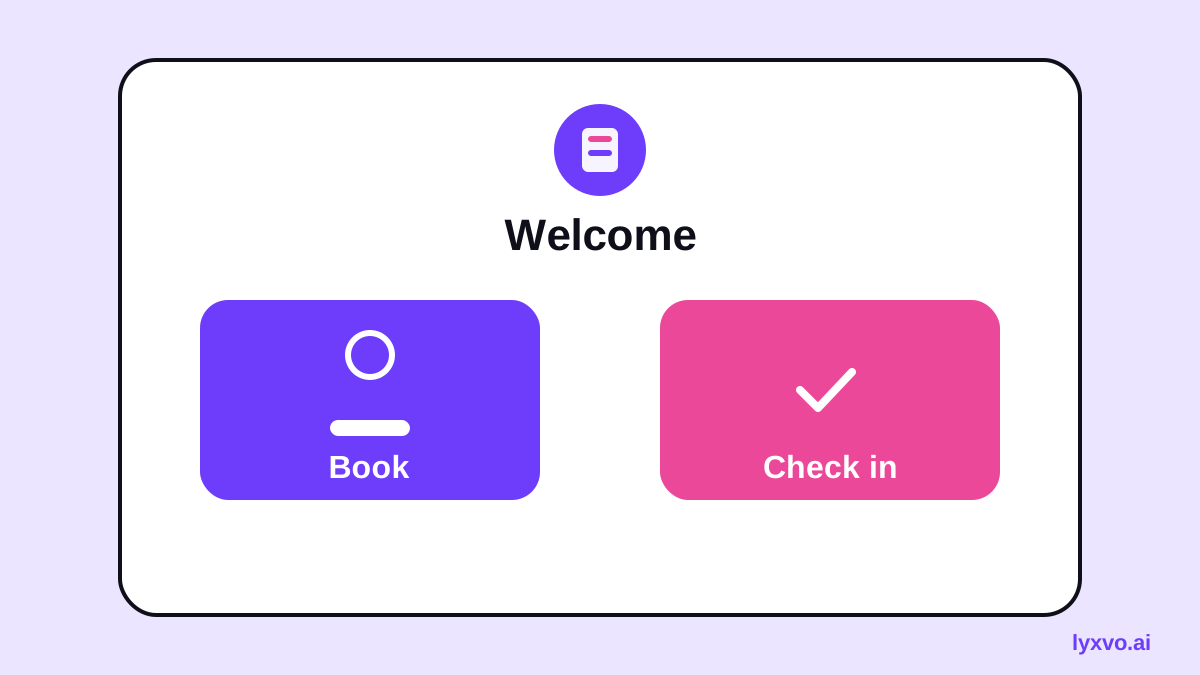
- Welcome: one large button for "Book a table" and one for "I have a reservation".
- Party size: large numeric buttons, 1 to 8, with a "More" option that leads to a staff call.
- Date and time: only the slots that are actually open, shown as large tiles.
- Seating: indoor, terrace or bar, if the restaurant offers them.
- Details: name and phone number, with a visible on-screen keyboard.
- Confirmation: the time, the party size, a code or QR for the host, and a clear "Done" button.
Check-in follows a separate, shorter path: enter a phone number or scan a QR code, confirm the party, then show the wait time.
Keep every screen to one main task. If a screen asks the guest to choose between more than about four options at once, split it into two screens.
Design rules for a standing, touch-only user
Kiosk design differs from phone design in a few important ways:
- Targets must be large. Aim for buttons at least 56 to 64 px tall on a typical kiosk display, with generous spacing so fingers do not hit neighbors.
- Text must be readable from a step back. Use body text no smaller than about 20 px and headings that stand out clearly.
- Contrast must be high. Lobbies are bright and sometimes glare-prone. Use strong text-to-background contrast.
- Timeouts should reset. If a guest walks away mid-flow, return to the welcome screen after a short idle period, and do not leave personal details on screen.
- Avoid tiny back arrows. Provide a clear "Back" or "Start over" control on every screen.
- Support multiple languages. Offer a language switch on the welcome screen if your guests need it.
Example: a complete screen set
Here is how a simple set of screens might be described to a design tool:
| Screen | Main element | Primary action |
|---|---|---|
| Welcome | Two large cards: Book / Check in | Tap a card |
| Party size | Grid of numbers 1 to 8 | Tap a number |
| Time | Tiles for open slots | Tap a slot |
| Details | Name and phone fields | Tap Confirm |
| Confirmation | Booking code and QR | Tap Done |
| Check-in | Phone or QR input | Submit |
Keep the same header, colors and button style on every screen. Consistency is what lets a first-time guest feel confident after one tap.
Design the kiosk in Lyxvo AI
Lyxvo AI's design agent can plan and produce complete app screens for iOS, Android and web. For a kiosk, use the web or app option and describe the flow above. You can then edit each screen in the Canva-style editor: change text, swap photos, adjust colors and resize buttons directly.
A practical sequence:
- Open the design studio with the app format, for example app screens, or start from AI app design or AI UI design generator.
- Describe the three jobs (book, check in, show status), the target display size and the guest journey.
- Review the planned screens and remove any step that adds a decision you do not need.
- Edit text and colors in the editor so your restaurant's name, language and brand match.
- Check the large-target and contrast rules on every screen.
- Export the screens as PNG at real size for review, or as HTML or Flutter if your developer will build from them.
For the restaurant's own brand assets, such as the logo shown in the header, you can create a mark with the AI logo generator and reuse it across the kiosk and your website.
Test before you install
Before a kiosk goes live, test it with real people:
- Ask a new guest to book a table with no help. Time how long it takes and note where they hesitate.
- Stand at the recommended viewing distance and check that every label is readable.
- Try the idle timeout and confirm the screen resets cleanly.
- Test the flow on the actual touchscreen hardware, not only in a desktop preview.
One round of testing usually reveals two or three fixes, such as a confusing button label or a time slot that should appear earlier.
Extend the design to your website and menus
The same visual system can carry through the rest of the restaurant. A booking page on your website can use the same colors, type and button shapes, and a printed table tent or a menu can match the kiosk. If you also want a guest-facing assistant on your site, AI live chat for websites can answer common questions about hours, seating and reservations in the visitor's language. For printed menus and signs, see the AI menu maker and the AI flyer maker.
Checklist before handoff
- Welcome screen offers only two main choices.
- Every screen has one main task.
- Buttons are at least 56 px tall with clear spacing.
- Text is readable from a step back and contrast is high.
- Every screen has a visible Back or Start over control.
- Idle timeout returns to the welcome screen.
- Booking confirmation shows the time, party size and a code.
- The design was tested with at least one first-time user on real hardware.
- Colors, fonts and logo match the restaurant's brand.
With a clear flow and large, readable screens, an AI-assisted design gives your team a working starting point that you can refine with real guest feedback.
Try it in Lyxvo AI
Describe it in your own words and the design agent starts on the right flow. Free to start.
Related tool: AI app designer for complete iOS and Android apps
Whole apps and websites are designed with the Lyxvo Engine, rented separately from the design plans; every account can try 2 pages free.