AI App Mockup for NGO Volunteer Sign Up: A Practical Guide
An AI app mockup for NGO volunteer sign up lets a small team see the whole sign-up journey before anyone writes code. This guide walks through planning the flow, the screens you need, and how to produce clean mockups quickly with Lyxvo AI.
Why mock up volunteer sign up before building it
Volunteer sign up is often the first real contact a person has with your organisation. If the form is long, confusing or unclear about time commitments, people drop off. A mockup lets your team test that first experience cheaply: you can review the flow with staff, board members and a few past volunteers, and change it in an afternoon instead of after development.
A good mockup answers three questions: what does a volunteer need to do, what does the organisation need to know, and what happens after they submit?
Step 1: Define the sign-up goal
Before drawing anything, write one sentence describing the goal. For example:
- "A new adult can register as a volunteer for weekend food distribution in under three minutes."
- "A student can sign up for a one-off clean-up event from a phone."
Then decide what information is essential at sign-up and what can wait. Most NGOs only need name, contact details, availability, interests and a consent checkbox at the start. Skills, background checks and emergency contacts can often be requested later, once the volunteer is confirmed for a role.
Note: If your NGO works with minors or vulnerable groups, check your local safeguarding and data-protection requirements before you decide which fields to collect.
Step 2: Map the core screens
A typical volunteer sign-up app or website needs only a handful of screens:
| Screen | Purpose | Key elements |
|---|---|---|
| Welcome | Explain the mission and what volunteering involves | Short story, Sign up button, Log in link |
| Account | Create login | Email or phone, password or one-time code |
| Profile | Basic details | Name, age confirmation, location, language |
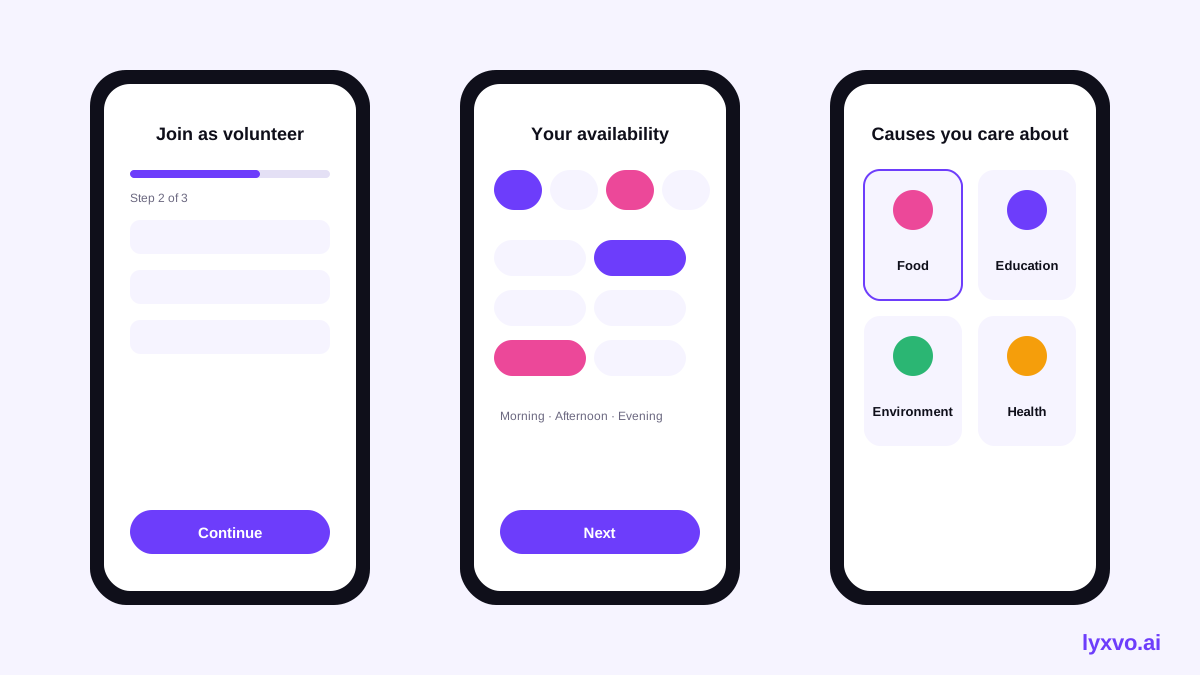
| Availability | When can they help? | Days, time blocks, recurring or one-off |
| Interests | What causes or tasks appeal? | Tap-to-select cards, limit of three |
| Consent | Legal and safety | Privacy notice, photo consent, code of conduct |
| Confirmation | Close the loop | Thank-you message, next steps, calendar link |
Keep each screen to one main task. A progress indicator such as "Step 2 of 4" reduces anxiety about how long the process will take.
Step 3: Write copy that feels human
Volunteers respond to clear, warm language. Replace "Submit application" with "Join the team" and replace "Mandatory field" with a plain reason, such as "We need this to contact you about shifts." Use the same language your community uses in person, and keep sentences short.
For accessibility, aim for large tap targets, high-contrast text, labels that stay visible when a field is filled, and error messages that say how to fix the problem.
Step 4: Generate the mockup with Lyxvo AI
Lyxvo AI includes an agentic design tool that plans and then designs complete app and website screens for iOS, Android and web. You can describe the NGO, the sign-up flow and the brand feel in plain language, then refine the result in the editor.
How to do it in Lyxvo AI
- Open the app design tool or go straight to the mobile app studio.
- Describe your organisation, the volunteer goal and the screens from the table above. Name your brand colours if you have them.
- Let the design agent plan the flow, then review the screen order before it draws everything.
- Use the Canva-style editor to change text, swap photos and adjust colours directly on each screen.
- Share the file with colleagues for real-time comments while you iterate.
- Export PNG screens at real size for review decks, or use the web design tool if your sign-up lives on your website instead.
If you also need a logo or icon for the app, the app icon generator and the AI logo generator produce the sizes your store listings require.
Step 5: Test the flow with real people
Share the mockup with five to ten people who match your volunteer audience. Ask them to complete the task while you watch, without explaining anything. Note where they hesitate, what they misread and where they stop.
Common fixes after testing:
- Merge two screens if the user always fills them in one go.
- Move optional fields to after confirmation.
- Rewrite any label that people had to read twice.
- Add a "Not sure yet?" option to availability so people do not abandon the form.
Step 6: Plan the handover
Once the mockup is approved, your developer or no-code builder needs clear specifications. Include a screen list, copy for every button and error message, the required and optional fields, and the data you will store and why. Exporting screens with exact sizes and a short written spec reduces back-and-forth.
Volunteer sign-up checklist
- [ ] One clear goal written down
- [ ] Only essential fields on the first screen
- [ ] Progress indicator visible
- [ ] Plain-language copy with reasons for each request
- [ ] Consent and safeguarding steps included
- [ ] Large tap targets and readable contrast
- [ ] Helpful error messages
- [ ] Confirmation screen with next steps
- [ ] Tested with at least five real volunteers
- [ ] Handover spec and exported screens ready
Using the same design across channels
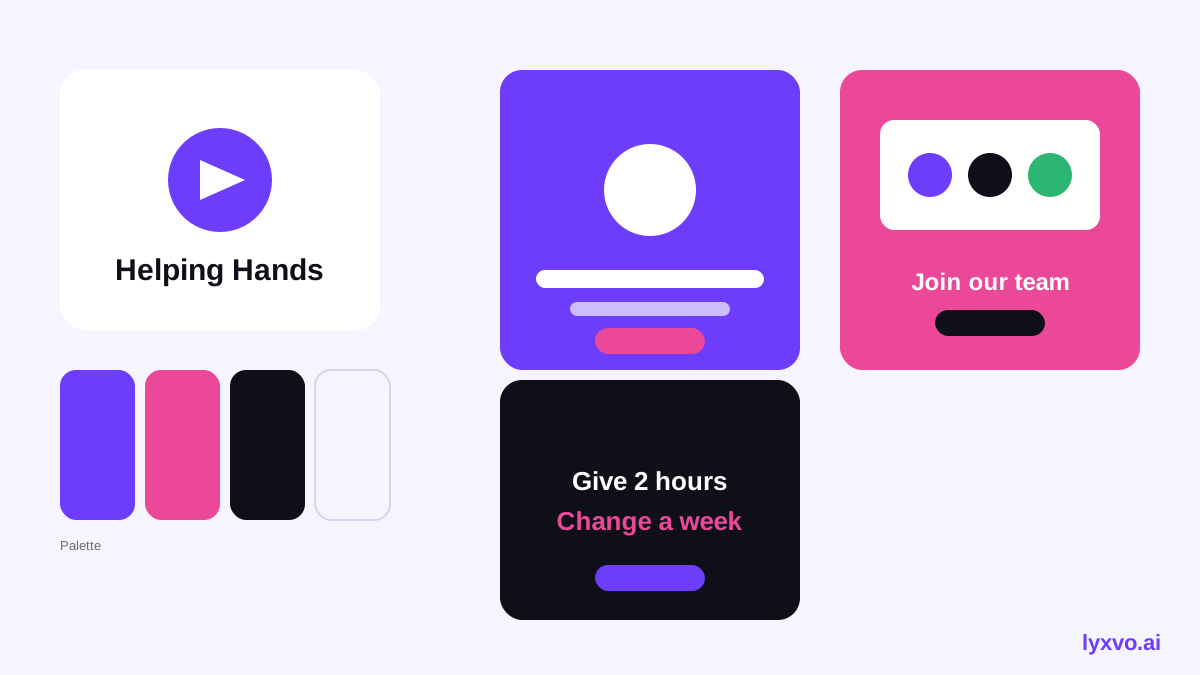
Volunteer recruitment usually extends beyond the app. Use the same colours and tone for social media posts, a flyer for community events and a poster for noticeboards. Consistent visuals help people recognise your organisation wherever they meet it. You can start with a free design template and adapt it to your brand.
Next steps
Start with the goal sentence, map your screens, then generate a first draft in a single session. Review it with your team, test it with real volunteers and refine. Most NGOs find that the second version, after testing, is far better than the first. If you want to compare plans before committing, see the pricing page. For more guidance on getting the most from the tool, visit the documentation or the Lyxvo AI blog.
Try it in Lyxvo AI
Describe it in your own words and the design agent starts on the right flow. Free to start.
Related tool: AI app designer for complete iOS and Android apps
Whole apps and websites are designed with the Lyxvo Engine, rented separately from the design plans; every account can try 2 pages free.