AI Business Card for Personal Trainers with a Fitness App Code

An AI business card for personal trainers with a fitness app code puts your name, services and a scannable link to your app in one small, memorable card. Done well, it turns a handshake at the gym into a download, a booked session and a returning client.
Why a fitness app code belongs on a trainer's card
A business card is short-lived. Most people glance at it once, then drop it in a bag. A fitness app code changes that: a QR code or short link lets a prospect start a workout plan, book a consultation or log in to your client portal in seconds, while your card is still in their hand.
For personal trainers, the code does three jobs at once:
- It shows you run a serious, modern practice.
- It gives people a reason to keep the card and scan it later.
- It moves the relationship from paper to an app where you can track progress and retention.
What to include on the card
Keep the front clean and the back practical. Too much text makes the card unreadable at a glance.
| Element | Front | Back |
|---|---|---|
| Name and title | Yes, large | No |
| Specialty (e.g. strength, mobility, postnatal) | Short line | Optional |
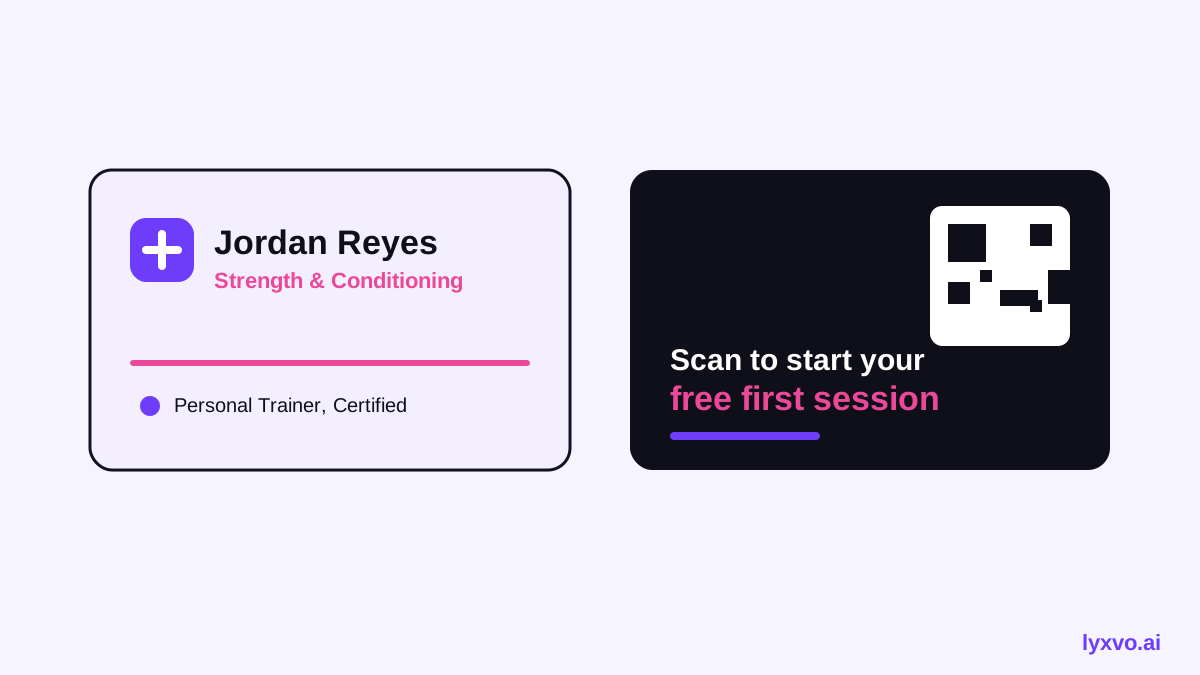
| Fitness app QR code | No | Yes, minimum 2 cm square |
| Short link or app name | No | Yes, under the code |
| Phone, email, city | No | Yes |
| Logo and brand color | Yes | Accent only |
Test the QR code with at least two phones and in dim gym lighting before printing. Contrast matters more than design flair.
Standard card sizes and print rules
Most business cards are printed at 85 x 55 mm (3.5 x 2 in). Add 3 mm bleed on every side, so the artboard is 91 x 61 mm, and keep text and the QR code at least 3 mm inside the trim line. For print-ready files, export at 300 dpi.
A few practical rules:
- Keep QR codes dark on a light background.
- Leave a quiet zone of white space around the code.
- Use a short, branded link if the full app URL is long.
- Add a plain-language call to action such as "Scan to start your plan".
Step-by-step: designing the card with Lyxvo AI
Lyxvo AI's design agent can produce a business card from a brief, and its Canva-style editor lets you adjust every detail before export. Here is a workflow you can follow:
- Write a brief. Include your name, specialty, city, the app's name and the link or code destination. Mention the tone you want, for example bold and athletic or calm and clinical.
- Generate the layout. Use the AI business card maker to create front and back versions from that brief.
- Set your brand. If you do not have a logo yet, start with the AI logo generator so the card, social posts and app icon share one color palette.
- Place the app code. Insert your QR code or link on the back, and check the minimum size and contrast in the editor.
- Edit directly. Change text, photos and colors on the canvas. Swap in a headshot or a training photo if it suits your brand.
- Export. Download a print-ready file at real size for your printer, or export a PNG to share digitally.
Reuse the brand everywhere
Once the card is set, use the same colors and type for the rest of your presence. A trainer's kit often includes:
- A social media post announcing a new program, sized for each platform.
- A flyer for a community class or open session.
- A poster for your gym notice board.
- An app icon if you are building or branding your own fitness app.
Keeping one palette across these pieces makes the card feel like part of a system rather than a one-off print.
Common mistakes to avoid
- Code too small. A tiny QR code fails in gym lighting. Stick to the minimum size you tested.
- No call to action. People scan more when the card says what they get.
- Overcrowded back. Keep to the code, link and one or two contact lines.
- Untested link. Check that the destination loads on mobile before you print a thousand cards.
- Wrong file setup. Forgetting bleed causes white edges after cutting.
A quick checklist before you print
- [ ] Card is 85 x 55 mm with 3 mm bleed
- [ ] Exported at 300 dpi
- [ ] QR code tested on two phones
- [ ] Link opens on mobile
- [ ] Name, specialty and phone are spelled correctly
- [ ] Brand colors match your social and app assets
Using the card to grow your client base
The card works best as a starting point. Hand it out after a session, pin the QR code to your gym profile, and mention the app when you finish a consultation. When a client scans it, the experience should match the card's promise: a clean welcome screen and a clear first step.
If you are not sure which format suits your situation, start with a simple front and back, test the code, and then refine the look once you see how people respond.
Ready to try it? Open the AI business card maker or go straight to the studio to build your first card in minutes.
Try it in Lyxvo AI
Describe it in your own words and the design agent starts on the right flow. Free to start.
Related tool: AI business card maker, print-ready