AI Flyer for Kids Swimming Lessons Summer Enrollment: A Practical Guide
An AI flyer for kids swimming lessons summer enrollment can get your program in front of parents quickly, without a designer or a long brief. The best flyers are clear about who the lessons are for, when and where they happen, and exactly how to sign up.
Parents usually glance at a flyer for only a few seconds. In that time they need to know three things: this is for my child, it is happening this summer, and I know how to enroll. This guide walks you through what to include, how to lay it out, and how to create the design in Lyxvo AI.
What a summer swimming enrollment flyer must include
Before you open any design tool, collect your facts. A flyer with missing details creates extra phone calls and lost sign-ups.
- Program name – for example "Summer Splash Swim Lessons" or "Kids Learn-to-Swim Camp".
- Age range and levels – such as ages 4 to 6 for beginners, ages 7 to 12 for stroke development.
- Dates and schedule – start date, end date, class days and times.
- Location – pool name, address and any parking or entrance note.
- Price and what it includes – fee, whether gear is needed, and any discounts or sibling rates.
- Enrollment method – a link, QR code, phone number or email.
- Deadline or capacity – for example "Early registration closes May 31" or "Limited to 8 swimmers per class".
- Safety and instructor credentials – only include what you can verify, such as certified instructors or lifeguard-on-duty.
Always confirm dates, prices and availability with your own program records before printing. Do not publish a claim you cannot back up.
Choose the right layout and size
A summer flyer is usually printed in one of two formats:
| Format | Typical use | Notes |
|---|---|---|
| Letter or A4 portrait flyer | Pool desk, school notice, community boards | Good for full schedules and fine print |
| Social post (square or vertical) | Instagram, Facebook, WhatsApp | Keep text to a headline and one or two lines |
| Poster | Storefronts, library windows | Large headline, minimal text, strong color |
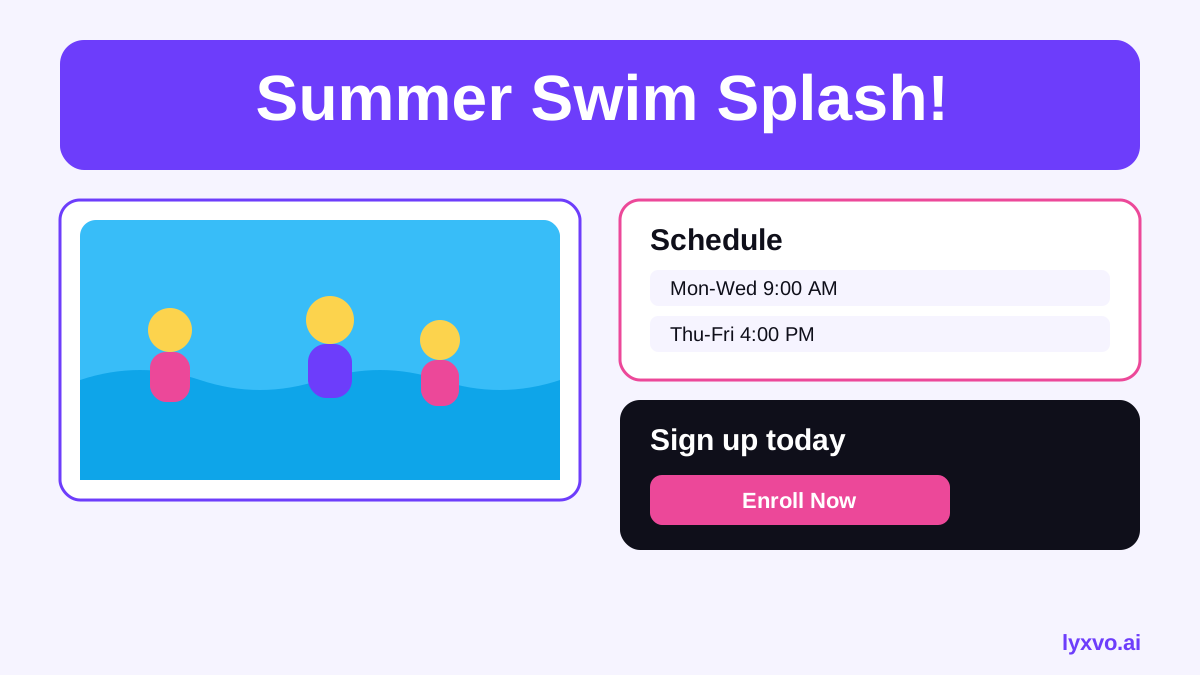
For printing, aim for 300 dpi so photos and text stay sharp. Place the main headline at the top, a bright photo of children in the water in the middle, then the schedule, price and enrollment call-to-action at the bottom.
Write copy that converts
Keep the wording short and specific.
- Headline: "Learn to Swim This Summer" works better than "Swimming Program Available".
- Subhead: "Certified instructors. Small classes. Ages 4 to 12."
- Body: three to five bullets on schedule, levels and price.
- Call to action: "Enroll today at yourpool.com/summer or call 555-0123."
A sample text block you can adapt:
Summer Splash Swim Lessons Ages 4 to 12 · Beginner to advanced levels June 15 to August 14 · Mon, Wed, Fri · 9:00 to 10:00 AM Certified instructors · Small classes of up to 8 swimmers Early bird fee until May 31 · Sibling discount available Enroll now: yourpool.com/summer or scan the QR code
Make the flyer in Lyxvo AI
Lyxvo AI's design agent can plan and build a flyer from your brief, then let you edit every part directly. Here is how to work through it:
- Open the flyer studio. Go to Lyxvo's flyer maker or open the studio directly with the flyer format link.
- Describe the event. Write a short brief: "Summer swimming lessons for kids ages 4 to 12, bright and friendly, blue and yellow palette, June 15 to August 14, enrollment at yourpool.com/summer." Add the details from the checklist above.
- Let the agent plan, then design. It proposes a layout and then produces the flyer with your headline, schedule and sign-up block.
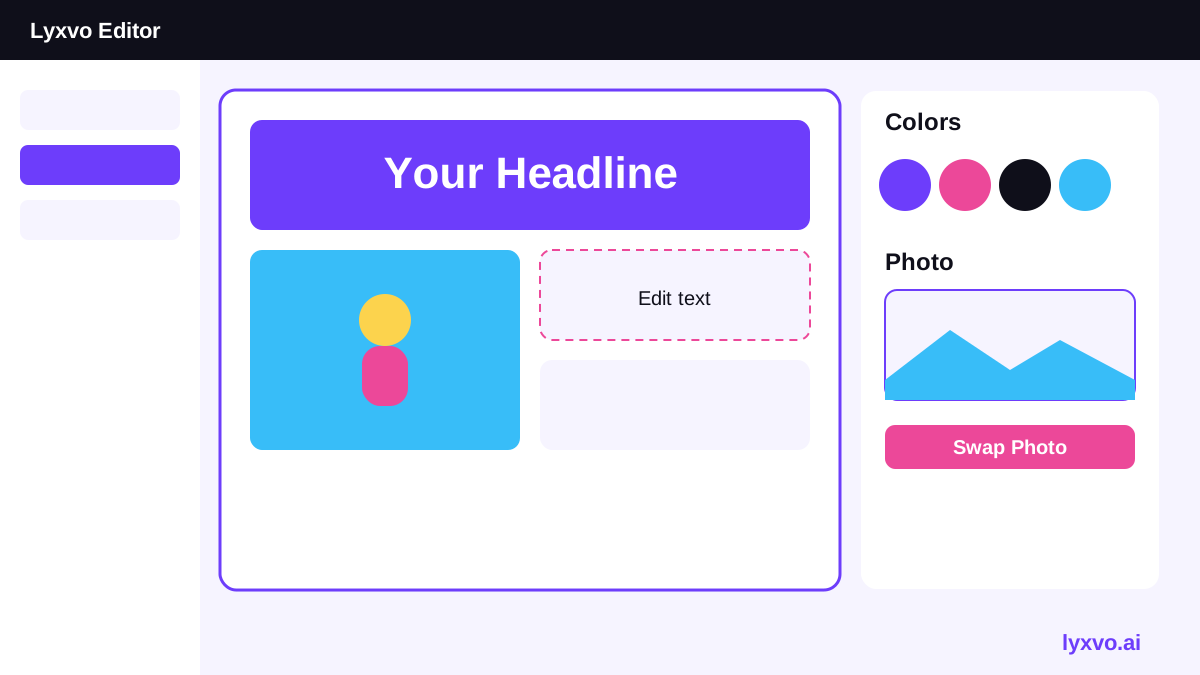
- Edit in the Canva-style editor. Change text, swap photos, adjust colors and move elements directly on the canvas.
- Export. Download as a PNG at real size for print, or share a digital version. Use the high-resolution export for a 300 dpi print file.
- Make other sizes. If you also need a social post, use Magic Resize to adapt the same design to other formats, and use Translate to produce a Spanish or other-language version for your families.
If you want a matching poster for the pool entrance, the poster maker keeps the same colors and fonts.
Plan your enrollment push
A beautiful flyer does little without a clear path to sign up.
- Post the flyer at least four to six weeks before the start date.
- Set an early-bird deadline to create urgency.
- Track sign-ups by source: add a different link or code for each channel (flyer, Instagram, school newsletter) so you know what works.
- Share a short reminder two weeks before the deadline.
Checklist before you publish
- [ ] Program name, age range and levels are correct
- [ ] Dates, days and times match your schedule
- [ ] Price, discounts and what is included are accurate
- [ ] Pool address and entry instructions are clear
- [ ] Sign-up link or QR code works on a phone
- [ ] Phone number and email are current
- [ ] Safety and instructor claims are verified
- [ ] File exported at 300 dpi for print or sized correctly for social
Final tips
Keep the design bright and readable from a distance, use one or two brand colors, and let a real photo of children do most of the emotional work. Start with a clear brief, use the editor to refine details, and always double-check the facts before printing.
Try it in Lyxvo AI
Describe it in your own words and the design agent starts on the right flow. Free to start.
Related tool: AI flyer and poster maker, print-ready