AI Icon for Chrome Extension Manifest: How to Design It Right
An AI icon for your Chrome extension manifest is the artwork Chrome shows in the toolbar, the extensions page and the Web Store, so it needs the right sizes and a clear shape. This guide explains which icon files your manifest should reference, how to design them so they stay readable at 16 pixels, and how to produce the full set quickly with an AI design tool.
What the manifest icon fields actually require
A Manifest V3 extension declares its artwork in the `icons` field of `manifest.json`, and the toolbar button can point to a separate `action` icon. Chrome reads these files at several sizes, so you should supply a set rather than one image.
| Use | Size (px) | Where it appears |
|---|---|---|
| Toolbar and small UI | 16 | Toolbar, tab-level menus |
| Extensions page | 32 | chrome://extensions list |
| Standard display | 48 | Extension management pages |
| Web Store and large display | 128 | Chrome Web Store listing, install dialog |
A typical manifest entry looks like this:
~~json "icons": { "16": "icons/icon16.png", "32": "icons/icon32.png", "48": "icons/icon48.png", "128": "icons/icon128.png" }, "action": { "default_icon": { "16": "icons/icon16.png", "32": "icons/icon32.png" } } ~~
Use PNG files, keep paths relative to the extension folder, and make sure every file exists. A missing file is one of the most common reasons an icon fails to show.
Design rules for an icon that works at 16 pixels
Most people see your icon at 16 or 32 pixels, so detail disappears fast. Follow a few rules:
- Use one bold shape or letter. A single symbol reads better than a scene.
- Limit colors to two or three. High contrast against both light and dark toolbars is essential.
- Keep a safe margin. Leave roughly 10 percent of the canvas empty on each side.
- Avoid thin lines and small text. Anything under about 2 pixels of stroke will blur.
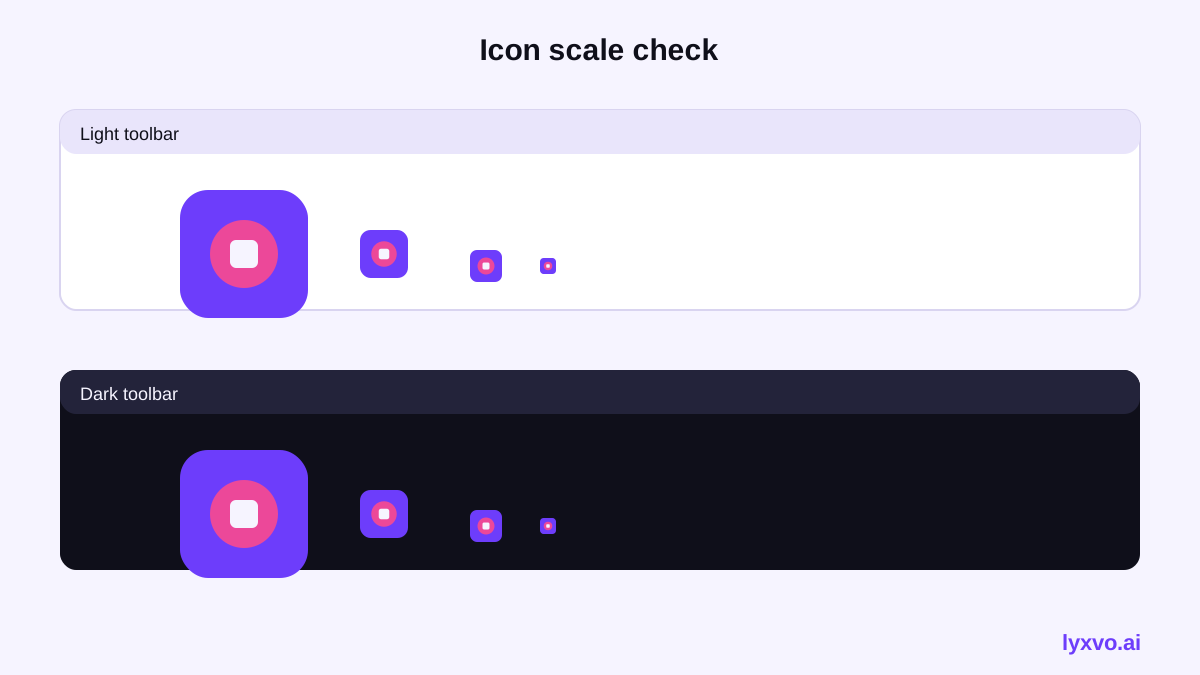
- Test on light and dark backgrounds. Your icon should stay recognizable on both.
Tip: Design at 128 pixels, then shrink a copy to 16 pixels and look at it at actual size. If the meaning is lost, simplify the shape.
Step-by-step: creating the icon set with an AI design tool
- Write a short concept. Name the job your extension does, such as "save tabs" or "check grammar," and pick one visual metaphor.
- Generate the base mark. Open the AI logo generator or the app icon generator and describe the symbol, your two or three colors and a flat style.
- Choose a square canvas. Start at 128 by 128 pixels so you have a master size for scaling.
- Export every size. Produce 16, 32, 48 and 128 pixel PNGs with transparent or solid backgrounds, depending on your design.
- Check at real size. View each export on a light and a dark browser toolbar.
- Update the manifest. Add the paths to `icons` and `action.default_icon`, then reload the extension in chrome://extensions.
How to make the icon in Lyxvo AI
Lyxvo AI's design agent can plan and produce the mark for you. You describe the extension and its style, and the agent generates the icon artwork. In the studio you can then edit colors or shapes directly with the Canva-style editor, and the platform includes an app icon generator for producing icon files in the sizes you need.
The AI logo generator is a good starting point if your extension needs a recognizable brand mark, and you can open the design studio at /design/?format=logo to work on it. Exports are available as PNG at real size, so the files you download are ready to drop into your extension folder. You can start free with Lyxvo Lite, which has a daily limit, and see plan details on the pricing page.
Note: Check the current Chrome extension documentation before publishing, because icon and manifest requirements can change between Chrome releases.
Common mistakes to avoid
- Referencing files that were never exported. Verify each path in `manifest.json`.
- Using a photo or gradient-heavy image. These turn to mush at 16 pixels.
- Forgetting the 128 pixel icon. The Web Store listing needs it.
- Copying another product's logo. Design an original symbol that represents your extension.
- Ignoring dark mode. Test on dark toolbars before you publish.
Checklist before you publish
- [ ] PNG files exist for 16, 32, 48 and 128 pixels
- [ ] Paths in `icons` and `action.default_icon` match the files exactly
- [ ] Icon reads clearly at 16 pixels
- [ ] Two to three colors with strong contrast
- [ ] Tested on light and dark toolbars
- [ ] A 128 pixel version is ready for the Web Store listing
Next steps
Once your icon is set, consider a matching promotional image for your Web Store listing. The free design templates library can help you lay out screenshots and banners that match your icon's style.
Try it in Lyxvo AI
Describe it in your own words and the design agent starts on the right flow. Free to start.
Related tool: Free design templates you can edit in minutes