AI Icon Set for Admin Dashboard Webapp: A Practical Guide
An AI icon set for admin dashboard webapp work saves hours of drawing and searching, but only if the icons match each other and the interface they serve. This guide shows you how to plan, generate, and export a consistent icon set for a dashboard, from the first style decision to the final SVG files.
Why admin dashboards need their own icon set
An admin dashboard is a dense interface. Users scan navigation menus, tables, filters, status badges, and action buttons many times a day, so every icon has to be read in a fraction of a second. Generic icon packs often mix stroke weights, corner radii, and metaphors, which makes a dashboard look stitched together.
A dedicated set solves three problems:
- Consistency: every icon shares the same grid, stroke, and corner style.
- Meaning: icons map to your actual features (for example, "Invoices" or "Escalations"), not generic shapes.
- Scalability: you can add new icons later without breaking the visual rhythm.
Step 1: Define the icon style before you generate anything
Before you create a single icon, write down the rules. A short style sheet prevents drift when you generate icons in batches.
| Attribute | Example decision |
|---|---|
| Grid | 24 x 24 px with 2 px padding |
| Style | Outline, 1.5 px stroke |
| Corners | Rounded, 2 px radius |
| Caps and joins | Round |
| Colors | Single color using currentColor, so it inherits the theme |
| Density | Simple shapes, no gradients or shadows |
Tip: Choose one style and stick to it. Mixing filled and outline icons in the same navigation is the most common cause of a messy dashboard.
Step 2: Build a list of icons from your product
Do not start with a generic list. Start with the screens your admin users actually open. A typical list for a dashboard might include:
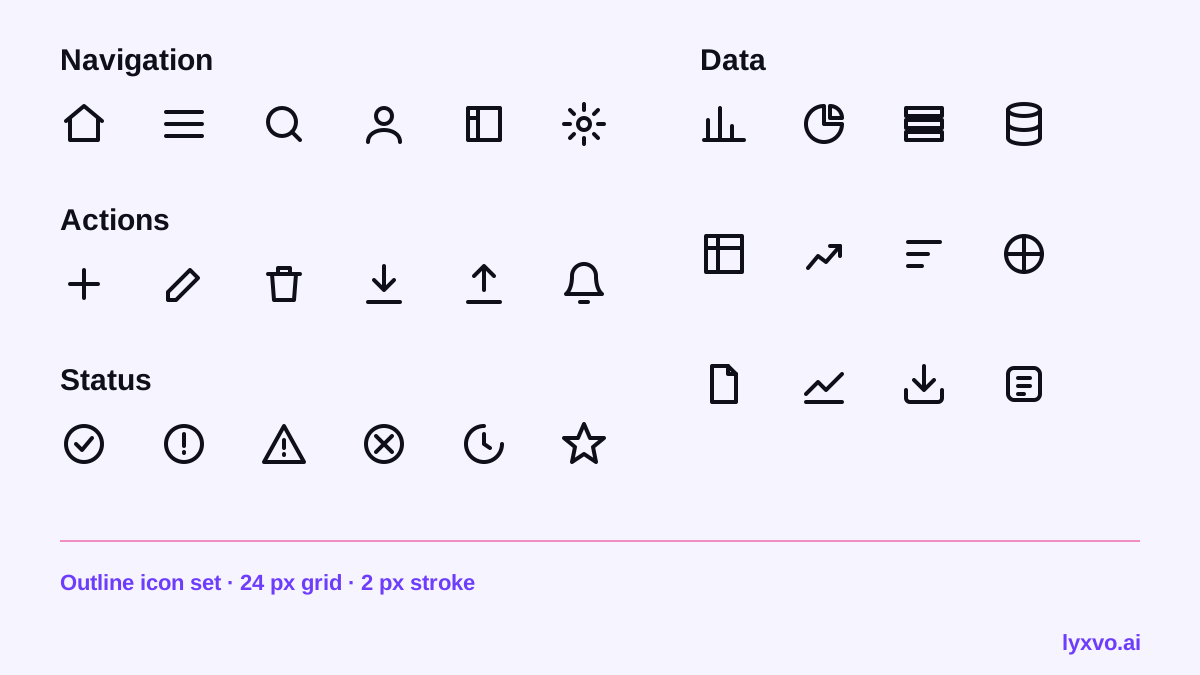
- Navigation: Overview, Users, Orders, Products, Reports, Settings
- Actions: Add, Edit, Delete, Duplicate, Export, Filter, Search, Refresh
- Status: Success, Warning, Error, Pending, Info
- Data: Chart, Table, Calendar, Download, Upload
- Account: Profile, Roles, Logout, Notifications
Group the list by category. Each group becomes a batch in your generation process, which keeps related icons visually consistent.
Step 3: Generate the icons in batches
Work one group at a time. Give the same style rules to every request in a batch, and name each icon with a predictable pattern such as `nav-users`, `action-export`, or `status-warning`. Predictable names make it far easier to import the set into your codebase later.
After each batch, review the results side by side at the size they will appear in the interface, usually 16, 20, and 24 px. Icons that look balanced at large sizes often lose detail when small, so check the smallest size first.
Step 4: Check for consistency and accessibility
Run a quick audit before you export:
- Do all icons share the same stroke width and corner radius?
- Is each metaphor clear without a label? If not, pair it with text in the navigation.
- Do status icons use shape as well as color, so colorblind users can distinguish them?
- Are icons centered on the same grid, so they do not jump when swapped?
Step 5: Export in the formats your app needs
For a web admin dashboard, SVG is the best choice. It scales cleanly, can inherit colors from CSS, and keeps file sizes small. If your team works in design tools, export the set in a format that lets designers keep editing it, and keep the naming convention intact.
A good export checklist:
- Export every icon as SVG on the 24 px grid.
- Remove hard-coded fill and stroke colors so the icons adopt `currentColor`.
- Keep the file names consistent with your code, for example `icon-users.svg`.
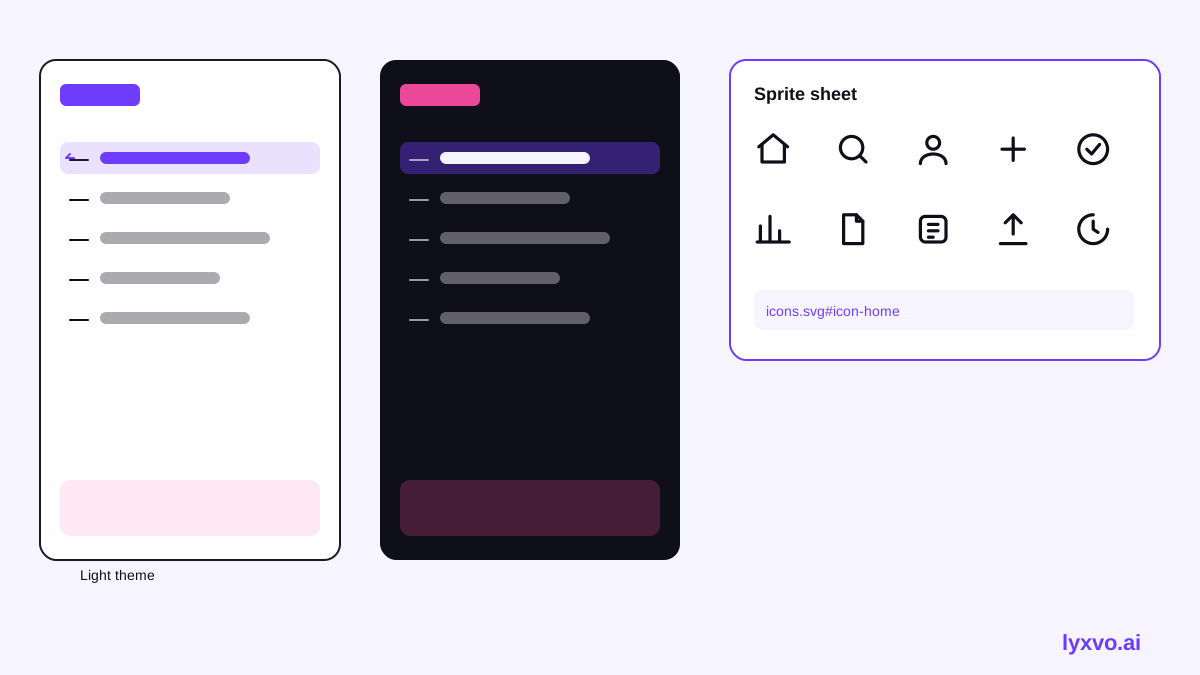
- Create a single sprite or an icon component file so developers import icons in one place.
- Store the set in version control next to your design tokens.
How to create this icon set in Lyxvo AI
Lyxvo AI's design agent can help you move from a plain-language brief to a set of icons you can refine in the editor. Here is a practical workflow:
- Open the AI icon generator tools or start in the studio and describe your dashboard, including the style rules from Step 1.
- Generate icons group by group, using the category list from Step 2.
- Use the Canva-style editor to adjust individual icons: change colors, tweak shapes, and edit text labels directly.
- Check each icon at small sizes, then duplicate the best-matching icons to fill gaps in the set.
- Export your finished set as SVG for the web, and use the Figma export with tokens if your designers need to keep working in Figma.
If you also need a full dashboard layout to place the icons in, you can design the screens with the AI UI design generator and then return to the icon set to finish the details.
Common mistakes to avoid
- Starting without a style sheet. Generated icons will drift in weight and corner style within a few batches.
- Using too many detailed icons. Dashboards need simple glyphs. Remove interior details that disappear below 20 px.
- Skipping the small-size test. An icon that reads well at 48 px may be unreadable in a table row.
- Letting names drift. Inconsistent file names create confusion when developers import the set.
- Ignoring dark mode. Test every icon on your dark theme background before you finalize it.
Final checklist
- [ ] Style sheet written: grid, stroke, corners, colors, density
- [ ] Icon list grouped by navigation, actions, status, data, and account
- [ ] Batches generated with consistent rules and predictable names
- [ ] Every icon reviewed at 16, 20, and 24 px
- [ ] Status icons distinguishable without color alone
- [ ] SVGs exported with `currentColor` and a single import point
- [ ] Set tested in light and dark themes
A consistent icon set is one of the highest-impact details in an admin dashboard. Plan the style first, generate in small batches, and check the result at real sizes. For more guides on building interface assets, visit the Lyxvo AI blog, and see plans and pricing when you are ready to scale your design work.
Try it in Lyxvo AI
Describe it in your own words and the design agent starts on the right flow. Free to start.
Related tool: AI UI design generator for apps and websites
Whole apps and websites are designed with the Lyxvo Engine, rented separately from the design plans; every account can try 2 pages free.