AI Invitation for Bridal Shower with Registry Link

An AI invitation for a bridal shower with registry link lets you design a polished card in minutes and place the registry URL exactly where guests will look for it. This guide shows what to include, how to lay it out, and how to create and export one in Lyxvo AI.
What every bridal shower invitation needs
A good shower invitation answers the guest's questions before they have to ask. Include these details in a clear order:
- Who: the bride's name (and the host, if it is not the bride)
- What: "Bridal Shower" in large type, with a short theme line if you have one
- When: the date, start time and end time
- Where: venue name and full address, or a note that the address follows
- RSVP: a name and a date to reply by
- Registry link: the full URL, plus a short label such as "Wedding registry" or a QR code
The registry link is the detail people most often miss. Put it on the main side of the card, not in tiny print on the back, and add the registry name so guests know it is the right one.
Why use AI to design it
Writing the copy and choosing layout, fonts and colors takes time. An AI design agent can produce several directions from one brief, so you compare options instead of starting from a blank page. You still check every fact yourself, especially dates, addresses and links.
Step-by-step: make the invitation in Lyxvo AI
- Open the studio. Go to Lyxvo AI's invitation maker or start directly in the flyer studio and choose a print-friendly format.
- Describe the event. Write a short brief: "Bridal shower for Maya, garden brunch theme, soft sage and cream, elegant serif headings." Include the key details in the same message so the agent places them correctly.
- Review the layouts. Pick the version where the registry link sits in the lower third, close to the RSVP line.
- Edit directly. Use the Canva-style editor to change text, photos and colors. Retype the registry URL carefully and check it by opening it on your phone.
- Check the spelling of names and dates. Read the card aloud once.
- Export. Download a PNG at real size for sharing, or a print-ready file at 300 dpi for printing.
Choose the right format for each channel
| Where guests see it | Best format | Tip |
|---|---|---|
| Printed card | Print at 300 dpi | Keep text 5 mm from the edge |
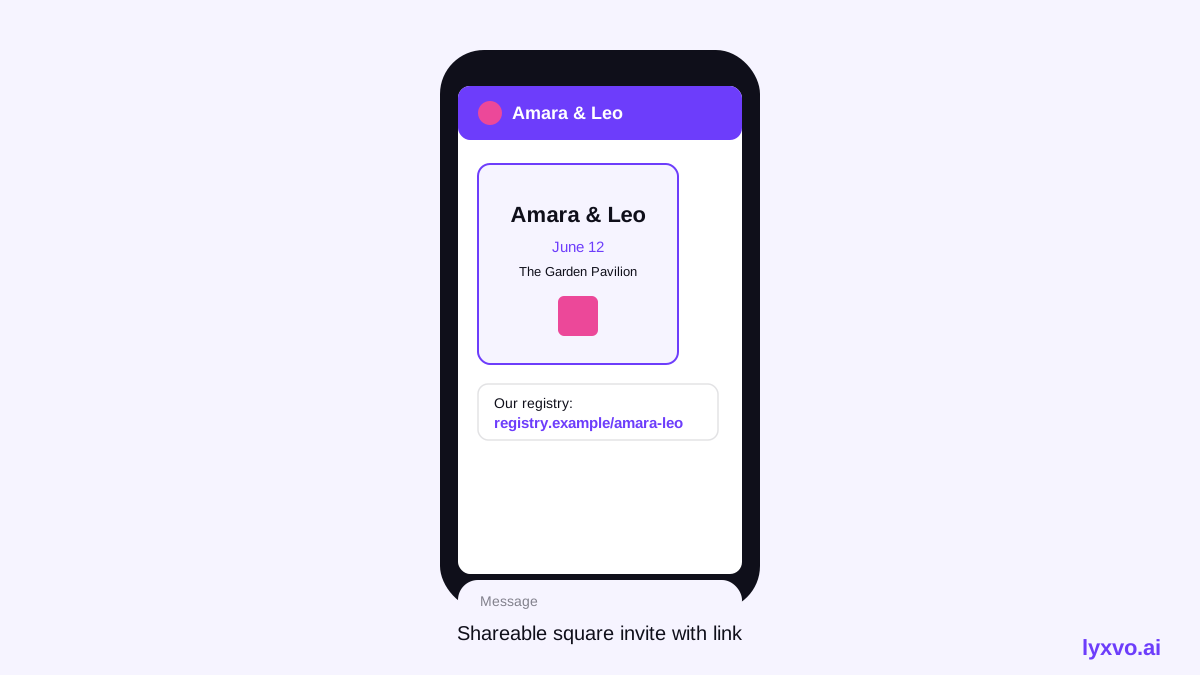
| WhatsApp or text message | Square or portrait PNG | Put the URL in the message text too |
| Instagram post | Social media post | Add the link in the bio or caption |
| Instagram story | Story format | Use the link sticker if your account supports it |
For digital invitations, sending the registry URL as plain text in the message is more reliable than relying on an image alone. Many people will tap a link but cannot scan a code from a phone screen.
Make the registry link easy to use
- Shorten the URL with a link you control, if the registry platform allows it, so the text is readable on a card.
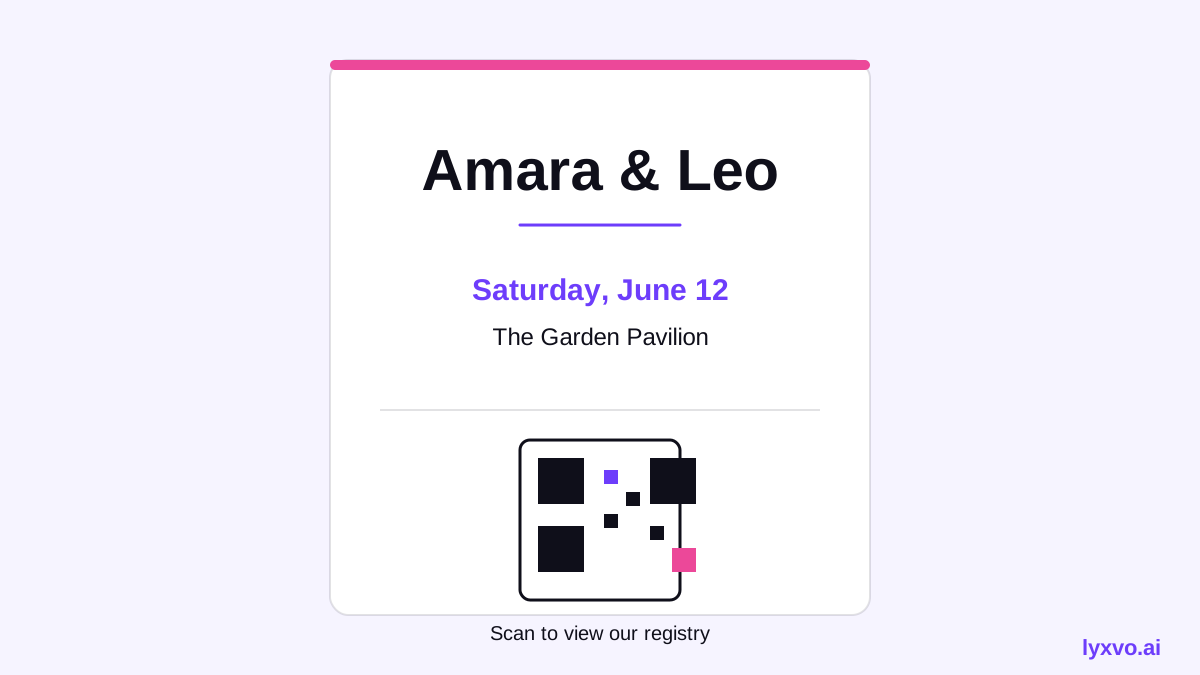
- Add a QR code next to the link for printed cards, and test it with two different phones before printing.
- Write one sentence of guidance, such as "Gifts can also be sent to the address below."
- Keep the registry name visible, for example "Registry: [store name]".
Common mistakes to avoid
- Wrong date or time zone. Write the time once in the local zone and check it against your calendar.
- Broken or private links. Open the link in a private browser window to confirm it loads for guests.
- Too much text. Keep the card to the essentials; longer details can go on a wedding website.
- Low contrast. Pale script on a light background is hard to read on a small screen.
Send and track responses
Send the digital version first, then mail printed cards to older relatives. Set an RSVP deadline about three weeks before the shower so you can confirm headcount with the venue. If you use Lyxvo AI's Plus or higher plans for larger batches, you can reuse the same design for a second round of reminders with a single text change.
Quick checklist before you send
- Names, date, start and end time are correct
- Venue address is complete and matches the map pin
- Registry link opens on a phone
- RSVP name and deadline are visible
- File is exported at the right size and resolution for where it will appear
With these steps, an AI-designed invitation can look professional and carry the registry information clearly. Start with the invitation maker, or explore free design templates for layout ideas.
Try it in Lyxvo AI
Describe it in your own words and the design agent starts on the right flow. Free to start.
Related tool: AI invitation maker for weddings, birthdays and events