AI Kids Meal Menu with Activity Panel: A Practical Guide
An AI kids meal menu with activity panel combines a clear list of child-friendly dishes with a playful section kids can colour, solve or doodle on while they wait. Done well, it keeps children busy, helps parents order faster and makes your restaurant feel welcoming to families.
Why a kids menu with an activity panel works
A kids menu has a different job from the adult menu. Parents want to see portions, allergen notes and prices at a glance. Children want something to look at, touch and talk about. An activity panel on the back or inside fold gives them that, and it often becomes the page that gets photographed and shared.
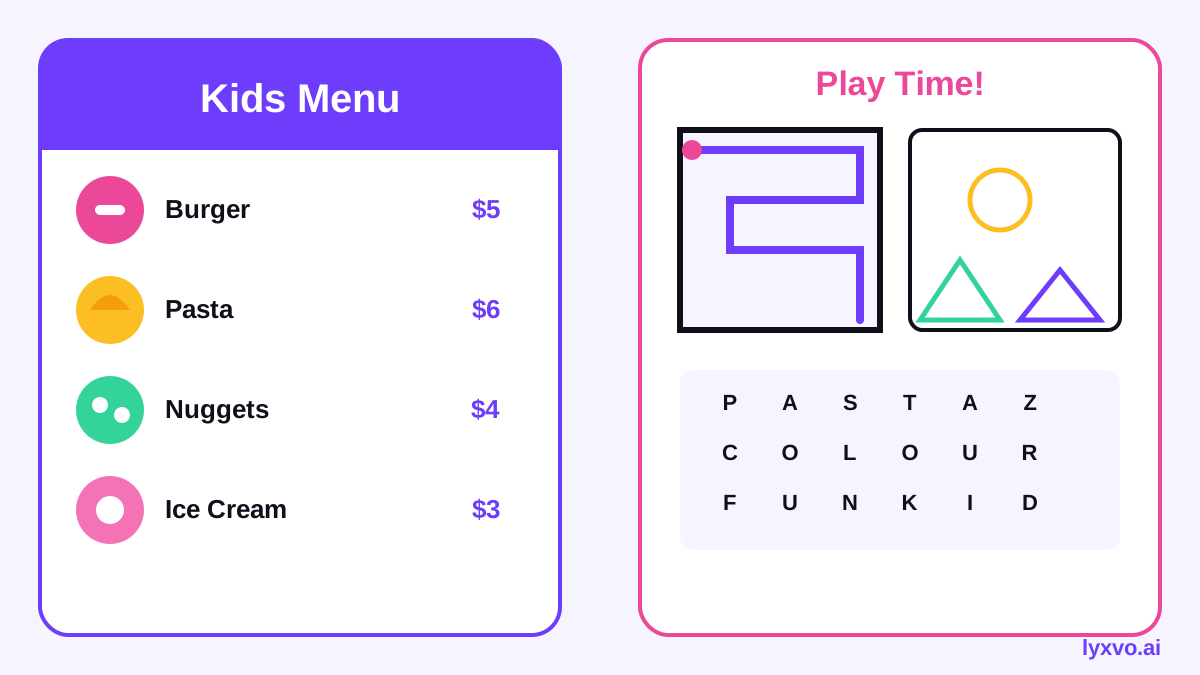
The key is to keep both halves simple. Limit the meal list to what kids actually order, use large type and pictures, and make the activity panel something a child can finish in a few minutes: a maze, a spot-the-difference, a word search or a colouring scene tied to your brand.
What to include on the menu side
Before you design anything, collect the content:
- Dish names written the way a child would say them ("Mini Pizza", "Star Pasta")
- Short descriptions, one line each, with clear ingredients
- Allergen icons or a note directing parents to staff
- Prices, drinks and any set or combo options
- Your logo, opening details and contact information
Keep the wording friendly but accurate. Never describe a dish as nut-free or gluten-free unless your kitchen can confirm it.
What to include on the activity panel
A good activity panel is short and reusable. Good options include:
- A maze that starts at the kids meal and ends at a mascot
- Five spot-the-difference pairs drawn from your restaurant
- A simple word search using dish names
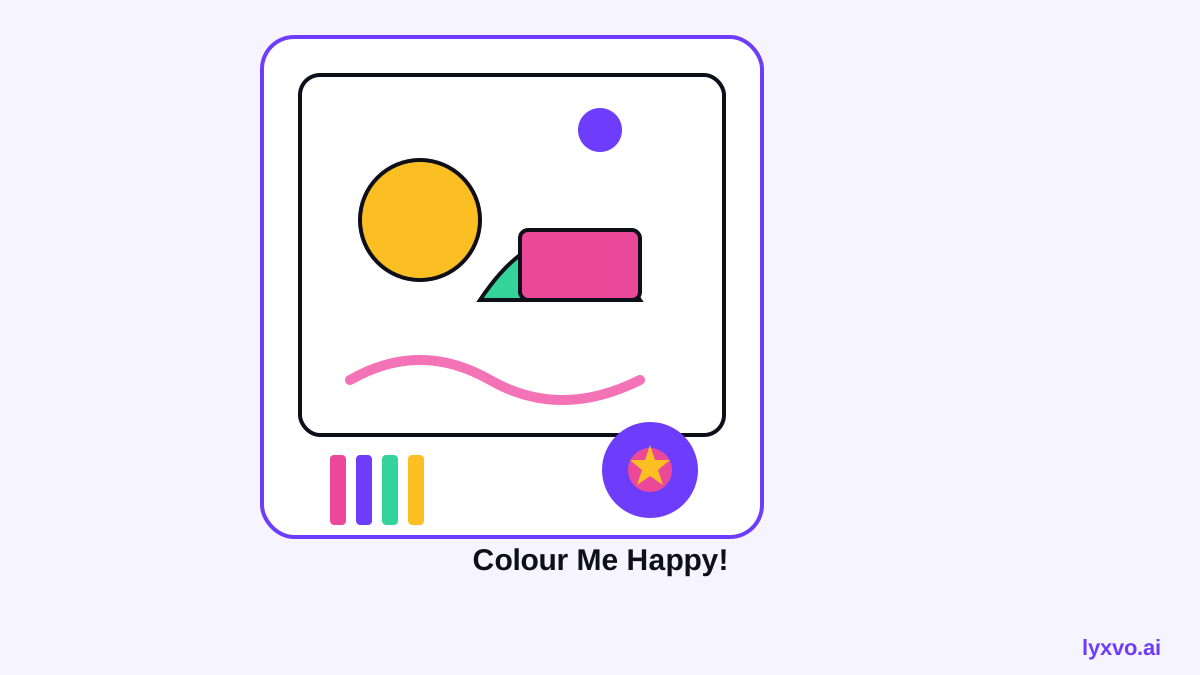
- A colouring scene with a space for the child's name
- A "draw your favourite meal" box
Avoid puzzles that need reading skills beyond your target age, and leave clear white space for crayons.
Matching the panel to age groups
| Age range | Good activity | Keep away from |
|---|---|---|
| 3-5 | Large colouring scenes, simple mazes | Small text, word searches |
| 6-8 | Spot-the-difference, dot-to-dot | Long instructions |
| 9-12 | Word search, crosswords with picture clues | Overly babyish themes |
Layout and size tips
Decide on your print size first. A folded A4 or US Letter menu is common for kids, and a single-sheet A5 works well for quick-service spots. Keep fonts large, leave margins for trimming, and make sure the activity panel sits on the side children can reach without the menu side crowding it.
For print, export at 300 dpi so colouring areas and small icons stay sharp. If you are printing at home, test one copy first; line weights that look fine on screen can fill in when printed on glossy paper.
How to make it in Lyxvo AI
Lyxvo AI's design agent can create flyers, posters and print layouts at 300 dpi, and its Canva-style editor lets you change text, photos and colours directly. Here is a practical workflow:
- Open the flyer maker or the Studio flyer format.
- Describe the brief: "Kids menu for a family café, two-sided A4, friendly cartoon style, front lists 5 kids meals with icons, back has a maze, spot-the-difference and colouring scene."
- Review the generated layout, then edit dish names, prices and allergen notes in the editor.
- Adjust colours to match your brand kit, and replace any illustrations you want to keep consistent.
- Export as a print-ready file at 300 dpi, or export a PNG at real size for a digital menu.
If you also need a logo or a menu for the adult section, create them in the same project so colours and fonts stay consistent.
Checklist before you print
- [ ] Every price and dish name checked against the current menu
- [ ] Allergen information confirmed with the kitchen
- [ ] Activity answers verified (the maze is solvable, the word search words are correct)
- [ ] Text at least a comfortable size for your age group
- [ ] Fold and bleed lines respected
- [ ] One test print reviewed in person
Making the menu work digitally
Many restaurants now share a PDF or QR-code menu. The activity panel can become a downloadable colouring page or a social post. Use the Instagram post maker to turn one colouring scene into a shareable image, which doubles as marketing for your family offer.
Common mistakes to avoid
- Too much text. Children skim. Use icons and short labels.
- Activities that need a pen to be legible. Leave space and check contrast.
- Unclear allergen information. Always direct parents to staff for specifics.
- Forgetting the adult menu. Parents still need to see drinks and sides clearly.
- Printing before proofing. Always test one copy.
Note: Printing costs, paper sizes and digital menu platforms change over time. Check current options with your printer before you order.
Summary
An AI kids meal menu with activity panel is a practical way to make family dining easier. Plan the content first, keep the layout simple, match activities to age, and proof everything before printing. With Lyxvo AI you can draft both sides, edit them directly and export print-ready files, so your menu is ready for the next family rush.
For more layouts, browse free design templates and start a design today.
Try it in Lyxvo AI
Describe it in your own words and the design agent starts on the right flow. Free to start.
Related tool: AI menu maker for restaurants and cafés