AI Logo with Transparent Background PNG Download: A Practical Guide
An AI logo with a transparent background PNG download gives you a mark that sits cleanly on any color, photo or template without a white box around it. This guide explains what transparency means, how to generate and export a logo the right way, and how to check the result before you use it.
Why a transparent background matters
A logo with a transparent background has no solid fill behind the artwork. Only the mark and text are visible, so the logo blends into a website header, a dark slide, a social post or a printed sign. A white rectangle behind a logo looks unprofessional the moment it lands on a colored surface.
The PNG format is the usual choice because it supports an alpha channel, which stores transparency per pixel. An SVG is even better for scaling, but PNG is what most platforms, chat apps and document tools accept directly.
Transparency is only useful if the edges are clean. Soft halos, leftover white pixels or a faint box around the mark show up quickly on dark backgrounds.
What to check before you download
Before exporting, decide what the logo will be used for and check these points:
- Format: PNG with alpha for web, slides and social; SVG for anything that must scale infinitely.
- Color mode: RGB for screens, CMYK-ready artwork if a printer will work from it.
- Resolution: at least 1000 px on the longest side for flexible use; print needs far more detail (300 dpi at the physical size).
- Padding: leave a small clear margin around the mark so it does not crop at the edges.
- Versions: you will often need a dark-on-light version, a light-on-dark version and a single-color version.
Step-by-step: generate an AI logo with transparency
- Write a short brief. Name the business, the industry, three adjectives (for example, calm, precise, friendly) and any colors or shapes to avoid.
- Generate options. Ask for several directions rather than one. Compare the simplest marks first, because simple shapes survive small sizes and dark backgrounds best.
- Refine the choice. Adjust type, spacing and color until the mark reads clearly in one color.
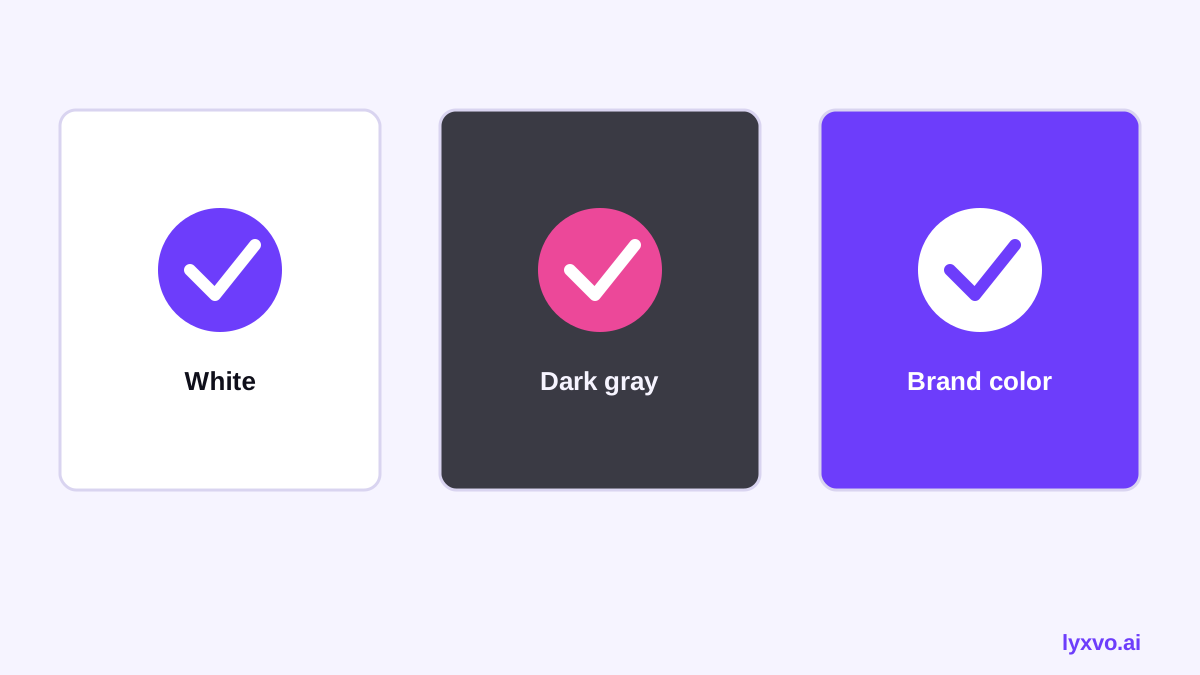
- Test on backgrounds. Place the candidate on white, black and a brand color before exporting.
- Export with transparency enabled. Choose PNG and confirm the background option is set to transparent, not white.
- Open the file to verify. View it on a dark and a light background. Zoom in on the edges.
Common problems and fixes
| Problem | Likely cause | Fix |
|---|---|---|
| White box appears on dark pages | Background exported as white | Re-export as PNG with transparency |
| Jagged or fuzzy edges | Low resolution | Export at a larger size or use SVG |
| Halo around text | Anti-aliasing on a flat color fill | Re-export or edit the text layer |
| Logo looks faded on colored backgrounds | Low contrast or semi-transparent fill | Use a solid single-color version |
| Mark gets cut off | No padding | Add a margin and re-export |
Using the right logo sizes and versions
A single PNG rarely covers every need. Plan a small set of files:
- A full-color logo on a transparent background for websites and presentations.
- A white or reversed version for dark headers and video.
- A one-color version for stamps, embroidery and fax-style documents.
- An icon-only mark for favicons and app icons, cropped to a square.
Keep the file names clear, such as brand-logo-color.png and brand-logo-white.png, so the team uses the correct version.
How to make this in Lyxvo AI
Lyxvo AI includes a logo design flow in its design studio. You can start from the logo format at Lyxvo's logo studio, or read about the approach in the AI logo generator guide.
A practical workflow:
- Describe your brand and generate several logo directions.
- Use the Canva-style editor to change text, colors and spacing directly.
- Build a brand kit so the logo is consistent across formats.
- Export as PNG at real size for transparent-background use, or as SVG when your tools support it.
For app icons, the app icon generator covers the iOS, Android and web icon sizes that often come from the same mark.
Quick checklist before you publish
- The PNG has an alpha channel and no solid background.
- The logo is legible on white, black and your brand color.
- Edges are smooth when zoomed to 200 percent.
- There is enough padding around the mark.
- You have a reversed and a single-color version saved.
- The file name and folder make the version obvious.
Using the logo across platforms
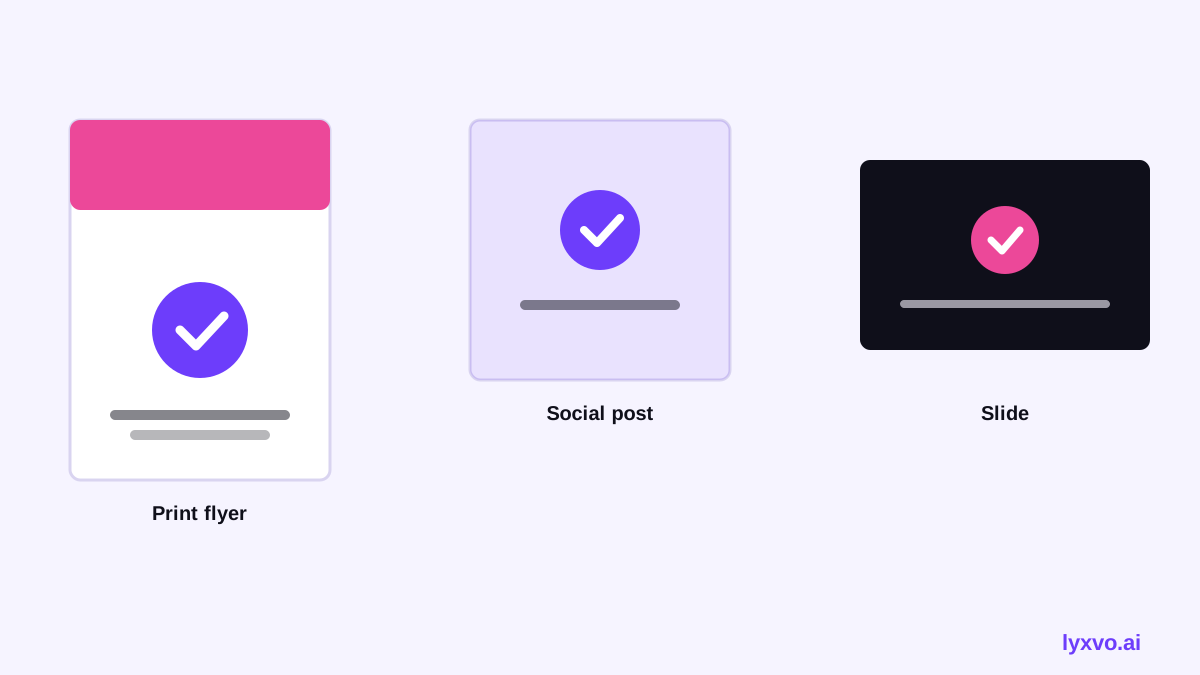
Once the transparent PNG is ready, reuse it carefully. Social platforms crop profile images into circles, so keep the important parts of the mark in the central area. Presentation templates usually look best with the reversed version on dark slides. For printed materials such as flyers and posters, use the highest-resolution source you have. The flyer maker and poster maker can place your logo on print layouts, and the social media post generator handles exact sizes for each network.
Final tips
Do not stretch a logo to fit a space. Scale it proportionally. Avoid adding drop shadows to a transparent logo unless the brand already uses them, because they can look dated and blur small sizes. If a platform rejects transparent files, convert to a flat version only for that platform and keep the transparent master for everything else.
Note: platform image rules and export options change over time. Check current upload requirements for each channel before publishing, as details may have changed since this guide was written.
A good transparent logo is simple, tested on real backgrounds and saved in a small, clearly named set of versions. Start with a clear brief, export carefully and verify the edges before you ship it.
Try it in Lyxvo AI
Describe it in your own words and the design agent starts on the right flow. Free to start.
Related tool: AI logo generator with a complete brand kit