AI Menu Board Design for a Coffee Shop Wall
An AI menu board design for a coffee shop wall can turn a rough drink list into a clean, readable layout in an afternoon. The trick is to plan for distance, lighting and how quickly customers need to scan prices before you ever pick a font.
Why the wall menu is different from a menu card
A wall menu board is read from across the room, often while a customer is already queuing. A paper menu can be dense; a wall board cannot. Design it to be scanned in a few seconds.
Before you design anything, decide three things:
- Viewing distance. Stand where a customer stands in line and measure. Text that is legible at 1 metre may be unreadable at 4 metres.
- Format. Printed panels, a chalk-style board, or a digital screen each have different colour and resolution limits.
- Categories. Most coffee shops need only four to six groups: espresso, filter, cold drinks, tea, food and extras.
Note: printing and screen specifications change over time, and the best size for your wall depends on your space. Check the current requirements with your print shop or screen supplier before ordering.
Step 1: Write the menu copy first
Keep names short and consistent. Use one size word per drink (for example S, M, L) and show prices in a single column. Remove anything that does not help a decision. Long tasting notes belong on a separate card or the menu app, not on the wall.
A simple structure works well:
- Section heading (e.g. ESPRESSO)
- Drink name, with an optional one-line descriptor
- Price, aligned to the right
Step 2: Choose a layout that scans fast
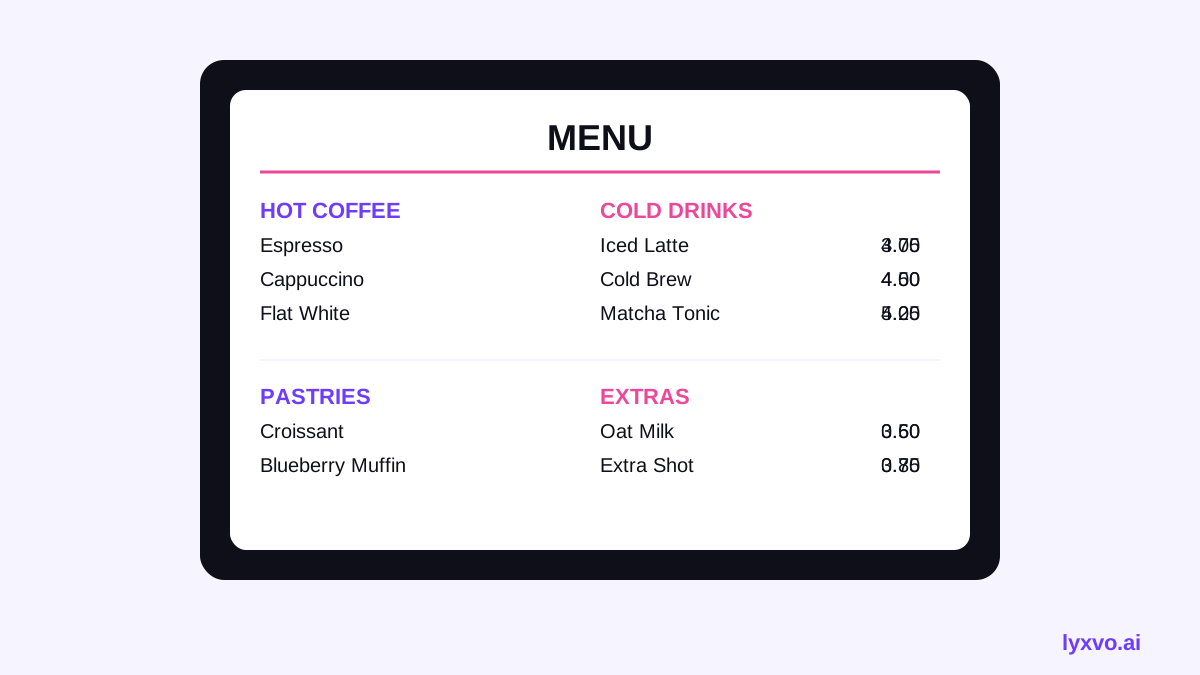
Customers read a wall board in a predictable pattern. Put the most popular items in the top-left and top-centre zones, group related drinks tightly, and leave generous spacing between sections. Use one or two accent colours at most, and reserve the strongest colour for prices or featured items.
| Element | Good practice | Avoid |
|---|---|---|
| Section headings | Large, bold, short | Long sentences |
| Drink names | Medium weight, one line | Wrapping to two lines |
| Prices | Aligned in one column | Scattered across the panel |
| Background | Plain or low-texture | Busy photos behind text |
Step 3: Design the board with AI
You can draft the whole layout yourself in Lyxvo AI's design studio. Choose a menu-style format, describe your shop (tone, colours, categories and sizes), and let the design agent produce a first layout. Then refine it in the Canva-style editor: edit text directly, swap colours, and adjust spacing until the price column lines up.
For a starting point, browse the free design templates, or go straight to the AI menu maker to build a menu layout from a prompt. If your board sits alongside a logo, create one with the AI logo generator so colours and fonts stay consistent across signage, cups and social posts.
Step 4: Adapt the board for the wall
Once the design is right on screen, check it at the real size you will print or display.
- Printed panels: export at real size, and ask your printer for the required resolution. Lyxvo AI can export PNG at real size, which helps you check proportions before sending the file.
- Chalk or manual boards: use the design as a reference grid, then keep the hierarchy the same when you hand-letter it.
- Digital screens: design for the screen's aspect ratio, keep text large, and avoid rapid animation that distracts from ordering.
Step 5: Test it in the shop
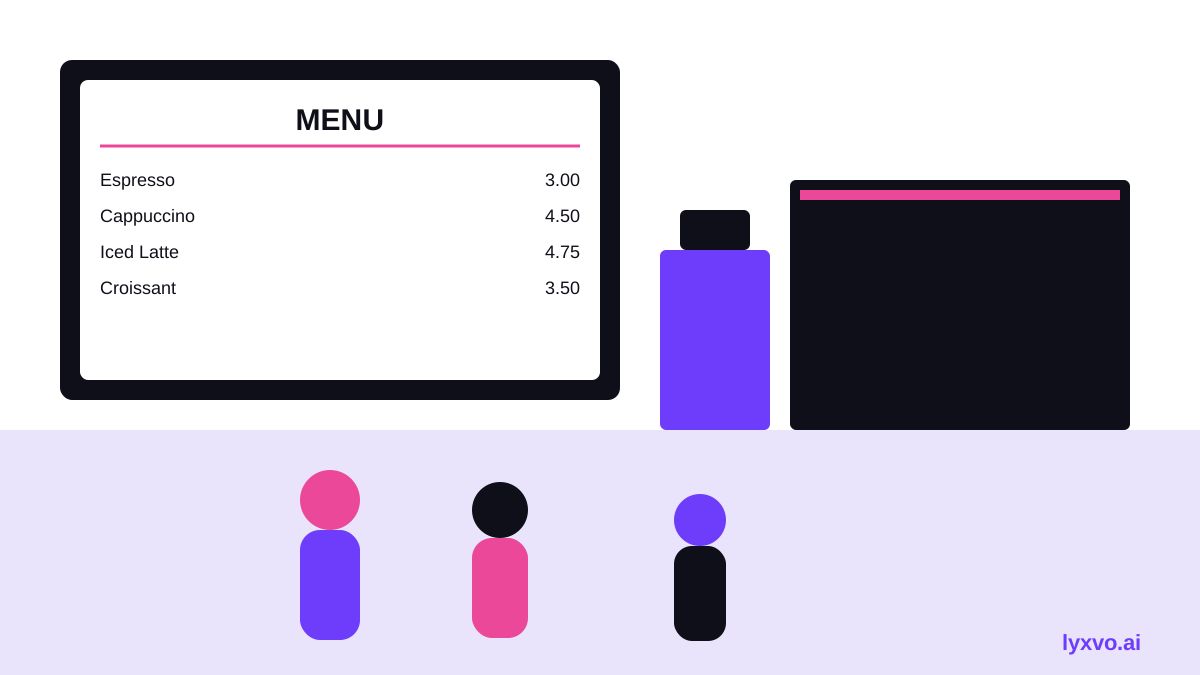
Print a small version, tape it to a wall at the real viewing distance, and ask a colleague to find the price of a specific drink. If it takes more than a few seconds, increase the size of the prices and reduce the number of words per line. Then update the board for seasonal items and keep the core layout the same so regulars recognise it at a glance.
Checklist before you print
- Text is readable from the queue position
- Prices are aligned and easy to compare
- No more than two accent colours
- Sections grouped and labelled clearly
- Sizes and resolution checked for the final output
- Brand colours and fonts match the logo and cups
Going further
If you also need a shop poster or social post to promote a new drink, the AI poster maker and AI social media post generator can reuse the same colours and type. Start with the design studio for a flyer that matches the wall board, and see pricing for plan options.
Try it in Lyxvo AI
Describe it in your own words and the design agent starts on the right flow. Free to start.
Related tool: AI menu maker for restaurants and cafés