AI Menu Design for Cafe: How to Make a Free Downloadable PDF
An AI menu design for a cafe can take you from a blank page to a print-ready PDF in under an hour, if you prepare your items and prices first. This guide shows you how to plan, design and export a cafe menu you can download and print yourself.
What you need before you start
A good menu begins with a clear list, not a design tool. Before you open anything, gather:
- Every item name, written the way customers will read it
- Short descriptions (one line each is enough)
- Prices, including any size or add-on variations
- Your brand colors and logo, if you have them
- The menu sections you want, such as Coffee, Tea, Food and Seasonal
Keeping this in a spreadsheet makes every later step faster, because you can paste the same text into the design, the PDF and any digital board.
Choose the right size and format
Most cafe menus fall into a few common formats. Pick one before you design so the layout fits the paper or screen:
| Format | Typical use | Notes |
|---|---|---|
| A4 or Letter, portrait | Single-page menu, wall or table | Easy to print at home |
| A5 or half-fold card | Table tent or takeaway card | Compact, fewer items |
| Tri-fold or bifold | Full menu with photos | Plan the panels carefully |
| Digital PDF for phones | QR code menu | Use a tall, narrow page |
If you plan to send the file to a print shop, export at 300 dpi so text and photos stay sharp.
Step-by-step: designing an AI cafe menu
1. Describe the cafe and the mood
Tell the design tool what kind of cafe you run: a cozy neighborhood spot, a minimal specialty coffee bar, or a bright brunch place. Mention your colors and the feeling you want. A clear brief produces a layout that already matches your brand, so you spend less time restyling.
2. Organize sections with a clear hierarchy
Customers scan menus quickly. Put the most important or most popular items near the top of each section, and use one font size for item names and a smaller one for descriptions. Keep prices aligned in a single column so they are easy to compare.
3. Add photos only where they help
One or two photos of signature drinks or dishes usually work better than a crowded page of images. Use the same light and background style across photos so the menu looks consistent.
4. Check the text
Read every price and item name aloud. Typos on a printed menu are hard to fix once you have hundreds of copies. Ask a staff member to proofread as well.
5. Export a free PDF
Once the layout is final, export the file as a PDF for printing or sharing. Keep one master copy and one print-ready copy so you can update prices later without starting over.
How to do it in Lyxvo AI
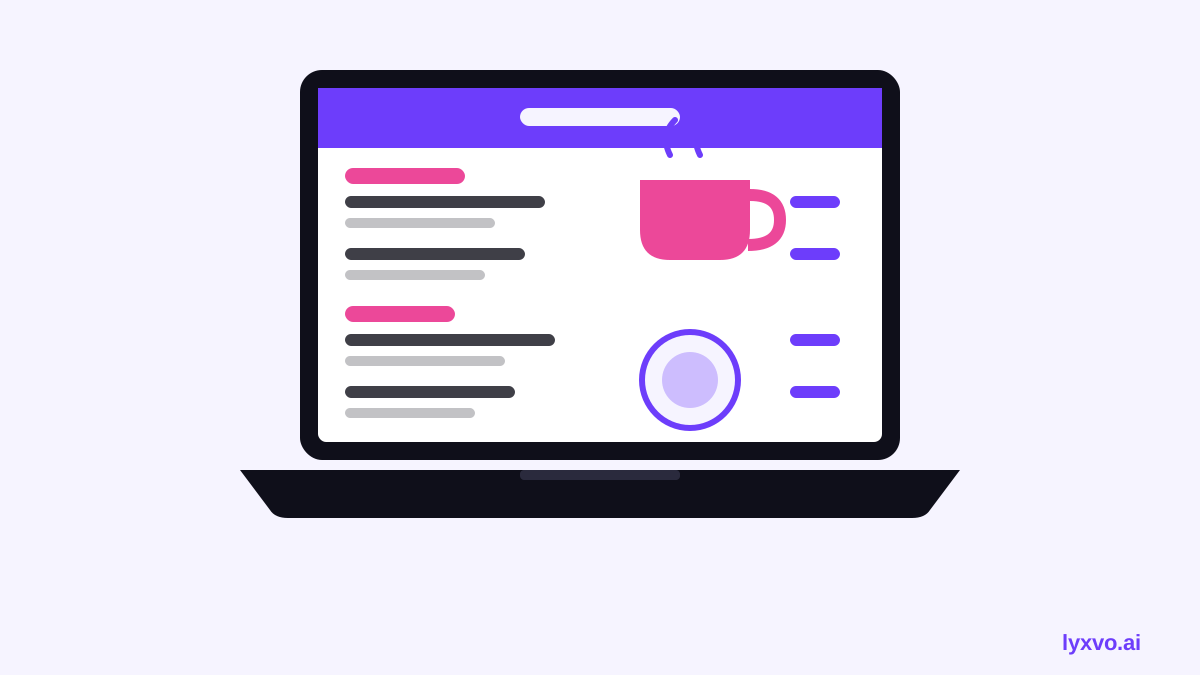
You can build a cafe menu in Lyxvo AI using the AI menu maker. The design agent plans the layout first and then creates the screens, so you describe your cafe and menu sections, and it proposes a structure you can review. The Canva-style editor lets you change item names, prices and colors directly on the page, and you can use ready-made free design templates as a starting point. Lyxvo Lite gives you a daily allowance to try the workflow, and you can see current plan details on the pricing page. When the design is ready, export it to PDF or PNG at real size and print it yourself or send it to a print shop.
Note: Free download availability and exact limits can change. Check the current plan options on the pricing page before you rely on a specific allowance.
Print and digital tips
- Use high-contrast text. Dark text on a light background is easiest to read under cafe lighting.
- Keep margins generous. Printers often cut slightly into the edges.
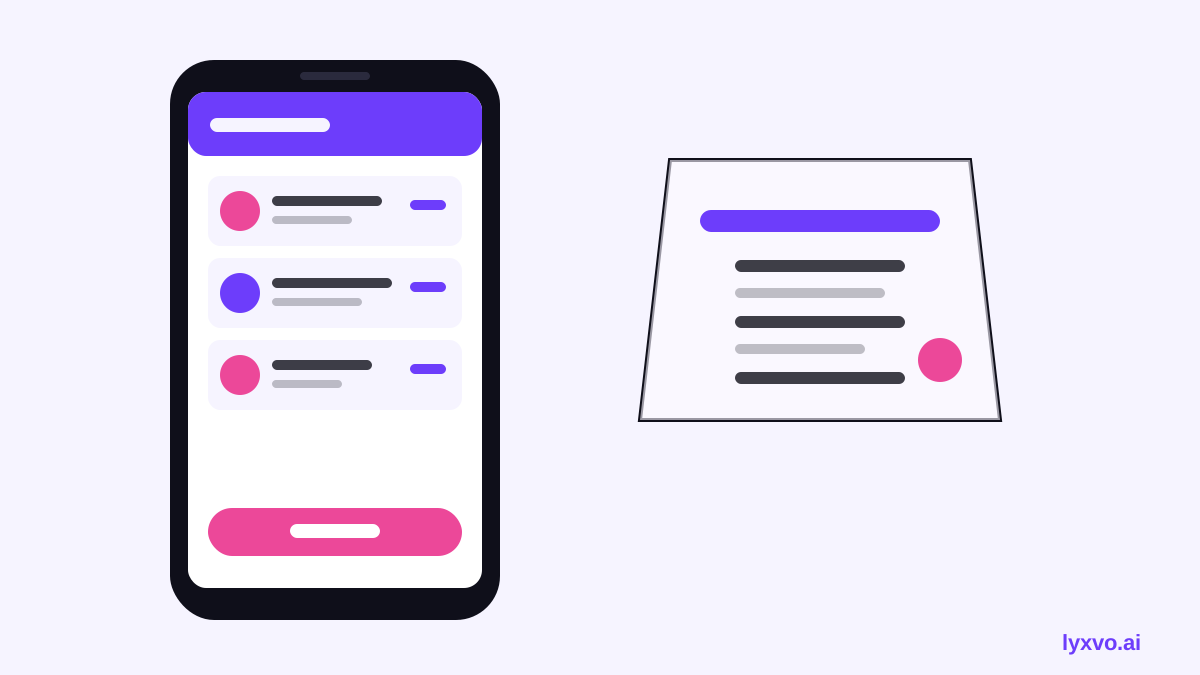
- Make a QR version. If you also use a digital menu, a separate tall PDF for phones loads faster than a print layout.
- Plan for updates. Leave space for seasonal items or use a sticker-friendly layout so changes are cheap.
Checklist before you publish
- [ ] All item names and descriptions proofread
- [ ] Prices correct, including sizes and add-ons
- [ ] Brand colors and logo consistent
- [ ] Exported at 300 dpi for print
- [ ] Margins checked on a test print
- [ ] A digital version prepared for QR codes
Keep improving your cafe design
If you also need a sign, a flyer for an opening promotion or social posts that point people to the menu, you can make them in the same project. Explore the AI flyer maker or the AI social media post generator to keep your brand consistent across print and online.
Final thoughts
A free, printable AI cafe menu is practical when you prepare your content, choose the right format and check every detail before export. Start with a clear list of items, let the design tool handle the layout, and review the final PDF carefully.
Try it in Lyxvo AI
Describe it in your own words and the design agent starts on the right flow. Free to start.
Related tool: AI menu maker for restaurants and cafés