AI Menu Layout for Catering Packages: A Step-by-Step Guide
An AI menu layout for catering packages turns a rough list of dishes and prices into a clean, printable or shareable menu that helps clients compare options quickly. This guide shows how to plan the structure, lay it out clearly, and export files you can send to clients or print.
Why catering packages need a different menu layout
A restaurant menu is usually a list of individual dishes. A catering menu is different: clients are choosing a package, often for a group, and they need to compare tiers, understand what is included, and see the price per person at a glance. A good catering menu answers three questions fast: what is in each package, how much it costs, and what the client can add.
If you are still deciding on a design direction, the AI menu maker is a useful starting point because it is built for food menus rather than generic flyers.
Step 1: Plan the package structure before you design
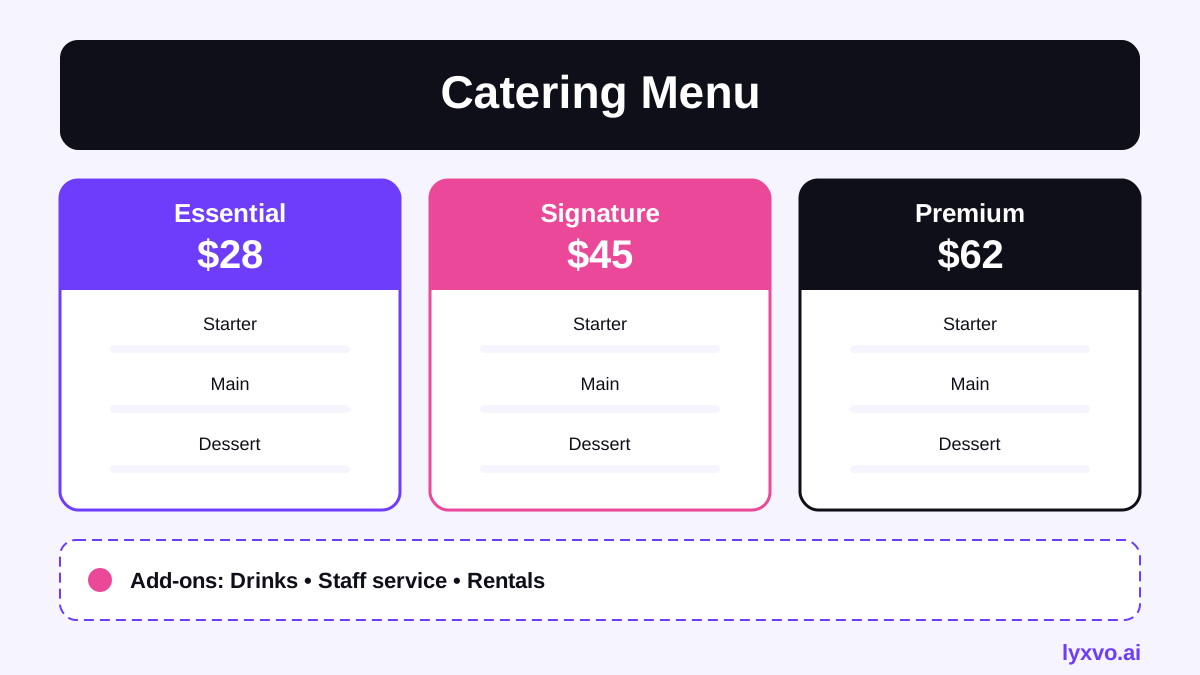
Write down your packages first, in plain text, before touching any layout. Most caterers work well with three to four tiers. Each tier should have:
- A name that describes the feel (for example, Essentials, Signature, Premium)
- A price per person and a minimum headcount, if you have one
- A short list of included items grouped by course
- Optional add-ons, listed separately
Keep the order consistent: starters, mains, sides, desserts, drinks. Clients scan menus in a predictable pattern, so matching that pattern across tiers makes comparison easy.
Tip: Put the same course order in every tier. Clients can then compare package A and package B line by line.
Step 2: Choose the right format and size
Decide where the menu will live before you design it:
| Use | Suggested format | Notes |
|---|---|---|
| Printed table card or brochure | Flyer or poster layout at print resolution | Print at 300 dpi for sharp text |
| Email or PDF proposal | Portrait page | Keep body text large enough to read on screen |
| Social media showcase | Square or story-sized post | Show one package per post |
| Slide for a client presentation | Presentation slide | Limit each slide to one package |
For printed menus, the AI flyer maker and AI poster maker cover common print sizes. For a quick digital showcase, the AI social media post generator handles exact platform dimensions.
Step 3: Build a layout that scans easily
When the structure is clear, the layout decisions become simpler:
- Lead with the package name and price. This is the first thing a client looks for.
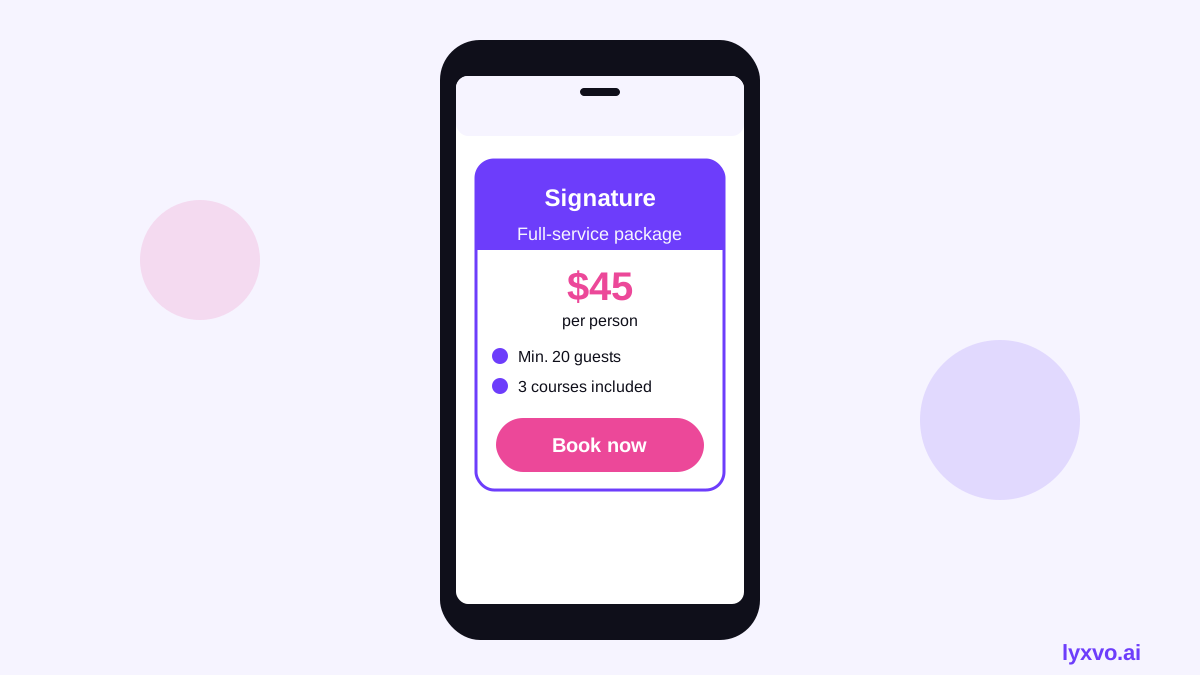
- Use three columns or stacked cards for comparison. Three columns work well on a printed page; stacked cards work better on a phone.
- Group items under course headings in a smaller, consistent style.
- Separate add-ons into their own block, so they do not clutter the core package.
- Leave white space. A dense page looks cheaper and is harder to read.
- Limit fonts and colors. Use one heading font, one body font, and two or three colors that match your brand.
Step 4: Check readability and accuracy
Before sending anything, run through this checklist:
- [ ] Every package has the same course order
- [ ] Prices are per person, with taxes and service charges stated clearly
- [ ] Minimum headcount is visible
- [ ] Dietary notes (vegetarian, halal, nut-free) are marked where relevant
- [ ] Body text is readable at arm's length on paper and at actual size on screen
- [ ] Contact details and booking lead time appear on the page
- [ ] Spelling of every dish name has been checked against your kitchen's final list
Prices change, so date the menu and keep the source list so you can update it quickly.
Step 5: Export and share
Once the layout is final, export in the format each channel needs. A PNG at real size works for messaging apps and social posts. A print-ready file should be exported at 300 dpi. For a web page listing your packages, HTML export keeps text selectable and searchable.
How to do this in Lyxvo AI
In Lyxvo AI's design agent, you can describe your packages in plain language: tier names, prices per person, minimum headcount, the course list for each tier, and your brand colors. The agent plans the structure first, then produces the layout, which you can edit directly in the Canva-style editor by changing text, photos, and colors.
A practical workflow:
- Paste your package list into the request.
- Review the generated structure and correct any dish or price.
- Use the editor to swap in your food photos and adjust spacing.
- Use Magic Resize to adapt the same menu into a square social post or a portrait page.
- Export a PNG at real size for sharing, or a print-ready file for the printer.
You can start with free design templates if you want a head start. Lyxvo Lite gives you a daily allowance to try the flow, and pricing lists the paid plans if you need more.
Common mistakes to avoid
- Too many tiers. Four is usually the ceiling before comparison becomes hard.
- Hidden fees. Put delivery, staffing, and service charges on the page or in a clear footnote.
- Photos that do not match the package. A premium photo on a basic package sets wrong expectations.
- No next step. Every menu should tell the client how to book or request a quote.
Keep it current
Catering menus change with seasons and supplier availability. Keep one master document with your packages and prices, and regenerate or update the layout from that source. This saves time and keeps every channel consistent.
An AI invitation maker or business card maker can help you carry the same branding into the rest of your client materials, so the menu feels like part of one set.
If you are reading this in a later year, check current platform sizes and print specifications with your printer or the platform itself, since these can change.
Try it in Lyxvo AI
Describe it in your own words and the design agent starts on the right flow. Free to start.
Related tool: AI menu maker for restaurants and cafés