AI Menu Template for Bubble Tea Shop: How to Design a Menu That Sells
An AI menu template for a bubble tea shop gives you a clean starting layout in minutes, so you can focus on flavors, prices and photos instead of fighting with blank pages. This guide walks you through what a bubble tea menu needs, how to organize it, and how to finish it in Lyxvo AI.
Why a bubble tea menu needs a different approach
A bubble tea menu has more choices than most cafe menus: base teas, milk options, toppings, sweetness and ice levels, sizes, and seasonal specials. Customers often scan quickly while standing in line, so the layout has to do the work. A good template keeps the structure simple and lets you fill in the details.
Before you open any tool, decide what your menu must answer in a few seconds:
- What are the drinks, grouped by type (milk tea, fruit tea, smoothies, specials)?
- What does each drink cost, in each size?
- What are the add-ons and their prices?
- What is new or popular?
Choose a template structure that scales
Most bubble tea menus work best in one of three layouts. Pick the one that fits your counter, your board or your printed card.
| Layout | Best for | Watch out for |
|---|---|---|
| Single column list | Small shops, takeout cards | Long lists become hard to scan |
| Two-column grid | Medium menus, printed sheets | Keep the same item height |
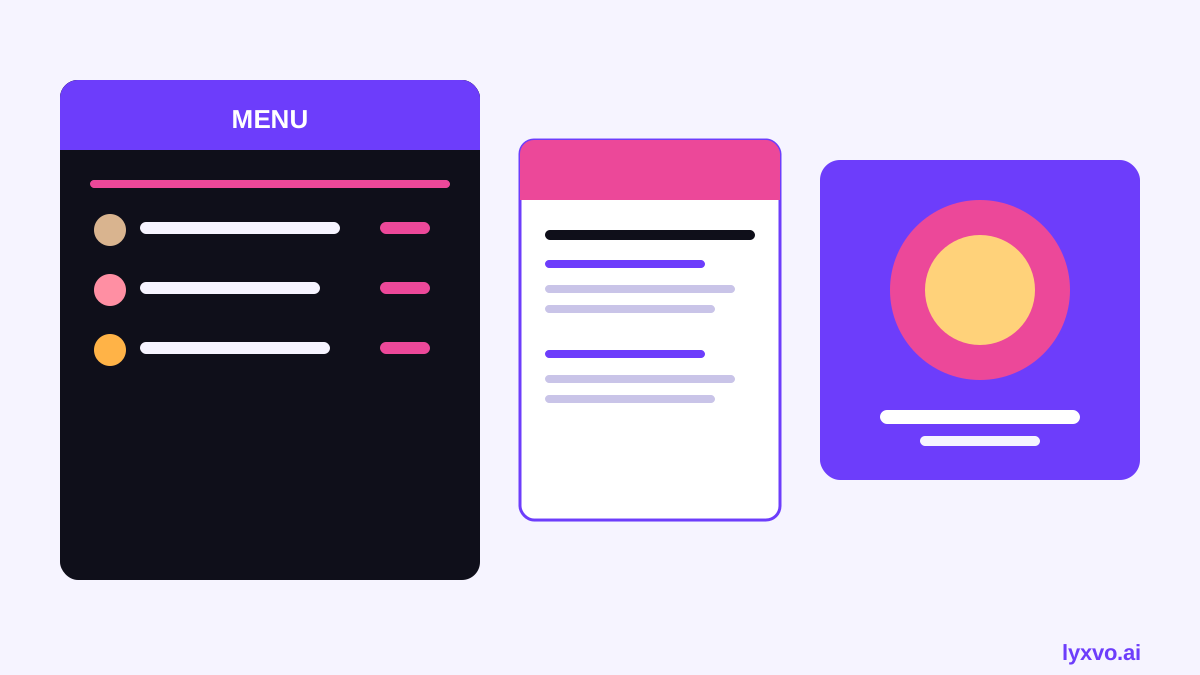
| Board with photo tiles | Shops with a visible drink display | Needs strong photos or icons |
Group items the way customers order
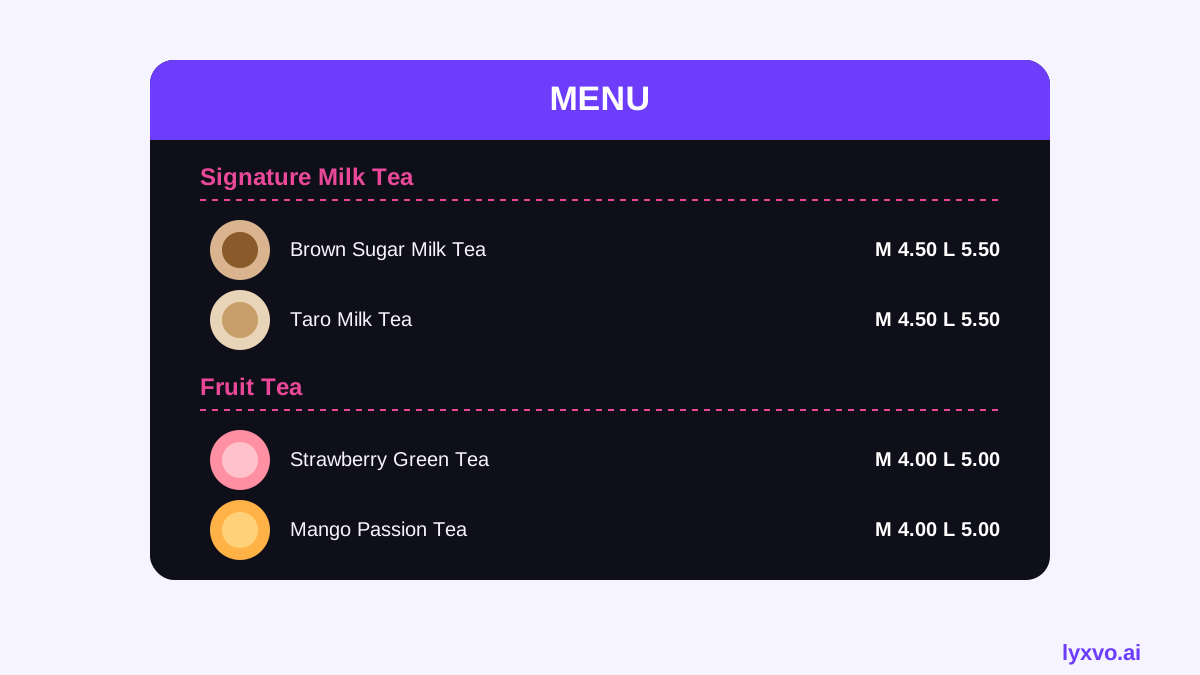
Use clear sections: Signature Milk Tea, Fruit Tea, Fresh Milk, Smoothies, Toppings, and Seasonal. Put your best sellers near the top of their section, and keep one idea per section. Avoid listing the same topping in three places.
Keep prices easy to read
Align prices on the right, use the same currency symbol everywhere, and show sizes in columns (for example S, M, L). If a topping costs extra, write it as a clear add-on line rather than a footnote.
A step-by-step process for your AI menu
- Write your item list first. Include names, short descriptions (under 10 words), sizes and prices. Do this in a plain text file so you can paste it in later.
- Pick a template. Choose a menu layout that matches your format (poster, board or social post).
- Set a color and type system. Use two or three brand colors and one readable font for names, one for prices. Keep contrast high so text reads from a distance.
- Add photos or icons. Use real product photos if you have them. If not, consistent flat icons work well.
- Check hierarchy. Your shop name and section titles should be clearly bigger than item names, and prices should be easy to find.
- Export at the right size. Print menus need high resolution, and social or digital boards need the right aspect ratio.
- Test it. Read it aloud to a friend, or time how long it takes them to find a drink and a price.
Tip: Update prices in one master file, then regenerate every format from it. This prevents a board showing old prices while your printed card shows new ones.
Design your bubble tea menu in Lyxvo AI
Lyxvo AI includes a design agent for flyers, posters and social posts, and it can help you start a menu layout quickly. You describe your shop, paste your item list, and the agent proposes a structured layout you can refine. You can then edit text, swap photos and change colors directly in the Canva-style editor.
A practical workflow:
- Open the AI flyer maker or AI poster maker for a printed or wall menu.
- Use the AI social media post generator if you want a menu graphic for Instagram or TikTok.
- For a quick square post, start in the Instagram post studio and paste your best sellers.
- Use Magic Resize to adapt the same menu to another format, and translate it if you serve customers in more than one language.
To finish, export a PNG at real size for printing or sharing, or export to a format your printer or website needs. Check the pricing page to see which plan fits how often you update your menu.
Common mistakes to avoid
- Too many items. A long list slows ordering. Cut weak sellers or move them to a "more" section.
- Hard-to-read fonts. Decorative scripts look nice but fail on small prints. Use them only for the shop name.
- Unclear sizes. If sizes and prices are not aligned, customers ask questions at the counter.
- Stale prices. Date your menu or update it on every price change.
- Crowded photos. A photo of every drink can overwhelm the layout. Feature three to five hero images.
A quick checklist before you print
- [ ] Every drink has a name, a short description and prices for each size
- [ ] Toppings and add-ons are listed with their extra cost
- [ ] Sections are grouped and ordered by popularity
- [ ] Text contrast is high enough to read from a few meters away
- [ ] Print file is at 300 dpi, and digital versions match the right aspect ratio
- [ ] Prices match your point-of-sale system
Keep the menu fresh
Seasonal drinks and limited flavors are a chance to draw repeat visits. Create a separate "New" or "Seasonal" block that you can swap without redesigning everything. If you use a template, keep the structure fixed and change only the content. This makes updates fast and keeps your brand consistent across the counter, your social accounts and your delivery listings.
A well-built menu is simple, scannable and easy to update. Start with a template, keep the sections clear, and use your tools to produce every version from one source of truth.
Try it in Lyxvo AI
Describe it in your own words and the design agent starts on the right flow. Free to start.
Related tool: AI menu maker for restaurants and cafés