AI Menu Template for Food Truck: How to Design a Menu That Sells
An AI menu template for food truck owners helps you go from a rough list of dishes to a clean, readable menu in under an hour. A good food truck menu has to be scanned in seconds, read from a distance and printed in several sizes, so the layout matters as much as the food.
Why a food truck menu is different
A restaurant menu can be long and leisurely. A food truck menu is read standing on a sidewalk, often in bright sun, while a line of customers waits behind. Guests have a few seconds to decide, so your menu has to do three things well:
- Show the best-selling items first
- Use large, high-contrast text that reads from two or three meters away
- Keep prices and sizes easy to compare
The same menu usually needs to appear in several places: a side panel on the truck, a window board, a sandwich board outside, a small handout and a digital version for social media. Designing each one from scratch takes time. A template saves that time and keeps your brand consistent.
Plan your menu before you design
Before opening any design tool, write down the information the menu needs:
- Your items, grouped into categories (mains, sides, drinks, desserts, specials)
- Prices, including any size or combo options
- Dietary labels you want to show (vegetarian, gluten-free, spicy)
- Your truck name, logo, colors and contact or ordering details
- Anything seasonal or limited-time
Keep the list to 8 to 15 items if you can. Long menus slow down the line. Decide which three or four items you most want to sell, because those will get the most visual weight.
Choose the right template and format
For a food truck, the most useful formats are usually:
| Format | Best use | Notes |
|---|---|---|
| Vertical panel or board | Truck side or window | Tall layout, large item names |
| Flyer | Handouts, counter stand | Portrait or landscape, print-ready |
| Social post | Announcing specials on Instagram or TikTok | Use exact platform sizes |
| Story format | Daily specials on Instagram Stories | Vertical, short text |
You can start from a ready-made layout in AI menu maker or use the AI flyer maker when you need a printed handout. For a daily special announcement, the AI social media post generator can produce posts at the correct dimensions for each network.
A layout that works for a food truck
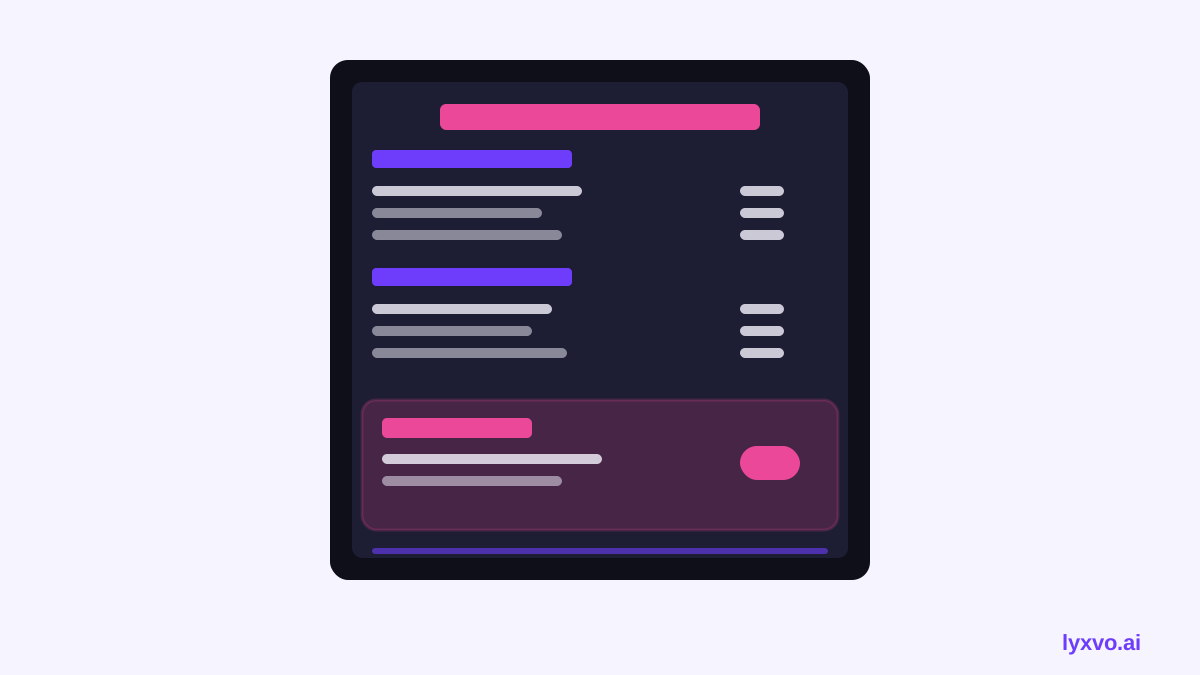
Use a simple structure that a customer can scan top to bottom:
Put your signature item at the top
Your best seller or signature dish should be the first thing read. Give it a larger font size, a color block or a small badge such as "Most popular". Avoid placing it in the middle of a long list.
Group items by category, not by price
Categories like Tacos, Sides and Drinks help people find what they want quickly. Keep the category headings consistent in size and style.
Use short descriptions
One line per item is usually enough: the main ingredient, the sauce and any allergen or dietary note. Long paragraphs slow down ordering.
Align prices on one side
Right-aligned prices in a single column are easier to compare than prices placed after each item at random distances.
Keep contrast high
Dark text on a light background, or light text on a dark background, with a minimum of two colors. Test the menu at arm's length and from across a room. If you have to squint, enlarge the type.
Sizing and print settings
A menu fails if it prints too small or blurry. Before you print:
- Print at the real physical size you need, not scaled to fit
- Use high resolution (300 dpi for print) so text and photos stay sharp
- Leave a margin of at least 5 mm from the edge, since many printers cut off the border
- Use a sans-serif font at a size readable from a distance; a board might need text several centimeters tall for item names
If you need the same design in several sizes, use a resize feature rather than rebuilding it. Lyxvo's Magic Resize is designed for this kind of job.
Pricing and wording tips
Small choices in wording can influence what customers order:
- Show combo deals as a single line with a clear total, not a calculation the customer must do
- Use descriptive words that match the food ("slow-braised", "charred") only when they are true
- Keep currency symbols and decimal formats consistent
- Add a note for allergens or dietary information so staff are not asked the same question repeatedly
- Update your specials on a schedule so the menu never shows an item you have run out of
Tip: Keep one master design with all items and prices. For a daily special, duplicate the master and change only the special panel. This prevents mismatched prices between your board and your social posts.
How to create your food truck menu in Lyxvo AI
Here is a practical workflow with Lyxvo AI:
- Open the AI menu maker or start from a template in free design templates.
- Enter your categories, items, prices and short descriptions. You can edit any text directly in the Canva-style editor.
- Replace the placeholder colors with your truck's brand colors and upload your logo.
- Add a photo of your signature dish, then adjust its position so it does not crowd the text.
- Use Magic Resize to create a second size for a handout or a social post.
- For a daily special graphic, open the Instagram post studio or the Instagram story studio and reuse the same colors and fonts.
- Export as PNG at real size for printing, or as a PNG for social media, and check the result at full size before ordering prints.
If you want to translate the menu for tourist areas, the translate feature can produce a second language version. Always have a native speaker check food names and allergen wording before you print.
Common mistakes to avoid
- Too many items. Long menus create decision fatigue at the window.
- Missing prices. Customers will not ask; they will walk away.
- Outdated specials. Remove sold-out items immediately.
- Tiny text. Test from a real distance.
- Inconsistent branding between the truck, the menu and social media.
- Printing without a proof. Print one test copy first.
Final checklist
- [ ] Signature item is at the top
- [ ] Categories are clear and consistent
- [ ] Prices are aligned and correct
- [ ] Text is readable from two or three meters
- [ ] Dietary and allergen notes are included
- [ ] Brand colors and logo match your truck
- [ ] Print size and resolution are correct
- [ ] Specials are current across every channel
With a solid template and a clear plan, your food truck menu can be updated in minutes instead of days, and it will look as good on a phone as it does on the side of the truck.
Try it in Lyxvo AI
Describe it in your own words and the design agent starts on the right flow. Free to start.
Related tool: AI menu maker for restaurants and cafés