AI Onboarding Deck for New Hire Training Sessions
An AI onboarding deck for new hire training session gives new team members a clear, branded walkthrough of who you are, how work gets done, and what to do in their first weeks. With an AI presentation tool you can go from a rough outline to a polished, consistent deck in a single sitting, then refine it as your processes change.
Why a Structured Onboarding Deck Matters
New hires absorb a lot in their first days: company history, tools, policies, team roles and expectations. A well-built deck keeps the session on track, gives people something to refer back to, and makes sure every new starter hears the same core message, regardless of which manager runs the session.
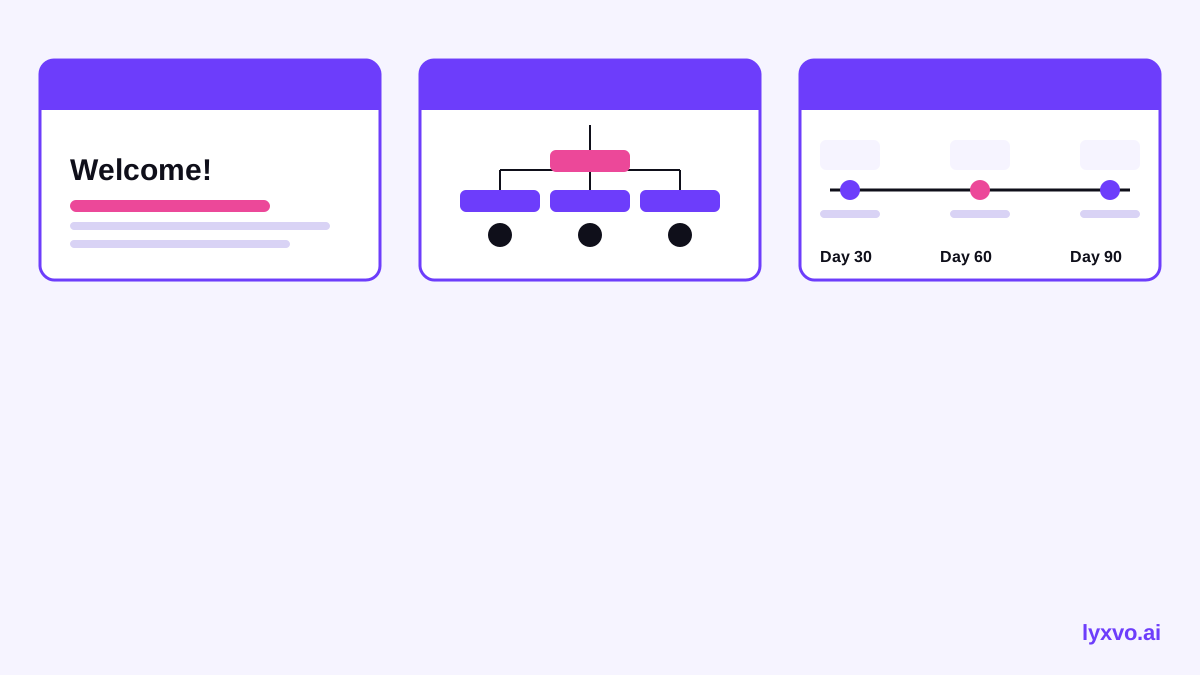
A good onboarding deck does three things. It orients people (who we are and what we do), it equips them (how to get work done, which tools to use, who to ask), and it sets expectations (goals for the first 30, 60 and 90 days).
Plan the Deck Before You Design It
Before opening any design tool, write the outline. Most onboarding decks work well at 12 to 20 slides for a single session, with more material linked in a handbook.
A Recommended Slide Structure
| Section | Typical slides | What it covers |
|---|---|---|
| Welcome | 1-2 | Greeting, session agenda, who is presenting |
| Company | 3-4 | Mission, products or services, history, values |
| Team and roles | 2-3 | Org overview, key contacts, how teams collaborate |
| Ways of working | 3-4 | Tools, communication channels, meeting norms |
| Policies and admin | 2-3 | Working hours, leave, security basics, where to find policies |
| First 90 days | 2 | Goals, training path, check-in schedule |
| Q&A and next steps | 1-2 | Questions, contacts, follow-up tasks |
A Quick Checklist for Your Outline
- One clear goal per section, stated in the slide title
- No more than five bullet points per slide
- Every process slide ends with a "where to find more" link
- A named owner for each topic, so questions have a destination
- A final slide with a one-page recap new hires can save
Write Slides That New Hires Will Actually Use
Onboarding slides are read later as well as presented live, so write them to be understood without the speaker. Use short headings, concrete examples and plain language. Replace vague phrases like "we value collaboration" with specifics like "post project updates in the team channel every Friday by noon."
Use one visual per slide where it helps: an org chart, a simple process flow, or a photo of the team. Keep fonts consistent and colours tied to your brand so the deck feels like it belongs to the company.
How to Design an Onboarding Deck in Lyxvo AI
Lyxvo AI includes a presentation workflow for slides and pitch decks. Here is a practical sequence you can follow.
- Start with the outline. Open the AI presentation maker or the slide studio and describe your session: audience, length, and the sections from your plan.
- Review the generated structure. Reorder slides so they match your agenda, and delete anything that belongs in the handbook instead.
- Apply your brand. Use the Canva-style editor to change text, photos and colours directly. If you already have a logo, keep it on every slide; if not, you can create one first with the AI logo generator.
- Add the people slides. Replace placeholder names with real team photos and roles so the team slide feels personal.
- Check layout and readability. Make sure body text is large enough to read on a screen and on a phone.
- Export. Export as PNG at real size for slide images, or use the format your presenting software needs. Save the editable version so updates are quick.
- Share and collaborate. Use real-time collaboration so HR, the hiring manager and team leads can each review their sections before the session.
If your onboarding also includes a visual welcome card or a short video intro, you can build those in the same workspace and reuse the brand colours and fonts.
Keep the Deck Current
An onboarding deck goes stale quickly when tools, policies or leadership change. Set a simple review rhythm.
- Review the deck every quarter, and immediately after any major tool or policy change
- Give each slide a named owner who signs off on updates
- Keep a changelog slide or note in the file so new versions are easy to spot
- Ask recent hires what confused them, and fix those slides first
Make the Session Interactive
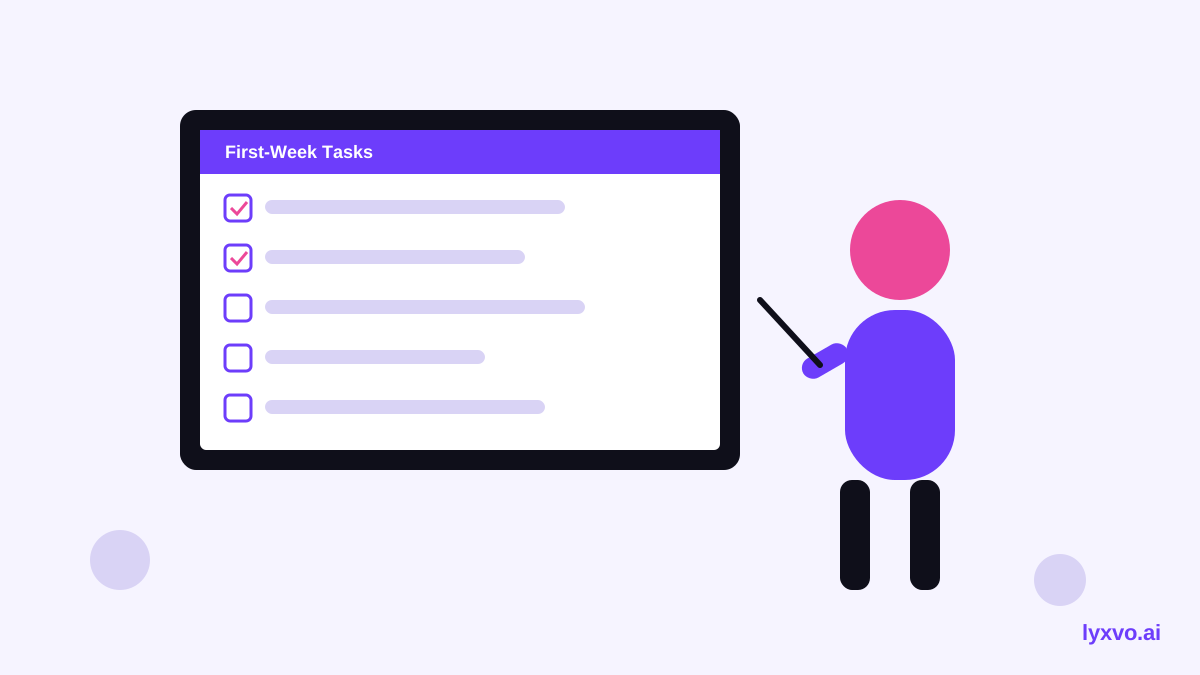
Slides carry information, but the session should involve people. Build in short breaks for questions, a quick tool walkthrough on a live screen, and a task new hires complete during the session, such as setting up their accounts or booking their first one-to-ones.
A useful pattern is to end each section with one question that checks understanding, such as "Where would you find the leave policy?" This reveals gaps while you are still in the room.
Common Mistakes to Avoid
- Too much text. Move details into linked documents and keep slides for orientation.
- No owner for questions. Always show who to contact for each topic.
- Generic content. Replace stock phrases with real examples from your team.
- Inconsistent branding. Mixed fonts and colours make the deck feel unfinished.
- One-time build. Treat the deck as a living document you revise.
Summary
A strong onboarding deck follows a clear structure, uses plain and specific language, and is kept up to date by named owners. With Lyxvo AI you can draft the outline, apply your brand, and export a finished deck quickly, then revise it as your team grows. For more layout ideas, browse the free design templates.
*Note: tool features and plan details may change over time. Check the current documentation for the latest options.*
Try it in Lyxvo AI
Describe it in your own words and the design agent starts on the right flow. Free to start.
Related tool: AI presentation maker for slides and pitch decks