AI Poster Maker for Events: How to Design a Free Event Poster in 2026
An AI poster maker for events free can take you from a rough idea to a print-ready poster in minutes, even if you have never opened design software. This guide shows what to include, which sizes to use, and how to build a poster in Lyxvo AI from start to finish.
What an event poster needs to do
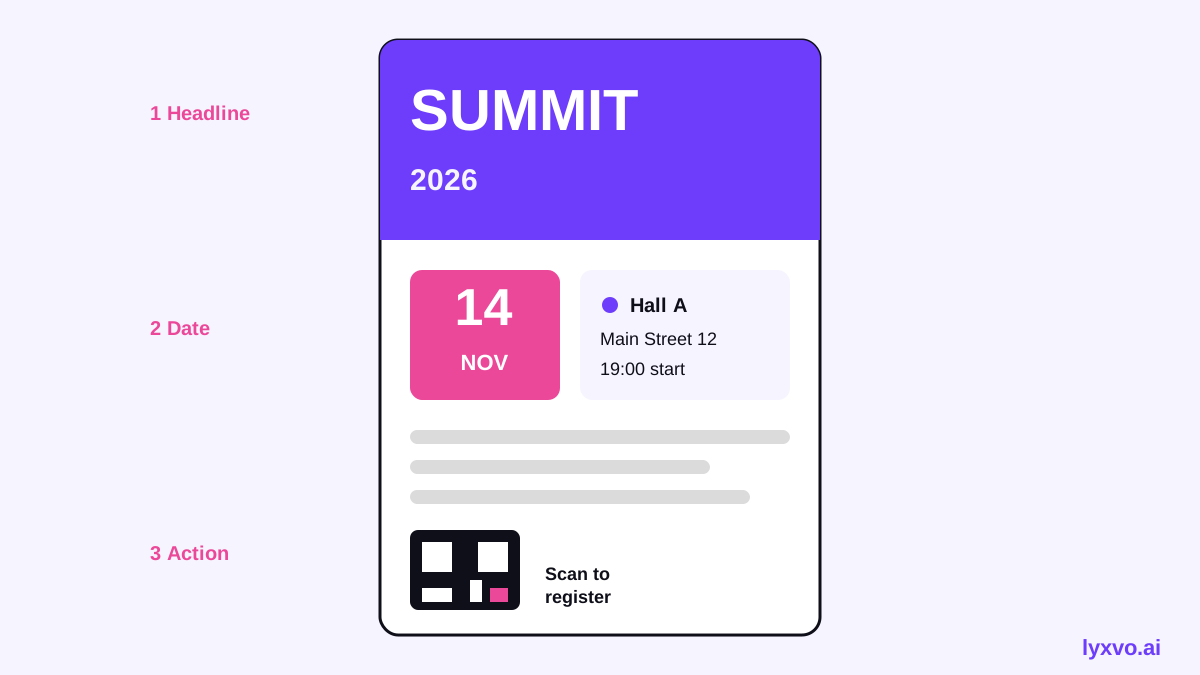
An event poster has a few seconds to work. People walking past a board, scrolling a feed or glancing at a noticeboard need to understand three things quickly: what the event is, when it happens and where it is. Everything else is secondary.
A good poster usually has:
- A clear headline: the event name, kept short.
- Date and time: large enough to read from a distance.
- Location: venue name and, for print, a short address or QR code.
- One supporting line: a theme, speaker or offer.
- A call to action: a ticket link, QR code, or "Free entry".
- Brand elements: a logo and a consistent color palette.
Tip: if a reader needs more than five seconds to find the date, the hierarchy is wrong. Make the date and event name the two largest elements.
Choosing the right poster size
The size depends on where the poster will be seen. Use these common formats:
| Use | Common size | Notes |
|---|---|---|
| Digital screen or social share | 1080 x 1350 px or 1080 x 1920 px | Portrait suits phones and digital signage |
| A4 flyer or handout | 210 x 297 mm | Good for leaflets and table cards |
| A3 poster | 297 x 420 mm | Readable at arm's length |
| A2 / large poster | 420 x 594 mm | Suited to venues and campus boards |
For anything printed, design at print resolution. Aim for 300 dpi so text and images stay sharp when printed.
Step-by-step: make an event poster with an AI poster maker
1. Write your brief first
Before you open any tool, write down the event name, date, time, venue, audience, and the one action you want people to take. A clear brief gives the AI better input and saves editing later.
2. Pick a format and start from a template
Decide whether the poster is for print or digital, then start with a layout that suits the event type: a concert, workshop, conference, sale or community meetup. Browsing free design templates is a quick way to see layout options before you commit.
3. Generate the first draft
Use the AI poster maker to create a first version from your brief. Describe the event mood (for example "bold, energetic, night-time music festival") and the palette you want. Review the output for hierarchy, not just looks: is the date easy to find?
4. Edit text, photos and colors directly
Use the Canva-style editor to change the headline, swap photos, and adjust colors. Keep text to a minimum and check spelling of names, times and addresses twice.
5. Resize for other channels
Once the main poster is set, use Magic Resize to create versions for other placements. A single event can need a portrait poster, a square social post and a story-format graphic. For social formats, the Instagram post maker and story format cover the most common sizes.
6. Export and check
Export a PNG at real size for digital use. For printing, export at 300 dpi and check that bleed and margins suit your printer. Print a single proof at home or request a small test run before ordering a large batch.
Checklist before you publish
- [ ] Event name readable from 3 metres (for print) or on a phone at thumbnail size
- [ ] Date, time and time zone clearly shown
- [ ] Venue name and direction or address included
- [ ] One clear call to action, such as a ticket link or QR code
- [ ] Contrast between text and background is strong
- [ ] No more than two or three fonts
- [ ] Logos and sponsor names spelled correctly
- [ ] Export size and resolution match the final use
Common mistakes to avoid
- Too much text. Cut descriptions down to a headline, a supporting line and the details.
- Tiny QR codes. Keep them at least a few centimetres square in print and test that they scan.
- Low-resolution images. Blurry photos look cheap on large posters. Use the highest quality image you have.
- Inconsistent details. Check the date and time match across the poster, social posts and ticketing page.
Making event graphics beyond the poster
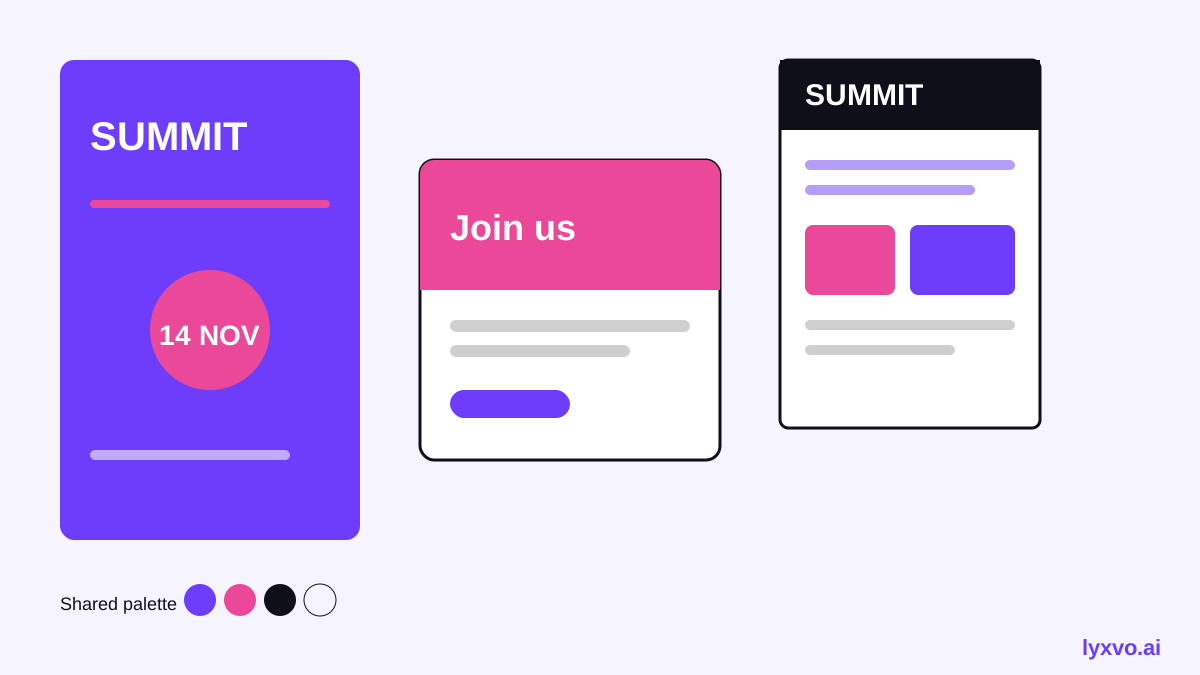
Most events need more than one graphic. A consistent set might include a poster, an invitation, a flyer for handouts, a social media post and, for talks or workshops, a presentation. Keeping the same colors, fonts and logo across all of them makes the event look organised and recognisable.
Free vs paid: what to expect
Lyxvo AI lets you start free with Lyxvo Lite, which has a daily limit, so you can build and test a poster before deciding on anything else. Plans and prices are listed on the pricing page. Check the current plan details there, since features and limits can change.
FAQ
Can I make a poster completely free? You can start for free with Lyxvo Lite, subject to a daily limit. Check the pricing page for current terms.
What size should an event poster be? Use A3 or A2 for printed posters meant to be read at a distance, A4 for flyers, and 1080 x 1350 px or 1080 x 1920 px for digital and social use.
Do I need design experience? No. Describe the event, pick a template or draft, and edit the text and colors directly.
Can I print directly from the design? Export at 300 dpi for print-quality files, then confirm the size and bleed requirements with your printer.
Make your event poster in Lyxvo AI
Start with a brief, generate a draft with the AI poster maker, tidy the hierarchy in the editor, resize for social, and export. Once the poster is done, use the same look for your YouTube thumbnail or menu if your event involves food. A consistent design system takes minutes to reuse and keeps every touchpoint recognisable.
Try it in Lyxvo AI
Describe it in your own words and the design agent starts on the right flow. Free to start.
Related tool: AI poster maker for events, promos and concerts