AI Quote Graphics for Personal Brand: A Practical Guide
AI quote graphics for personal brand work are one of the fastest ways to turn your ideas into shareable posts, but only if they look like you and fit each platform. This guide shows you how to plan, design and publish them consistently.
Quote graphics are simple on paper: one strong sentence, a clean background, your name or handle, and a visual identity people recognise. In practice, most personal brands struggle with the same three things: choosing a look that lasts, sizing the image correctly for each network, and keeping output consistent week after week. An AI design tool can handle the repetitive production, so your time goes into the ideas.
Why quote graphics work for a personal brand
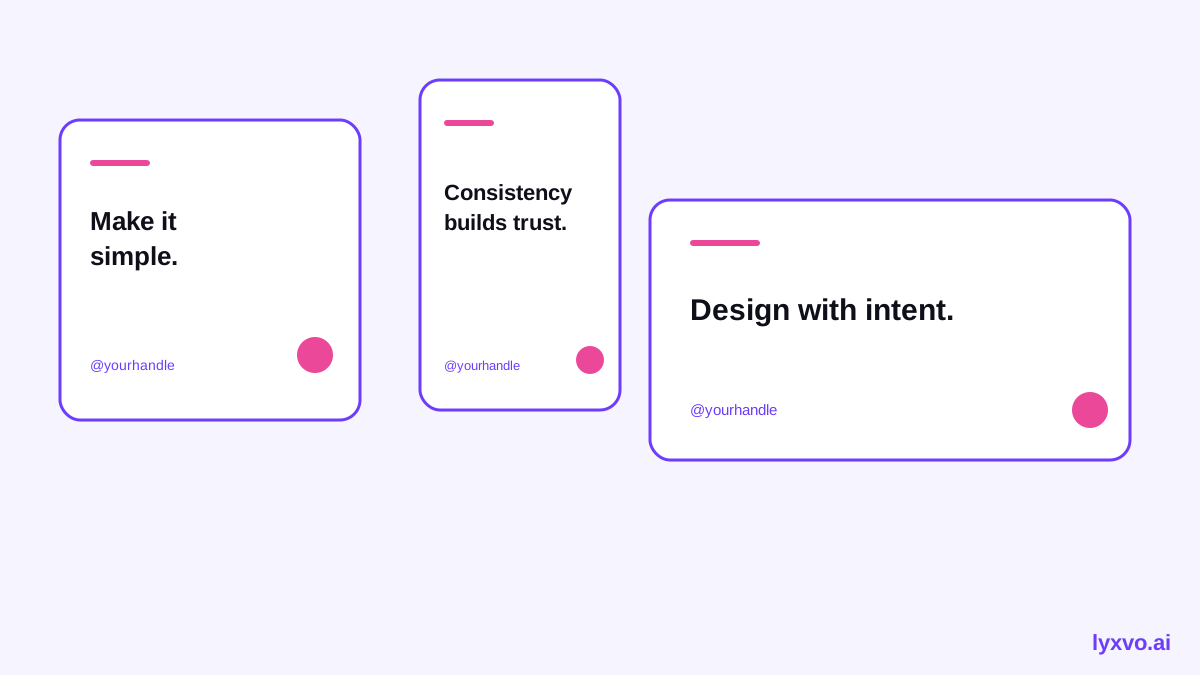
A quote carries a single idea and can be read in a few seconds, which suits feeds, stories and thumbnails. They also get saved and reshared more often than plain text when the design is readable. For a personal brand, the goal is not to look like a generic motivational poster. It is to make every graphic clearly yours: the same typefaces, colour palette, layout rhythm and sign-off.
Step 1: Define a simple visual system
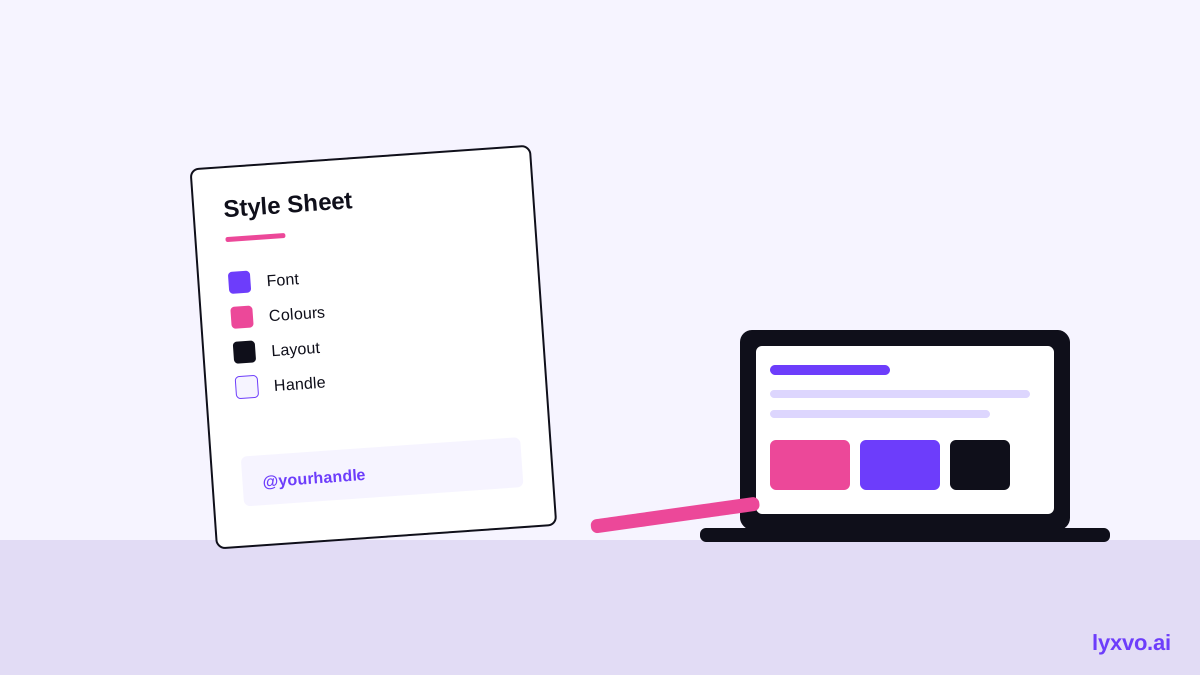
Before you generate anything, write down a short style sheet. It takes ten minutes and saves hours later.
- Two fonts: one for the quote (often a serif or bold display face) and one for small text such as your name.
- Three colours: a background, a text colour and one accent.
- One layout: for example, quote centred, handle at the bottom left, a thin accent line.
- Photo or no photo: decide whether backgrounds are plain colour, textures, or your own photos.
Keep this sheet in front of you. Every graphic should pass the test: would someone recognise it as yours without seeing your name?
Step 2: Write quotes that survive a small screen
The design can only be as good as the words on it. Good quote graphics usually follow a few rules:
- Keep it under about 20 words. Shorter quotes are easier to read on a phone.
- Lead with the idea. Put the strongest phrase first.
- Use your own voice. Quotes from your talks, newsletters or client conversations feel more credible than borrowed lines.
- Attribute carefully. If you quote someone else, credit them and make sure you have the exact wording.
Note: do not attribute words to real people unless you can verify them. Your own original lines are the safest core of a personal brand.
Step 3: Choose the right size for each platform
One design rarely fits every feed. Platform formats change over time, so check the current recommended sizes in each app before you publish. As a general approach, plan for:
| Use | Typical format | Note |
|---|---|---|
| Square feed post | 1:1 | Works across most networks |
| Vertical story | 9:16 | Keep key text away from the top and bottom edges |
| Landscape post | 16:9 or 1.91:1 | Good for LinkedIn and X |
| Video thumbnail | 16:9 | Large, bold text reads best |
If you already have a square design and need a vertical version, resizing and re-laying out the text is faster than starting over. Lyxvo's Magic Resize can help you adapt one design to several formats.
Step 4: Generate and refine in Lyxvo AI
Here is a workflow you can follow inside Lyxvo AI. The design agent plans the layout first, then produces the screen, and you refine it in the Canva-style editor.
- Open the social media post generator or go straight to the Instagram post studio.
- Describe your style in plain language, for example: "minimal quote card, cream background, serif headline, small handle at the bottom, one accent colour." Paste your style sheet so the agent works from the same rules every time.
- Enter your quote and your handle. Keep the text short so the layout stays clean.
- Edit directly: change the text, adjust colours and move elements. Save the colours and fonts you like so future graphics match.
- Use Magic Resize to create the other formats you need, and translate the quote if you publish in more than one language.
- Export as PNG at real size for posts, or use design to video if you want a short animated quote.
For vertical stories, start in the Instagram story studio. For video thumbnails, the YouTube thumbnail maker is a good starting point.
Step 5: Build a repeatable publishing routine
Consistency matters more than any single design. A simple routine keeps your brand steady:
- Batch on one day. Write five to ten quotes, generate the graphics together, and schedule them.
- Reuse the template. Duplicate your best-performing layout and only change the words.
- Track what gets saved and shared. Keep the designs people respond to and retire the ones that feel off-brand.
- Review the style sheet quarterly. Small updates are fine, but change slowly so your audience still recognises you.
Common mistakes to avoid
- Using too many fonts or colours, which makes the feed look chaotic.
- Putting text too close to the edges, where phone interfaces cover it.
- Posting a quote without a clear link to your work or your audience.
- Changing your look every week, which weakens recognition.
- Using low-resolution exports. Export at full size so the text stays sharp.
A quick checklist before you publish
- Does the quote read clearly at phone size?
- Is the text inside the safe area for the platform?
- Do the fonts, colours and handle match your style sheet?
- Is every quote your own, or properly credited?
- Have you exported at full resolution?
If you want to start with a finished base, browse the free design templates. Lyxvo Lite gives you a daily allowance to try the workflow for free, and paid plans are listed on the pricing page. The AI business card maker and AI logo generator can help you extend the same identity to the rest of your personal brand.
Final thoughts
AI quote graphics for personal brand building work best when you set the visual rules first, write quotes in your own voice, and publish on a steady routine. The tool handles production; your style sheet keeps everything recognisably you.
Try it in Lyxvo AI
Describe it in your own words and the design agent starts on the right flow. Free to start.
Related tool: Free design templates you can edit in minutes