AI Restaurant Table Tent for a Shoe Brand Collab: A Practical Guide
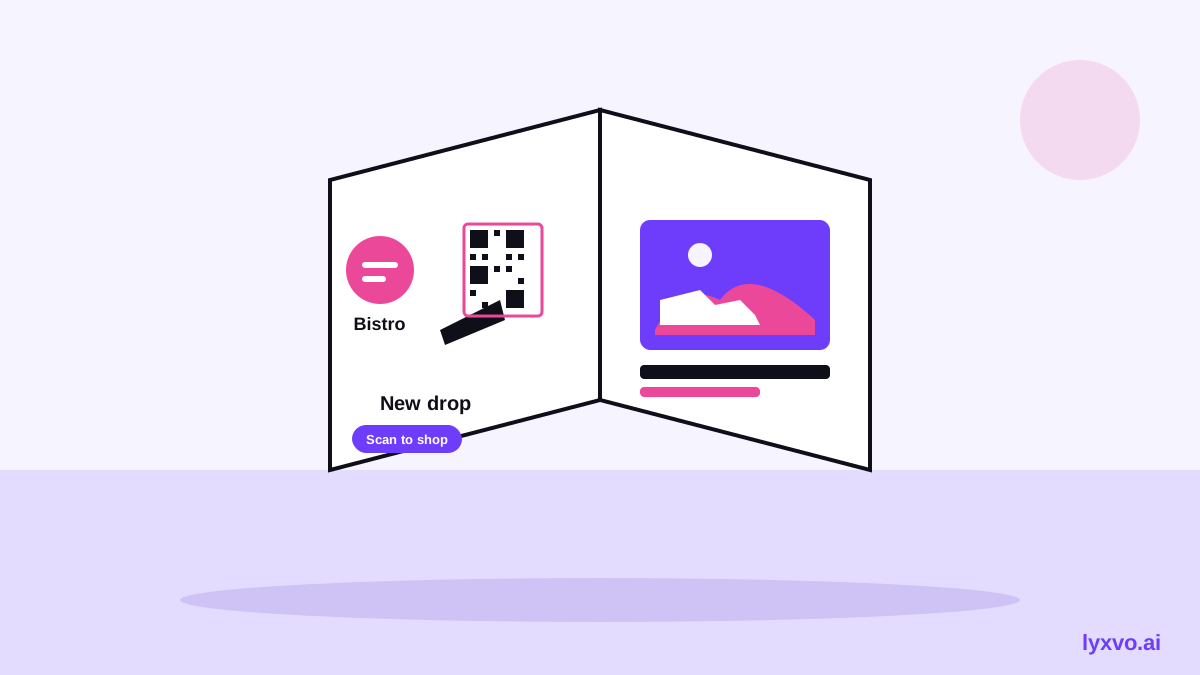
An AI restaurant table tent for a shoe brand collab is a small folded card that sits on tables and promotes both the restaurant and the footwear partner, usually with a QR code, a dish pairing and a clear offer. This guide shows how to plan the collab, write the copy and produce print-ready files with Lyxvo AI.
Why a table tent works for a shoe brand collab
A table tent is one of the few pieces of marketing a guest reads for several minutes while eating. For a collab between a restaurant and a shoe brand, that attention is valuable: the card can introduce a limited sneaker drop, a sponsored menu item, or a themed evening, and it can link straight to the shoe brand's page.
The format is also cheap to print and easy to replace. You can run one design for a weekend, test a second version the following week, and keep both sides of the partnership visible without redesigning the whole dining room.
Plan the collab before you design
Decide the basics first. A table tent with three competing messages confuses guests, so agree on one main goal.
- Goal: drive sneaker sales, get social follows, or promote a dining event.
- Offer: a discount code, an early-access link, or a free item with a purchase. Make sure the offer is one both partners can actually honor.
- Call to action: scan a QR code, visit a short URL, or follow an account. Use only one.
- Shared brand rules: the shoe brand's logo clear space, colors and fonts, and the restaurant's own identity.
- Legal and claims: check any discount, "limited" or "exclusive" wording with both partners before printing.
Note: agree in writing who approves the final artwork. Shoe brands often have strict logo usage rules, and a quick sign-off prevents a reprint.
Choose the right size and layout
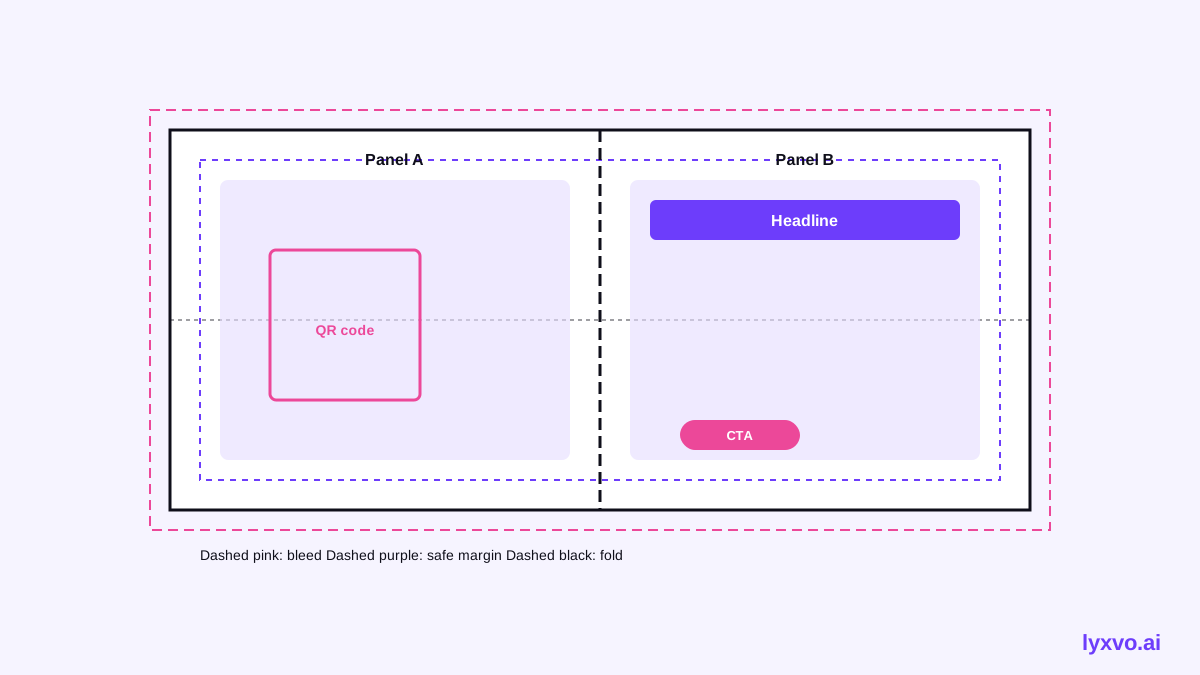
Table tents are usually folded from a single sheet, so the panel you design must match the fold. Most restaurants print a tent that stands on one side with the message facing diners on both sides.
| Element | Typical choice | Why it matters |
|---|---|---|
| Format | Folded tent, two visible panels | Both sides of the table see the message |
| Print resolution | 300 dpi | Sharp text and logos on paper |
| Safe margin | Keep text away from fold lines | Prevents cut-off words |
| QR code size | Large enough to scan from a seat | Guests scan without standing up |
| Hierarchy | One headline, one visual, one CTA | Fast reading during a meal |
Ask your printer for the exact flat size and fold line positions before you start, then set up the artboard to match.
Write copy that fits a restaurant setting
Guests read a table tent between courses, so keep copy short.
- Headline (3 to 6 words): name the collab, for example "Dine in the new drop."
- Support line (one sentence): explain the benefit, such as a dish pairing or an offer.
- CTA (2 to 4 words): "Scan to shop," "Scan for 10% off."
- Fine print (small, optional): dates, terms, and the partner names.
Avoid long product lists. If you need to show several shoes, use one hero image and link to the full catalog.
Produce the design in Lyxvo AI
Lyxvo AI's design agent can plan and build the table tent from a short brief, then let you refine it in the Canva-style editor. Here is a practical workflow:
- Open the studio. Start with a flyer-style format from the flyer studio or browse the AI flyer maker and AI poster maker for layout ideas.
- Write the brief. Include the restaurant name, the shoe brand, the offer, the CTA, the brand colors and the folded size. The agent plans the layout from this.
- Place the assets. Upload the shoe photo and both logos. Use the editor to adjust text, photos and colors directly.
- Check both panels. Confirm the headline reads correctly on each side and the QR code is large and unobstructed.
- Export at real size. Export a PNG at real size for print. For a print-ready file, make sure you export at 300 dpi.
- Make variations. Use Magic Resize to adapt the same design to other placements, such as an Instagram post for the same campaign via the AI social media post generator.
Create matching social assets
A table tent works better when guests see the same campaign online. Build a set of matching assets from one brand kit:
- A square post for the collab announcement.
- A story reminding diners to scan the code.
- A thumbnail if you post a video from the event, via the YouTube thumbnail maker.
Use the studio story format to keep the visual language consistent.
Print and test before the full run
Before ordering several hundred cards:
- Print one proof and check colors on paper, since screens and print differ.
- Fold the proof and stand it on a table to confirm both panels read well at arm's length.
- Scan the QR code with two phones to confirm the link lands on the right page.
- Confirm the offer is live and the code works.
Note: test the QR destination on mobile. A link that opens a slow desktop page loses guests quickly.
Measure and refresh
Track the QR scans and any discount redemptions for each run. Compare two versions by changing only one element, such as the headline or the CTA. Replace the tent when the offer ends rather than leaving outdated promotions on the tables.
Plans and getting started
Lyxvo AI starts free with Lyxvo Lite, which has a daily limit. For higher volume or team use, compare options on the pricing page. For more setup detail, see the docs and related guides on the blog.
Try it in Lyxvo AI
Describe it in your own words and the design agent starts on the right flow. Free to start.
Related tool: Free design templates you can edit in minutes