AI Storyboard for Directors: Planning Every Scene, Shot and Video
An AI storyboard lets a director turn a script into a visual sequence of scenes and shots before a single camera rolls. This guide explains how the storyboard fits into production, how to organise scenes and shots, and how to build one in Lyxvo AI.
Why storyboards still matter in production
A storyboard is a graphic organiser: a sequence of simple illustrations that pre-visualises a film, animation, motion graphic or interactive piece. The practice dates back to the early 1930s at Walt Disney Productions, and it is still one of the cheapest ways to find problems before they cost money on set. A storyboard shows the director where the camera sits, how the action flows from one shot to the next, and whether the story actually reads.
In modern production the storyboard sits between the script and the shooting schedule. Once the script is locked, the director breaks it into scenes, then into shots, and draws each shot so the crew, the cinematographer and the production designer share the same picture.
The vocabulary you need
Before you draw anything, agree on the terms your team uses. Most confusion on set comes from different meanings of the same word.
| Term | What it means |
|---|---|
| Scene | A unit of story in one location and time |
| Shot | One continuous camera recording |
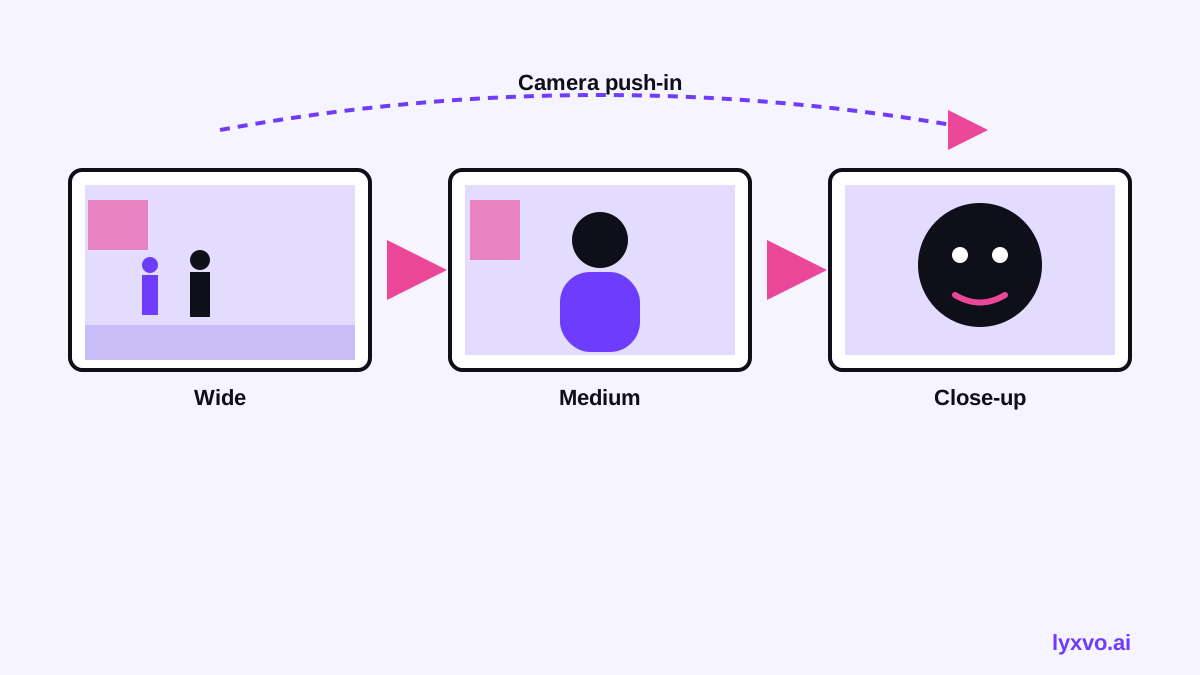
| Wide / establishing shot | Shows the whole space and where characters sit |
| Medium shot | Waist-up framing, usually for dialogue |
| Close-up | Detail of a face or object that carries emotion |
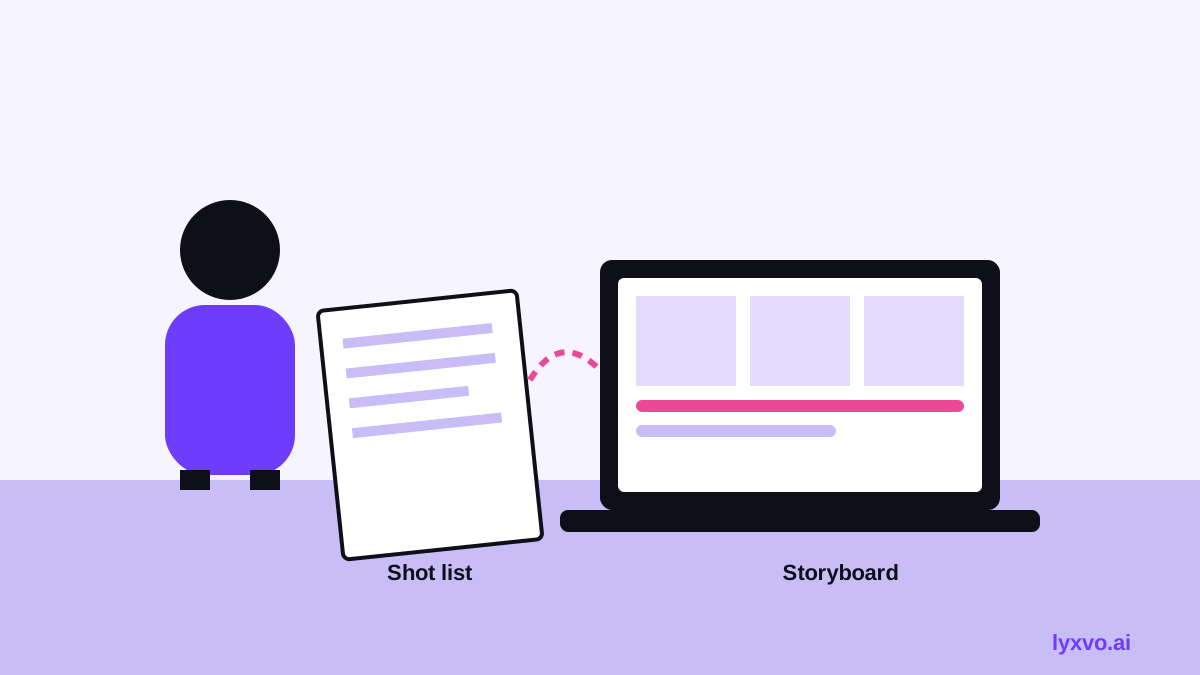
| Shot list | Numbered table of every shot with framing, lens and notes |
| Storyboard frame | One drawing of one shot, often with arrows for movement |
A step-by-step workflow for a director
1. Break the script into scenes
Read the script and list each scene with its location, time of day and the single purpose it serves. If a scene has no clear purpose, cut it or merge it. Scenes are your planning backbone, so keep the list short and specific.
2. Define the coverage for each scene
For each scene, decide the shots you need: an establishing wide, the main dialogue or action coverage, and the inserts that give rhythm. Most directors plan a mix of wide, medium and close-up so the editor has options.
3. Draw or generate the frames
Sketch each shot, showing the subject, the framing and an arrow for movement. Rough is fine. The goal is to communicate, not to make art. Keep a consistent aspect ratio across all frames so the sequence feels like one film.
4. Write the shot list alongside the board
Every frame should map to a row in the shot list: shot number, scene, framing, lens, camera movement, duration estimate and notes. The shot list is what the crew actually works from on the day.
5. Review the sequence as a whole
Lay the frames out in order and read them like a film. Check continuity of screen direction, whether the eyeline matches, and whether the pace builds. Fix the weak points now, while changes are cheap.
Checklist before you lock the storyboard
- Every scene has a clear purpose and a location.
- Each scene has an establishing shot and a close-up where emotion matters.
- Screen direction is consistent across cuts (characters keep their sides).
- Camera movements are marked with arrows and labelled.
- The shot list matches the frames one to one.
- Durations add up to a realistic shooting day.
- Notes flag any VFX, props, costume or location needs.
Using AI to build the storyboard
An AI design agent speeds up the drawing and the revision loop, but the creative decisions stay with you. Describe each shot clearly: subject, framing, mood, lighting and movement. Then iterate. If a frame does not sell the moment, change the framing or the angle and regenerate, rather than accepting the first output.
How to do it in Lyxvo AI
Lyxvo AI is an agentic design tool. For storyboarding, you describe your project, and the design agent plans the frames before drawing them, so you can review the structure first. You can then refine any frame directly in the Canva-style editor by editing text, adjusting colours and swapping photos. When the board is ready, you can export it as PNG at real size for printing or sharing with the crew, or move it into a presentation through the slides and pitch deck workflow.
If your storyboard is for a video cut, the design to video feature can turn a set of frames into a simple animated preview, which is useful for testing pacing before the shoot. For a quick start, the AI storyboard generator page explains the options, and the free design templates hub has layouts you can adapt.
Common mistakes to avoid
- Drawing every shot the same size. Vary framing so the edit has rhythm.
- Ignoring screen direction. A character who walks left in one shot and right in the next will confuse the audience.
- Skipping the shot list. Frames alone do not tell the crew the lens, the duration or the movement.
- Overplanning every frame. Leave room for the actors to surprise you on set.
- Treating the board as final. Update it after each rehearsal and location scout.
Final thoughts
A good AI storyboard is a planning tool, not a replacement for directing. Use it to test the structure of each scene, to agree the shots with your crew and to find problems while they are still cheap to fix. Start with a rough board, tighten the shot list, and let the frames guide the shoot.
Ready to plan your next sequence? Start a board in Lyxvo AI and build your scenes frame by frame.
Try it in Lyxvo AI
Describe it in your own words and the design agent starts on the right flow. Free to start.
Related tool: AI storyboard generator for ads and short videos