AI Thumbnail for Language Learning Tutorial Videos

An AI thumbnail for language learning tutorial videos is a custom cover image generated from a short brief, designed to show the lesson's promise at a glance. Good thumbnails for language content are clear, readable on a phone and honest about what the viewer will learn.
Language learners scroll fast. A thumbnail has well under a second to explain who the video is for, what they will be able to do after watching, and why this lesson is different. Below is a practical way to create an AI thumbnail for language learning tutorial videos, from planning to export.
What makes a language learning thumbnail work
Most language tutorials compete with dozens of similar titles. The thumbnail does the first job: it signals the topic and the level. Three elements matter most:
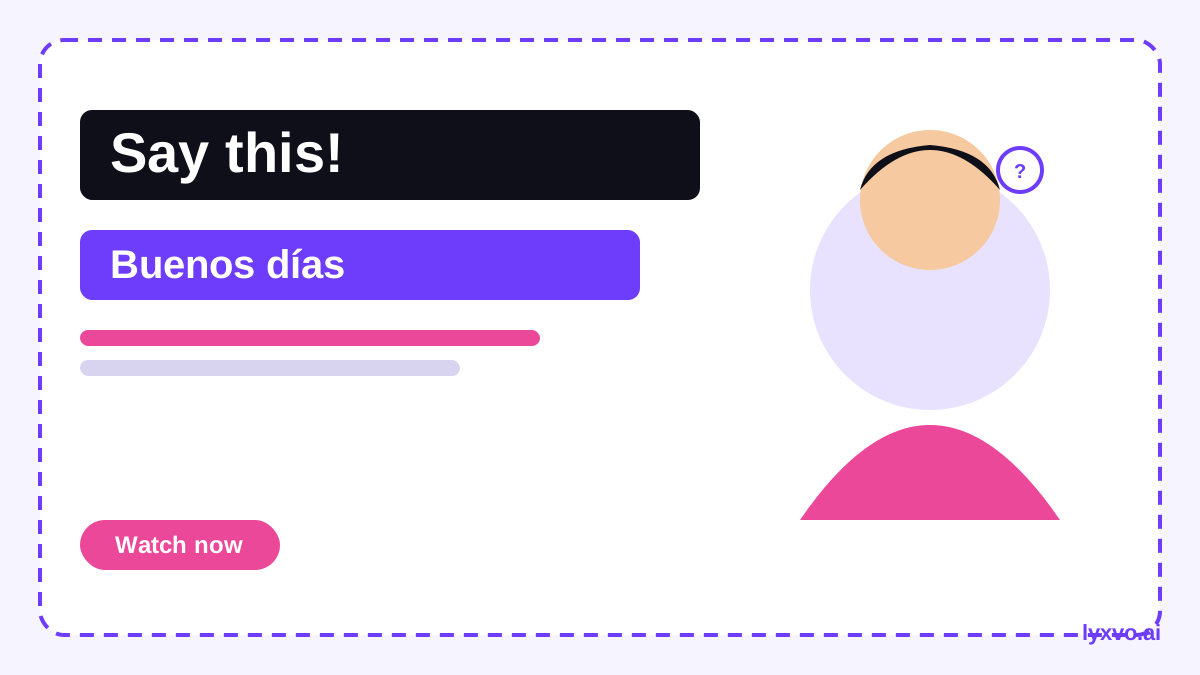
- A clear promise. "Order coffee in Spanish" tells a beginner more than a generic flag or a smiling face.
- Readable text. Use at most four to six words, in a bold sans-serif font, with strong contrast against the background.
- A focal point. One person, one object, or one speech bubble. Avoid cluttered collages.
A useful habit is to test the thumbnail at the size it appears in a feed. If you cannot read the main words on a small phone screen, simplify.
Common thumbnail formats and sizes
YouTube thumbnails use a 16:9 frame. Use the exact size your target platform expects so nothing important gets cropped.
| Use | Recommended format | Notes |
|---|---|---|
| Long tutorial on YouTube | 16:9 thumbnail | Keep faces and key words inside the centre area |
| Short vertical clip | 9:16 story cover | Place text in the upper and middle area |
| Course preview or lesson card | Square or 4:5 | Works for social posts linking to the video |
Check current platform guidance before publishing, since sizes and display rules can change.
Planning your AI thumbnail brief
Before generating anything, write a short brief. A good brief has five parts:
- Target learner: for example, "absolute beginners learning Japanese greetings."
- Outcome: "Say hello and introduce yourself in 2 minutes."
- Hook text: "Japanese in 2 min" or "Say hi like a local."
- Visual: a person mid-conversation, a phrase card, or a map with a highlighted country.
- Mood and colors: warm and friendly, or bold and energetic. Keep the palette to two or three colors that match your channel.
Keep one thumbnail idea per video. If the lesson covers three topics, pick the single most clickable one for the cover.
Step-by-step: make it in Lyxvo AI
Lyxvo AI's design agent plans and then designs, and you can refine everything in its Canva-style editor. A workable process:
- Open the YouTube thumbnail maker or go straight to the YouTube thumbnail studio.
- Describe your brief in plain language: the learner, the outcome, the hook text and the mood.
- Review the generated layout. Check that the hook text is short and the focal point is clear.
- Use the editor to change text directly, swap a photo, or adjust colors to match your brand.
- If you publish the same lesson on other platforms, use Magic Resize to adapt the design to other sizes, then export as PNG at real size.
- For a series, reuse one template so viewers recognise your channel instantly. The free design templates library is a good starting point.
If you have a previous thumbnail you like, you can import from Canva and keep the same style family.
Writing hook text that fits language content
The words on the thumbnail should match the search intent. Strong patterns include:
- Outcome plus time: "Speak Korean in 5 minutes"
- Specific situation: "Ordering food in French"
- Level signal: "Spanish for beginners"
- Contrast: "Stop saying this in Italian"
Avoid vague claims you cannot deliver. Accuracy builds trust and keeps watch time high, which matters more than a single click.
Visual rules for educational thumbnails
- Use flags sparingly. They can suggest a country rather than a language, so pair them with a clear phrase or a learner.
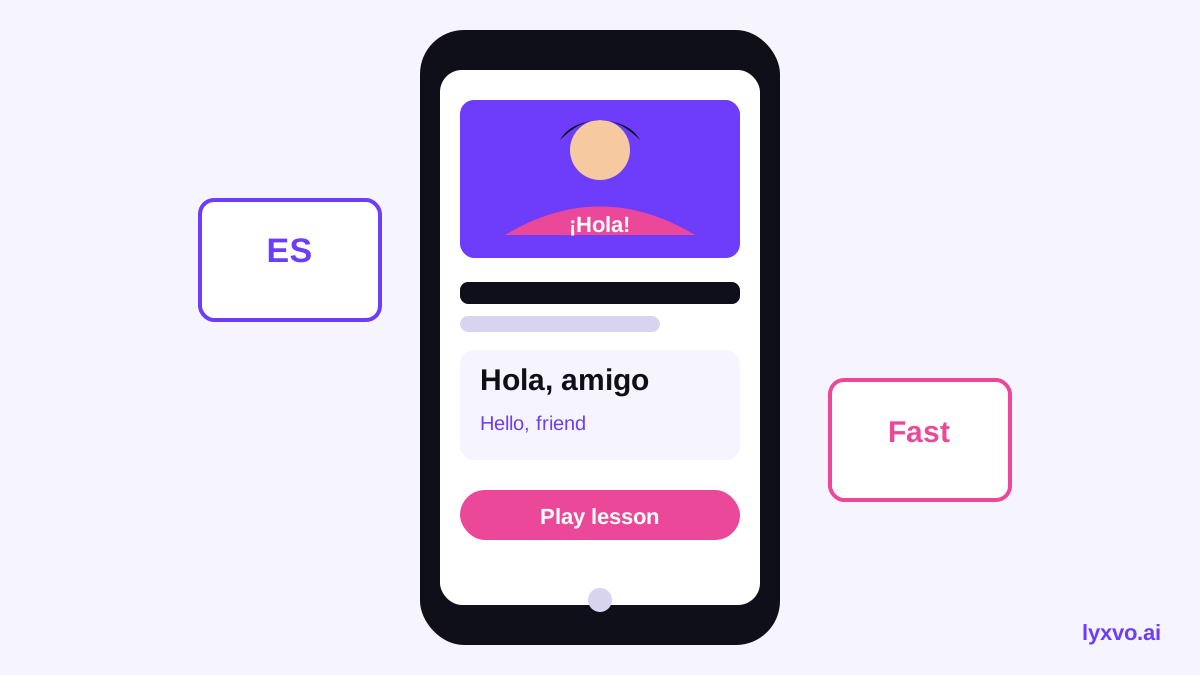
- Show the target script or phrase in large type, and add a small translation if the viewer needs it.
- Faces help when they show emotion that matches the lesson, such as surprise at pronunciation or confidence in conversation.
- Keep brand elements consistent: same font, same corner logo, same colour family across the series.
Checklist before you publish
- [ ] Hook text is six words or fewer
- [ ] Main idea is readable at phone size
- [ ] Face or object is not hidden by the video timestamp
- [ ] The promise matches the lesson content
- [ ] Exported at the correct size and format
- [ ] Colours match your channel or course branding
If you also need a presentation or flyer for your course, you can build those in the same workspace using the AI presentation maker or the AI flyer maker.
Testing and improving over time
Treat each thumbnail as a hypothesis. Change one variable at a time, such as the hook text or the face, and compare click-through rate in your analytics after a reasonable period. Keep notes on what works for your audience and reuse those patterns in future briefs. Because platform features and analytics views change, check the current options in your channel dashboard.
Summary
A strong AI thumbnail for language learning tutorial videos makes one clear promise, uses short readable text, and matches the lesson honestly. Plan the brief first, use the correct size, and refine in the editor until it reads well on a small screen. With a consistent template, your series becomes easy to recognise and your thumbnails get faster to produce.
Try it in Lyxvo AI
Describe it in your own words and the design agent starts on the right flow. Free to start.
Related tool: AI YouTube thumbnail maker