AI Thumbnail for Watch Party Livestream Announcement: A Practical Guide
An AI thumbnail for a watch party livestream announcement gives viewers a clear reason to click and show up at the right time. This guide covers what the image needs to say, the sizes and text rules to follow, and how to make one quickly in Lyxvo AI.
What a watch party announcement thumbnail has to do
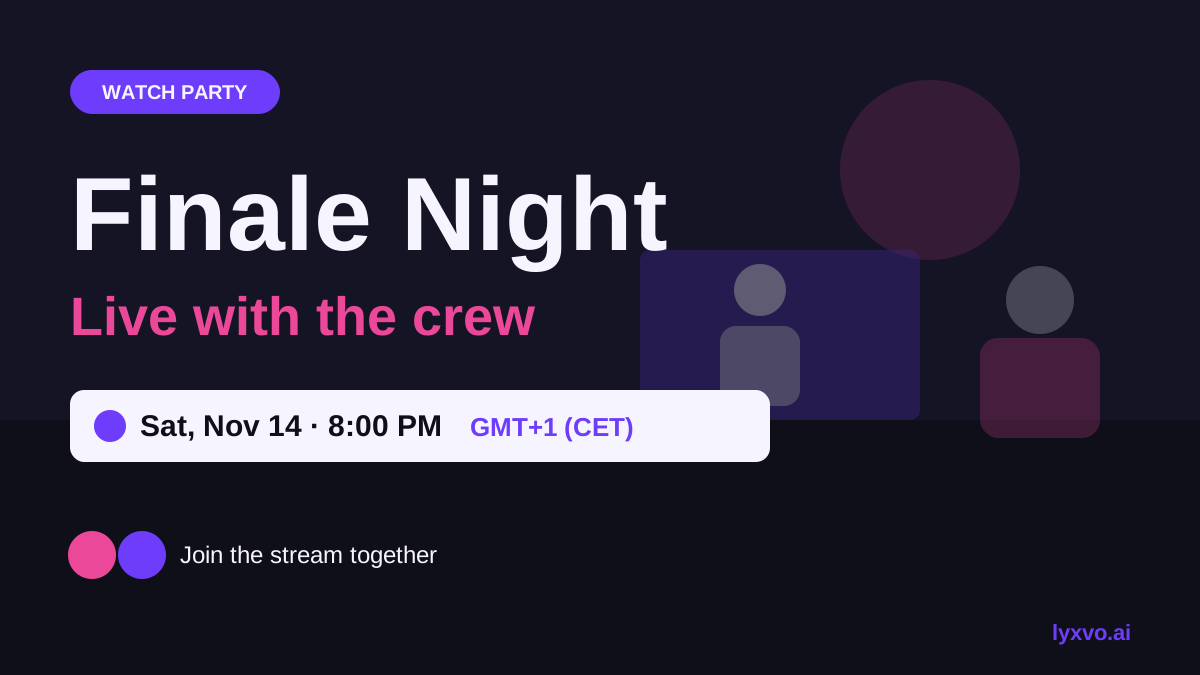
A watch party announcement is different from a normal video thumbnail. The viewer is not only deciding whether to click. They need to remember a date, a time and a reason to join together. The thumbnail works as a poster that people see in a feed, a community tab or a group chat, often on a small phone screen.
Focus on three jobs:
- Name the event in a few words, such as "Movie Night Watch Party".
- Show the time and time zone, because a watch party only works if people arrive together.
- Signal the vibe, using one strong image of the film, game, show or creator.
Keep the time and date as plain text in the image, and repeat them in the title or description. Thumbnails get cropped and compressed, so do not rely on tiny print.
Choose the right size and layout
Most platforms show thumbnails in a 16:9 frame on desktop and a taller crop on mobile. Design for the 16:9 frame and keep your key text in the central safe area so nothing is cut off.
| Use | Format | Notes |
|---|---|---|
| Livestream or video thumbnail | 16:9 landscape | Center the title and time |
| Feed or story announcement | 9:16 vertical | Add the event name at the top |
| Community or event post | 1:1 square | Works well for group chats |
Check current platform size guidance before you publish, because platforms change their recommended dimensions from time to time.
Write text that reads at a glance
Use no more than three text elements: the event name, the date and time, and a short call to action like "Join live". Keep the font large and high contrast. Put the time in the same place on every announcement so followers learn where to look.
A simple structure:
- Event name (largest)
- Date and time with time zone
- Platform or link cue, such as "Live on our channel"
Create the thumbnail with AI in Lyxvo AI
You can build the whole announcement in one session with the YouTube thumbnail maker and then adjust it in the editor. Here is a workflow that matches what Lyxvo AI offers:
- Open the YouTube thumbnail studio and describe the event, the mood and the time in your own words.
- Review the design the agent creates, then use the Canva-style editor to change text, photos and colors directly.
- Use Magic Resize to adapt the same design for a vertical story. For a vertical version, you can also start from the Instagram story format.
- Export a PNG at real size for your thumbnail and share the link with collaborators in real time if your team is helping.
If you need a thumbnail series for recurring watch parties, save your best layout as a reusable template from the free design templates library and swap only the title and time each week.
Checklist before you publish
- Time and date include the time zone and are readable on a phone.
- The event name fits in one or two lines.
- The image matches the content of the stream, so viewers are not misled.
- Text sits in the safe center, away from the edges.
- You have exported at the right size for each platform.
- The same design is used across your announcements so the series is recognizable.
Common mistakes to avoid
- Too much text. Viewers scroll fast. Cut anything that is not the name, time or action.
- Wrong time zone. Write it out, for example "19:00 UTC" or your local time with the zone.
- Misleading images. A thumbnail that promises a different film or guest hurts trust for the next event.
- Forgetting mobile. Always preview the design at phone size before you post.
Reuse one system for every announcement
Once you have a good thumbnail, keep the colors, font and layout the same and change only the title and time. This makes your watch parties easy to spot, and it saves time each week.
If you also need a poster for an in-person screening, the AI poster maker can reuse the same brand look. For the event promotion itself, the AI social media post generator can produce matching posts for other platforms.
Note: platform sizes, feature names and thumbnail rules change over time. Confirm the current guidance on each platform before you publish, and check Lyxvo AI's documentation for the latest export options.
Summary
A good AI thumbnail for a watch party announcement names the event, shows the time clearly and matches the content. Design in the right 16:9 frame, keep text short and high contrast, and build a repeatable template so every stream looks like part of the same series.
Try it in Lyxvo AI
Describe it in your own words and the design agent starts on the right flow. Free to start.
Related tool: AI YouTube thumbnail maker