AI Tool to Draw Storyboard Panels: A Step-by-Step Guide
An AI tool to draw storyboard panels can turn a written scene into a sequence of framed drawings in minutes instead of days. This guide explains how to prepare your script, generate panels that read clearly, and refine them into a board you can actually shoot or animate from.
What a storyboard panel needs to do
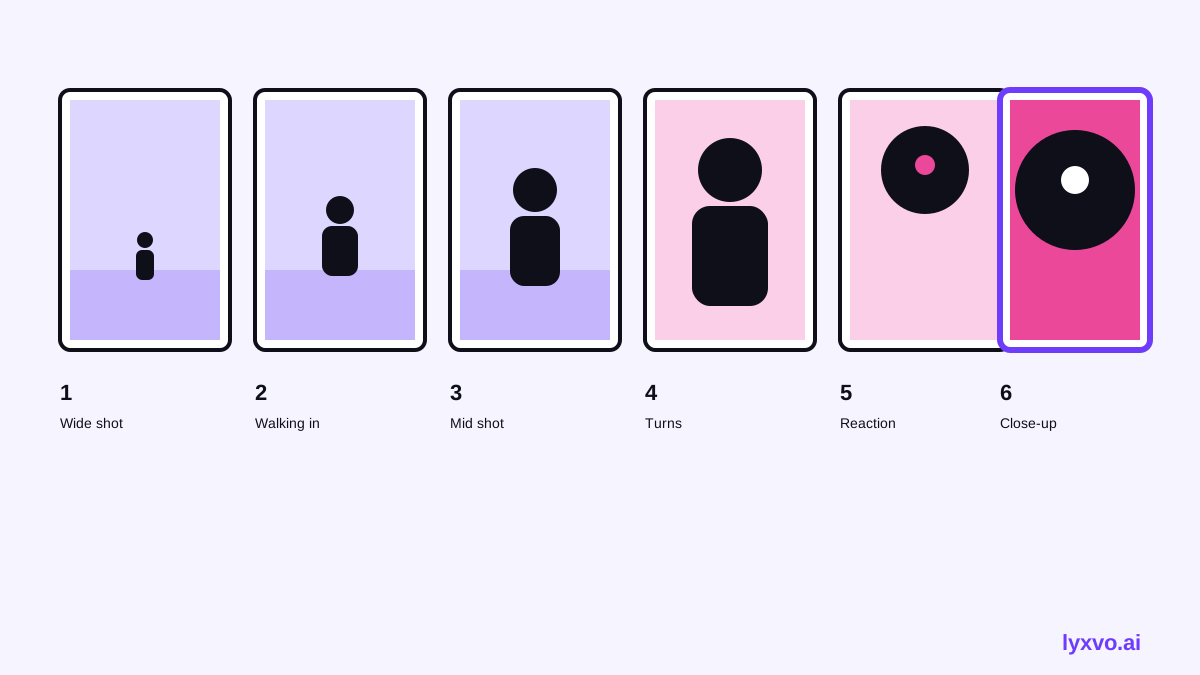
A storyboard is a sequence of simple images that shows what the camera sees, shot by shot. Each panel should answer three questions: where is the camera, who or what is in frame, and what is happening. Before you choose any tool, it helps to know what a good panel contains, because that is what you should ask an AI tool to produce.
- Shot size: wide, medium, close-up or extreme close-up
- Camera angle: eye level, high, low or over-the-shoulder
- Subject and action: who is on screen and what they are doing
- Key detail: one prop, expression or movement the viewer needs to notice
- Caption: a short note for dialogue, sound or timing
Step 1: Break your script into shots
Do not ask a tool to draw a whole scene in one image. Split the scene into beats first. A useful rule is one panel per change of camera position, reaction or important action. A two-minute dialogue scene might become 8 to 15 panels.
- Read the scene and list each moment that needs a new image.
- Write one line per panel: subject, action, shot size.
- Note any dialogue or sound that belongs under that panel.
This outline is what you feed into the generator. Short, specific prompts give cleaner panels than long paragraphs.
Step 2: Generate panels with an AI design tool
With your shot list ready, you can generate panels with AI storyboard generator. Describe each shot in plain language, for example: "medium close-up, a young courier looks up at a rain-streaked window, warm lamp light, eye-level camera." Keep the wording consistent across panels so the results match in style.
Tip: generate in small batches. Review each batch before adding more, so you catch wrong framing early.
Step 3: Check every panel for clarity
AI output can look good at a glance and still fail as a storyboard. Use this checklist on each panel:
| Check | Question to ask |
|---|---|
| Framing | Is the subject easy to see at a glance? |
| Continuity | Does the character look the same as in the previous panel? |
| Direction | Does the movement flow left to right, or make sense across the cut? |
| Action | Is the key action readable without the caption? |
| Caption | Is the dialogue or timing note short and accurate? |
If a character changes appearance between panels, regenerate with the same description or edit the details directly.
Step 4: Refine and lay out the board
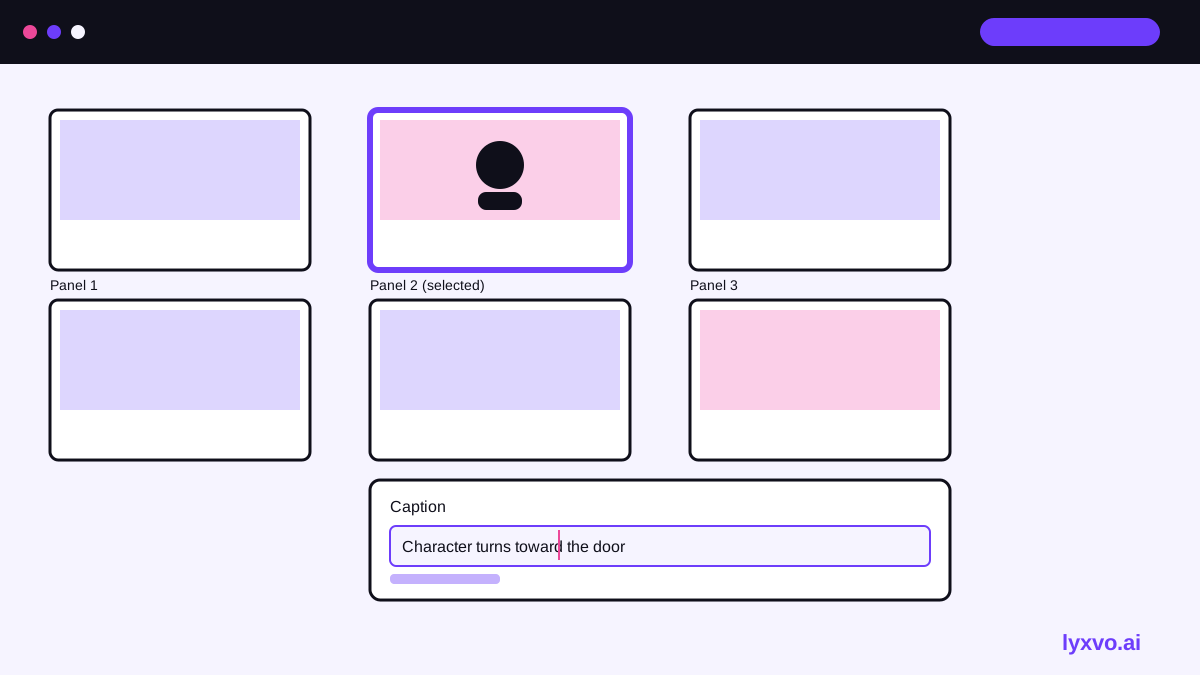
Once the panels are right, arrange them in order on a grid with numbers and captions. Keep panels the same aspect ratio so the sequence reads smoothly. Good boards are easy to scan: a director or animator should understand the scene in a few seconds.
If you also need the board for a presentation, you can move the panels into a deck. A presentation maker helps when you want to pitch the sequence to a client or team.
How to do it in Lyxvo AI
Lyxvo AI includes an agentic design workflow that plans a layout and then designs it, and a Canva-style editor where you can change text, photos and colors directly. For storyboards:
- Open the storyboard generator and describe your scene or paste your shot list.
- Let the design agent plan the panel grid, then review the result.
- Edit captions, colors or framing in the editor until each panel reads clearly.
- Export the finished board as PNG at real size, or as a PDF-ready layout for sharing.
You can also start from free design templates if you want a ready-made grid to fill in. Lyxvo Lite gives you a daily limit to try the workflow for free, and plans are listed on the pricing page.
Common mistakes to avoid
- Too many ideas per panel. Split busy frames into two.
- Inconsistent characters. Reuse the same description for the same person every time.
- Missing camera direction. Always state the shot size and angle.
- Captions that repeat the picture. Use captions for dialogue, timing or sound, not for describing what is already visible.
- Skipping review. Read the whole board once from start to finish; flow problems only show up in sequence.
When a storyboard tool is the right choice
An AI tool is well suited to early previsualization, pitching ideas, testing shot order and creating boards for short films, ads, explainer videos and animated sequences. For a fully finished animated production, the storyboard is a planning document; the animation itself still needs its own tools and team. Treat AI panels as a fast first draft that you refine with your own judgment about pacing and performance.
Quick start checklist
- [ ] Split the scene into shots before generating anything
- [ ] Write one clear line per panel: subject, action, shot size
- [ ] Generate in small batches and review each one
- [ ] Keep character descriptions identical across panels
- [ ] Check continuity, direction and caption length
- [ ] Lay out the board in order and export it
With a clear shot list and a careful review step, an AI tool can produce a usable storyboard quickly, leaving more time for the creative decisions that make a sequence work.
Try it in Lyxvo AI
Describe it in your own words and the design agent starts on the right flow. Free to start.
Related tool: AI storyboard generator for ads and short videos