AI UX Research Prompt for Field Service Technician Tablet Apps

An AI UX research prompt for a field service technician tablet helps you plan research faster, from interview guides to usability tasks, before you design a single screen. This guide gives you a copy-ready prompt, a checklist for the field, and a clear path from research notes to tablet interface designs.
Why field service tablets need different research
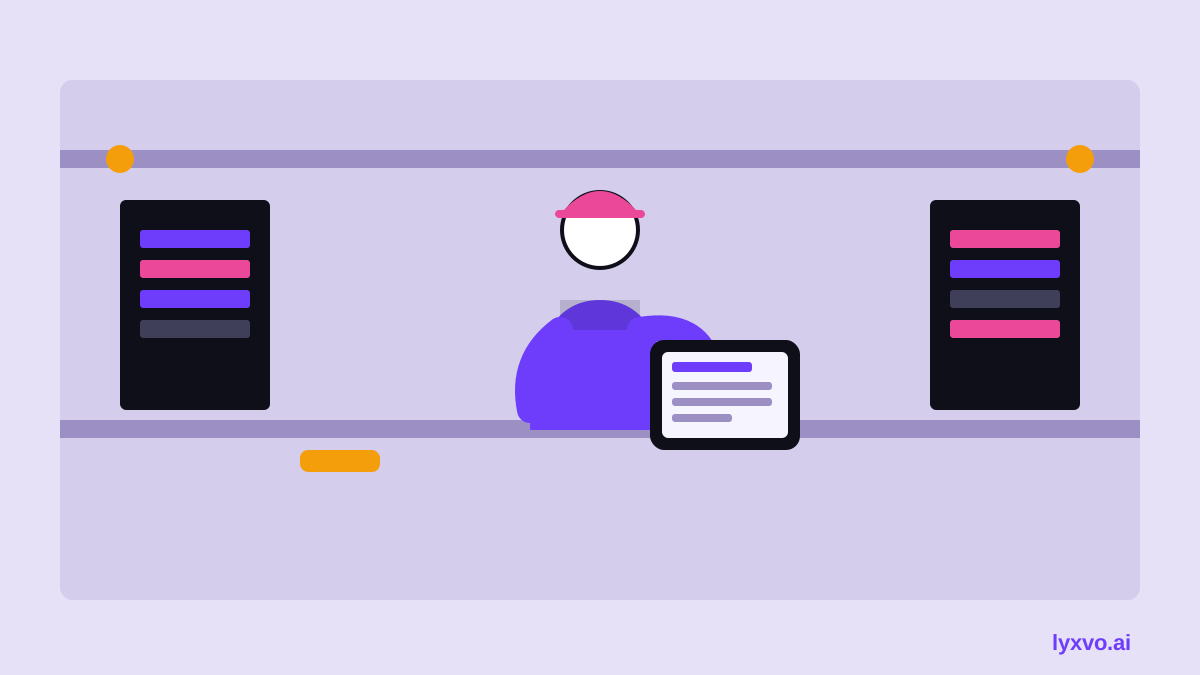
A technician working on a rooftop unit, in a basement, or under a sink is not sitting at a desk. They wear gloves, hold a flashlight, balance a tool bag, and often have a customer watching. Research that ignores these conditions produces screens that look good in a meeting and fail on site.
An AI research prompt speeds up the planning part: drafting interview questions, usability tasks, observation notes, and synthesis templates. You still need real technicians in the loop. The AI helps you prepare; it does not replace the field.
The copy-ready AI UX research prompt
Use this prompt in any AI assistant, then edit the bracketed parts with your product details:
You are a senior UX researcher. Create a research plan for a field service technician tablet app used by [trade, e.g. HVAC technicians] in [environment, e.g. commercial buildings and homes]. The app handles [core jobs, e.g. work orders, parts lookup, photo documentation, customer signature]. Produce: (1) 8 open-ended interview questions focused on the technician's last three jobs, (2) 5 contextual observation prompts for a ride-along, (3) 6 usability tasks with success criteria, written for someone wearing gloves and working one-handed, (4) a list of environmental factors to note (lighting, noise, connectivity, weather), (5) a synthesis template that groups findings by pain point, workaround, and opportunity. Keep language plain and avoid leading questions.
The prompt works best when you add real constraints: the trade, the typical job length, whether technicians have offline access, and what they currently use (paper, a legacy system, or a spreadsheet).
Step-by-step: run the research
1. Recruit the right people
Aim for a mix of experience levels. New technicians reveal training gaps; veterans reveal workarounds they stopped noticing. Include dispatchers or supervisors if they set the work order flow.
2. Run interviews on real jobs
Use the AI-drafted questions, but ask about specific recent jobs rather than hypotheticals. Ask technicians to walk you through a job step by step. Note every moment they pause, squint, switch hands, or reach for a second device.
3. Do ride-alongs
Observation beats self-report. Watch how the tablet is held, where it sits during a repair, and how often the technician leaves the screen to check a manual. Record the environment as you would record a usability finding.
4. Test usability in context
Give the six AI-drafted tasks to technicians on real or simulated tablets. Measure task completion, time, and errors. Test with gloves if your users wear them, and test in bright sun or low light if they work outdoors or in dim spaces.
5. Synthesize findings
Sort notes into pain points, workarounds, and opportunities. A workaround such as writing part numbers on a hand is a strong signal for a design change.
Field research checklist
- Confirm connectivity: what works offline, and what must sync later
- Check touch targets: can a gloved thumb hit them reliably?
- Test text size under glare and at arm's length
- Note how the tablet is mounted or held during repairs
- Capture the customer-facing moments: signatures, photos, explanations
- Record time spent per job on documentation versus repair
- Ask what they would remove from the app if they could
Turning findings into tablet screens
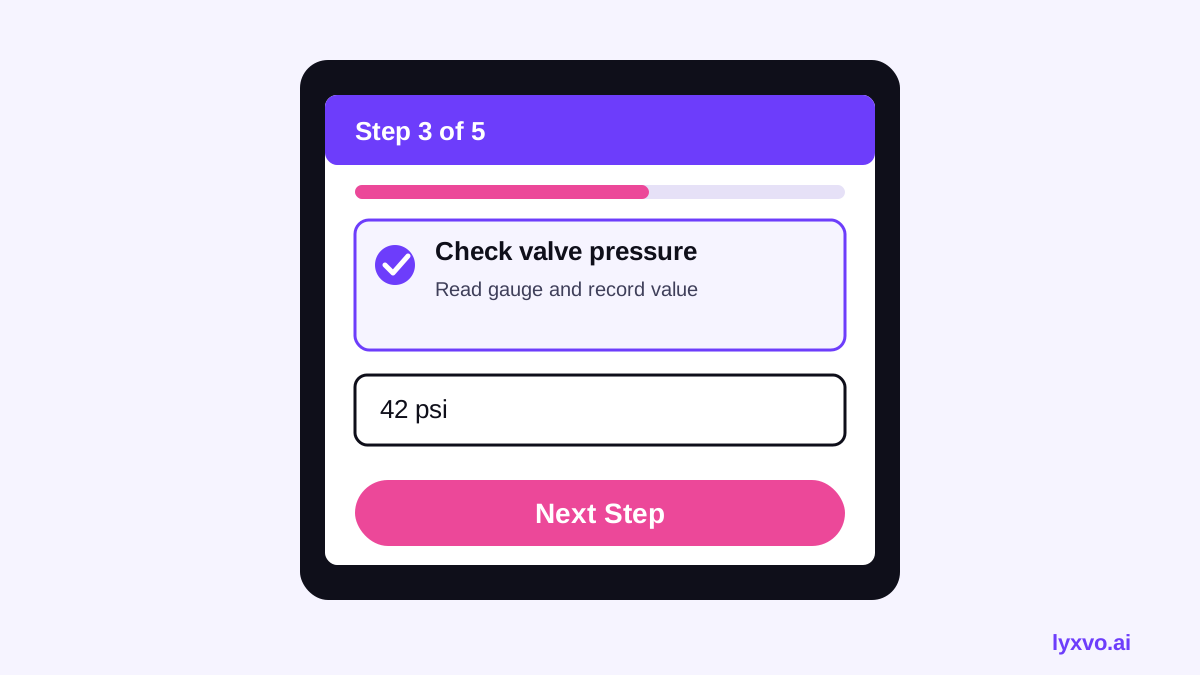
Once synthesis is done, translate each opportunity into a screen concept. A common pattern is a job-first home screen showing today's jobs with the next action large and obvious, a checklist view that works one step at a time, and a parts or manual drawer that opens without leaving the job.
Keep the following patterns in mind:
| Field finding | Design response |
|---|---|
| Gloved taps miss small buttons | Large touch targets, spacing between controls |
| Glare makes low-contrast text unreadable | High contrast, dark and light mode options |
| Connectivity drops in basements | Offline-first job data, clear sync status |
| Techs photograph every step | One-tap camera inside the job flow |
| Customers want a quick summary | A plain-language completion screen for signature |
How to design these screens in Lyxvo AI
Lyxvo AI's design agent can turn your research notes into tablet screens. Open the AI UI design generator or the AI app design tool, choose the tablet platform, and describe the job flow from your synthesis. You can then refine text, colors, and layout in the Canva-style editor, and export PNG at real size or HTML for review.
To start a focused layout, open the app design studio and paste your task list as the brief. For a multi-screen flow across the whole job lifecycle, the Lyxvo Engine can build full multi-page apps, and every account can try two pages free. Pricing for other needs is on the pricing page.
Common mistakes to avoid
- Testing only in an office. Field conditions change everything.
- Accepting AI-generated questions without editing them for your trade
- Asking technicians what they want instead of watching what they do
- Designing for the average user and ignoring the most experienced one
- Skipping offline and sync testing
Summary
An AI UX research prompt gives you a fast, structured start for field service technician tablet research. Pair it with real ride-alongs, gloved usability tests, and disciplined synthesis, then translate findings into large-target, offline-aware screens. Refine your designs in Lyxvo AI and test them with the same technicians who shaped the research.
Try it in Lyxvo AI
Describe it in your own words and the design agent starts on the right flow. Free to start.
Related tool: AI UI design generator for apps and websites
Whole apps and websites are designed with the Lyxvo Engine, rented separately from the design plans; every account can try 2 pages free.