How to Convert Figma Frames to UI Designs with AI
Converting Figma frames to UI designs with AI means turning rough or unfinished frames into polished, consistent app and website screens in less time. This guide shows you how to prepare your frames, run them through an AI design workflow, review the results, and bring everything back into Figma without losing control.
What "converting Figma frames to UI designs" really means
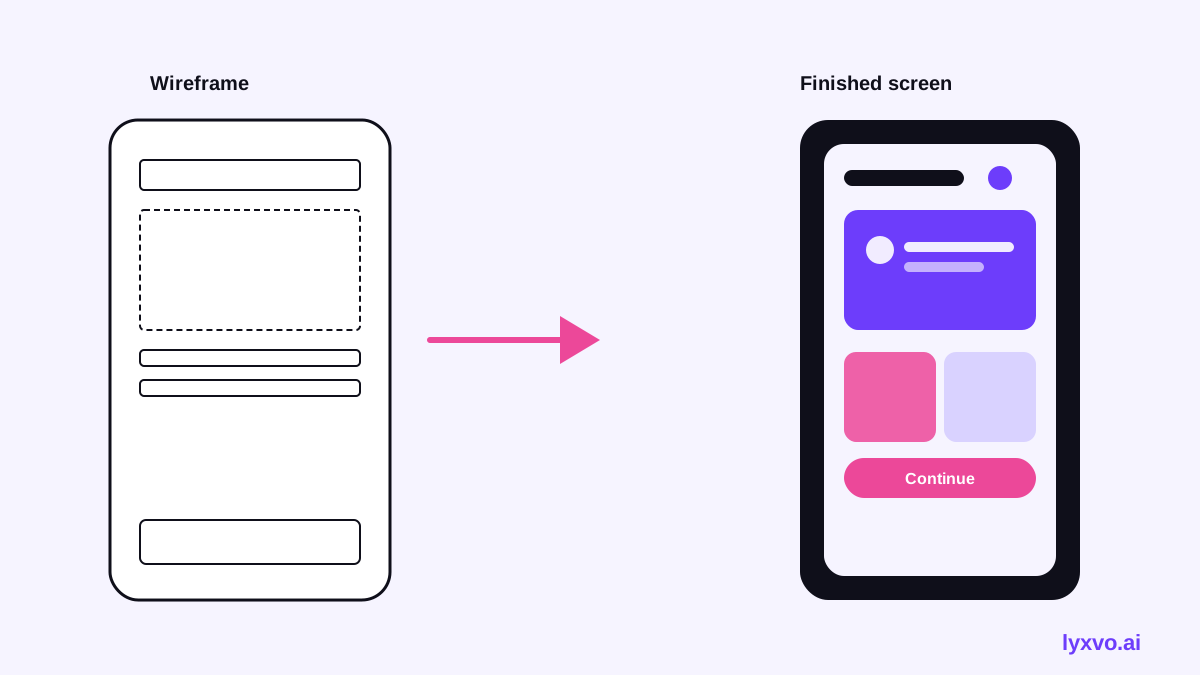
Most Figma files start as sketches: wireframes, boxes with labels, screenshots of a competitor's flow, or a first pass that never got the visual layer. Converting those frames to finished UI means keeping the structure and intent of each screen while applying a real visual system: type scale, color, spacing, icons, and components that behave the same across screens.
AI helps most with the repetitive part of that job. It can take a wireframe for a sign-up flow and produce a styled version, then apply the same look to the next ten screens. It does not replace your product decisions. You still decide what the screens must do.
Step 1: Prepare your Figma frames
The cleaner your input, the better the output. Before you convert anything:
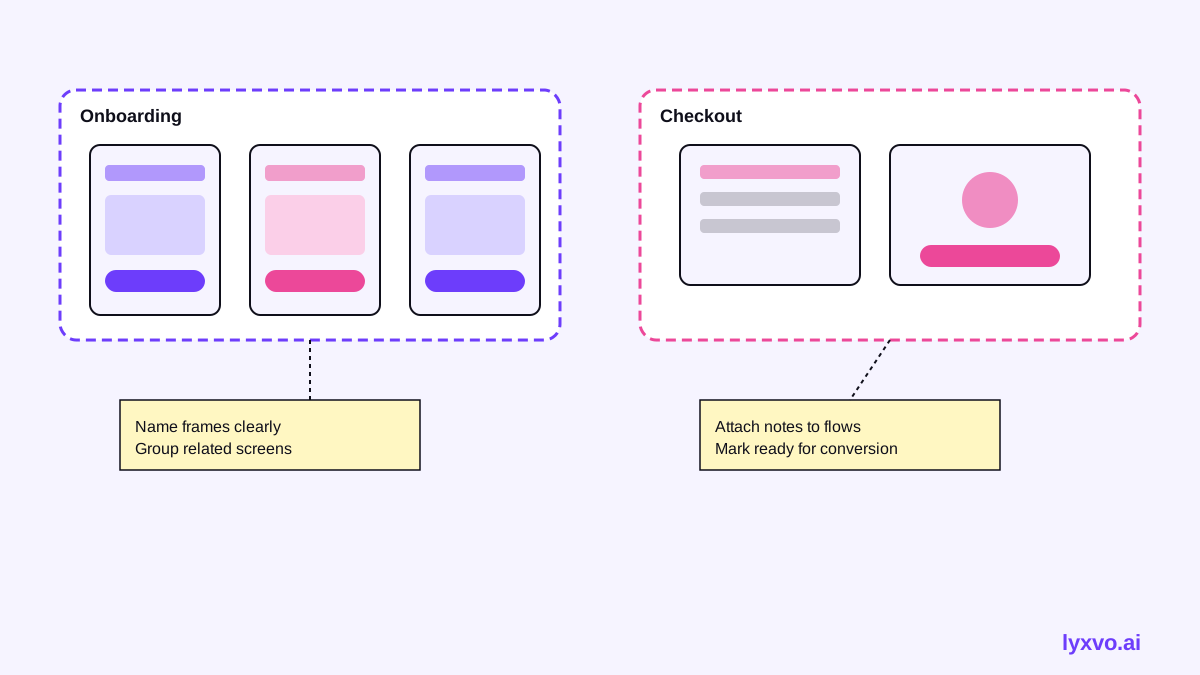
- Name your frames by screen, such as "Onboarding / Step 2" or "Checkout / Payment." Clear names carry meaning into the result.
- Set one frame size per platform. Use a phone frame for mobile and a desktop width for web. Mixed sizes in one batch cause layout drift.
- Group related screens in sections so the flow is easy to read.
- Write short notes in a text layer or a sticky next to each frame: what the user does here, and what must not change (labels, required fields, legal text).
- Export a reference of your frames as PNG or a link, so you can compare later.
Keep your original file untouched. Work on a duplicate page so you can always go back to the wireframes.
Step 2: Choose the right kind of AI conversion
There are three common approaches:
| Approach | Best for | Watch out for |
|---|---|---|
| Restyle a single frame | Quick visual upgrade of one screen | Inconsistency across screens |
| Generate a full flow from notes | New features, early concepts | Needs careful review of logic |
| Build a design system first, then apply it | Multi-screen products | Takes longer upfront, pays off later |
For most teams, the third option gives the most reliable result. Define colors, type, spacing and components once, then convert every frame against that system.
Step 3: Run the conversion with an AI design agent
A design agent that plans before it designs is useful here, because it can read your flow and keep screens consistent. In Lyxvo AI, the design agent can produce complete app and website screens for iOS, Android and web. You describe the product and the flow, add your frames or notes, and the agent plans the screens before generating them.
A practical sequence:
- Start in the app design tool for mobile flows, or the website design tool for web pages.
- Set the brand basics: colors, fonts, tone and any logo you already have.
- Provide your frames or a short description of each screen and its purpose.
- Generate the set, then review screen by screen.
If you are starting from an interface rather than a file, the UI design generator covers the same idea for single screens.
Step 4: Review the output like a design lead
AI output looks finished, which makes it easy to skip review. Use a checklist:
Check the flow
- Does every button lead where the original wireframe led?
- Are required fields and error states still present?
- Did the agent add or remove a step you did not ask for?
Check the system
- Are text styles reused, or did each screen invent its own sizes?
- Is spacing on an even grid (for example 4 or 8 px)?
- Do icons share one stroke weight and style?
- Are touch targets at least comfortable size on mobile?
Check the content
- Are labels, prices and legal text exactly right?
- Is any text clipped or overflowing at the real device size?
Fix small issues directly rather than re-prompting for everything. Editing text, colors and images by hand is faster for final polish.
Step 5: Export back to Figma and to code
Once the screens are right, get them out of the tool in a form your team can use:
- Figma export gives you SVG plus design tokens, so colors and type sit in a system you can keep editing.
- PNG at real size is good for stakeholder reviews and specs.
- HTML, Flutter or Kotlin Jetpack Compose exports help developers start from a closer match to the design.
In Figma, rebuild any repeated element as a component so future edits flow through every screen. Tokens are what keep the system consistent when you change a color later.
Common mistakes to avoid
- Converting before the flow is settled. Fix the logic in wireframes first; restyling a broken flow only makes it look finished.
- Accepting the first generation. Plan on at least one review pass per screen.
- Mixing platforms in one batch. Generate iOS, Android and web separately so each follows its own conventions.
- Losing the source. Keep the original frames so you can compare and re-run a single screen.
A quick workflow summary
- Clean up and name your frames.
- Define the visual system once.
- Convert in batches by platform.
- Review flow, system and content.
- Export tokens and screens to Figma, and code to your developers.
If you want to explore the full range of formats you can produce from the same design direction, the free design templates page is a useful starting point. For pricing and plan limits, see the pricing page, and the docs explain exports in more detail. You can also browse the blog for more workflow guides.
The best results come from treating AI as a fast, consistent first designer that you still direct and review, not a replacement for your judgment about the product.
Try it in Lyxvo AI
Describe it in your own words and the design agent starts on the right flow. Free to start.
Related tool: AI UI design generator for apps and websites
Whole apps and websites are designed with the Lyxvo Engine, rented separately from the design plans; every account can try 2 pages free.