How to Create a Digital QR Code Menu with AI
To create digital QR code menu with AI, you describe your dishes and style, let an AI design agent lay out the menu pages, then link a QR code that opens the finished menu on a guest's phone. This guide walks through the whole process, from planning the content to printing table tents that scan reliably.
Why a digital QR code menu works
A QR code menu replaces paper with a web page guests open by scanning a code on the table. It is easy to update when prices or specials change, it can be translated for visitors, and you can print a fresh code on a card, sticker or stand instead of reprinting a full menu each season.
The design matters as much as the code. Guests read on a small screen, often in a bright room, sometimes with one hand. A good digital menu is short to scroll, has clear prices, and loads fast.
Before you design: plan the content
Before opening any design tool, gather your information. A simple checklist keeps the AI prompt and the final layout accurate:
- Sections: starters, mains, desserts, drinks, sides, or a seasonal board.
- Items: name, short description, price, and whether a dish is vegetarian, spicy or contains common allergens.
- Currency and format: write prices the way guests expect them to see them in your market.
- Brand details: logo, two or three brand colors, and the font style you want (classic, modern, playful).
- Languages: if you have international guests, decide which languages to offer from day one.
Tip: keep item descriptions to one line. Long paragraphs make a phone menu hard to scan.
Step-by-step: build the menu with AI
1. Describe the menu in one prompt
Give the design agent your sections, a few sample items with prices, and the mood you want. For example: "Mobile menu for a cozy coffee shop. Sections: Coffee, Tea, Pastries, Sandwiches. Warm earthy colors, clean sans-serif font, prices in the right column." The more specific the prompt, the less editing you need later.
2. Choose the right format
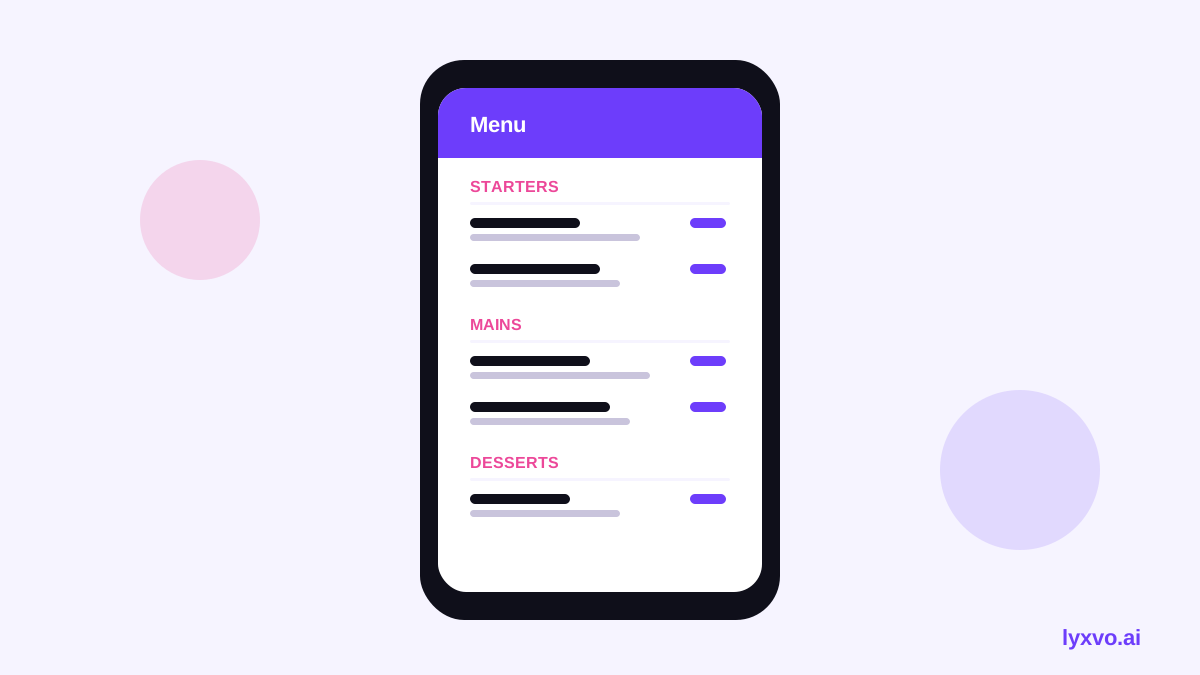
A digital menu is viewed on a phone, so design it for a phone-sized canvas first. In Lyxvo AI, you can start in the AI UI design generator or the AI website design tool if you want a full mobile-friendly page, and open the design studio with the web platform setting for a browser-based layout.
3. Refine text and images with the editor
After the first draft, use the Canva-style editor to change text, swap dish photos and adjust colors directly. Check that every price matches your till. Keep photos bright and cropped to the same proportions so the menu looks consistent when a guest scrolls.
4. Add translations
Use the translate feature to create versions in the languages your guests speak. Always have a staff member check allergen wording and dish names, because automatic translation can change meaning.
5. Export a web-ready menu
When the layout is final, export the menu as HTML so it can be hosted and opened in any phone browser. If you also want a printed version for a backup, export PNG at real size or a print-ready file.
Create the QR code and place it
Once the menu has a live link, generate a QR code that points to it and test the scan before printing. Print the code large enough to scan from arm's length, usually at least a few centimeters square, with a white border around it. Avoid placing the code on glossy surfaces that reflect light.
Good placement options:
- Table tents on each table, one per two or four seats.
- A sticker on the entrance window or counter.
- A small framed card near the cash register.
Test before you launch
Test the menu the way a guest will use it:
- Scan the code with at least two different phones, one iPhone and one Android if possible.
- Test on a slow mobile connection, since many guests scan while on a weak signal.
- Check that the menu loads in under a few seconds and that text is readable without zooming.
- Confirm prices, allergen labels and opening hours match your current service.
- Have someone outside the team try to find a specific dish, then watch where they hesitate.
Common mistakes to avoid
| Mistake | Better approach |
|---|---|
| Tiny text that needs zooming | Use large body text and short lines |
| Too many photos | Use photos for hero dishes only |
| QR code printed too small | Make it large with a clear white border |
| Outdated prices | Update the menu and re-check the link after each change |
| No backup | Keep a printed PDF or PNG for power outages |
Keep the menu current
A digital menu is only useful if it stays accurate. Set a routine: update prices and sold-out items at the start of each service, and review the whole menu each season. Because the code points to one live page, you rarely need to reprint the table tents when the food changes.
If you also run promotions, you can make matching visuals for social media with the AI social media post generator so your menu and your posts share the same look. For a printed menu board or poster to display near the entrance, the AI menu maker and AI poster maker are good starting points.
A simple launch checklist
- Menu content is final, with prices and allergen notes checked.
- Translations reviewed by a native speaker.
- QR code tested on two or more phones and on a weak connection.
- Printed codes are large, sharp and placed where guests can reach them.
- A process is in place to update the menu when items change.
Note: QR code scanning and mobile browser behavior change over time, so check that your code still scans on current phones before a busy period.
Summary
To create digital QR code menu with AI, plan your sections and items, describe the style in a clear prompt, refine the layout and translations, export the menu, and print a well-placed, well-sized code. Test it on real phones before launch, then keep the content current. Start with the free design templates if you want a head start on layout.
Try it in Lyxvo AI
Describe it in your own words and the design agent starts on the right flow. Free to start.
Related tool: AI menu maker for restaurants and cafés