Favicon ICO Multi-Size for Legacy Browsers: A Practical Guide

A favicon ico multi size file packs several icon sizes into one file, so older browsers can pick the right one without scaling a single image badly. This guide explains how to build that file, which sizes matter, and how to link it correctly.
Why the .ico file still matters
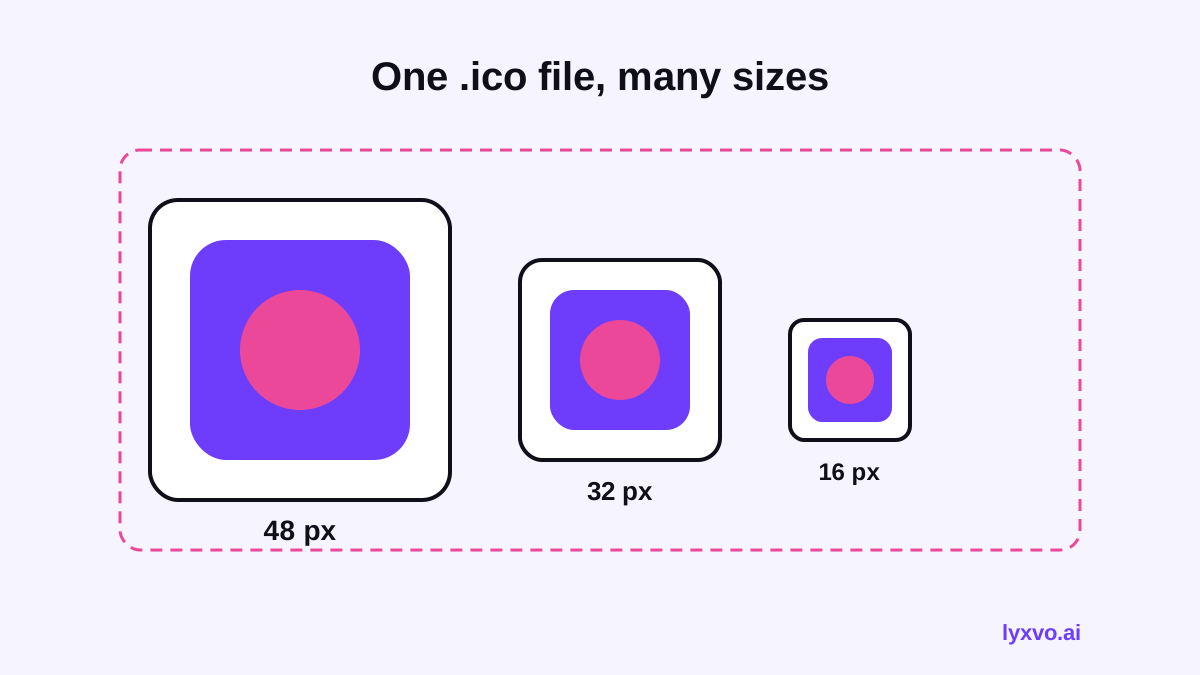
Modern browsers accept PNG, SVG and other formats for the tab icon. Older browsers, and some Windows surfaces, still look for a file called `favicon.ico` at the root of your site. That file is a container: it can hold several images at different sizes and color depths, and the browser chooses the one that fits best.
The ICO format was built by Microsoft for Windows icons, which is why it can store multiple sizes in one file. That structure is exactly what a multi-size favicon needs.
Note: Browser behavior and standards change over time. Treat the details below as current general guidance and check recent browser documentation before a major launch, because support for specific formats and tags may have shifted since this was written.
Which sizes to include
You do not need every size imaginable. A practical set covers the places the icon appears:
| Size (px) | Where it is typically used |
|---|---|
| 16 x 16 | Browser tab and address bar on standard displays |
| 32 x 32 | Tab on high-density displays, taskbar shortcuts |
| 48 x 48 | Windows shortcuts and site lists |
| 64 x 64 | Larger shortcut and pinned-site contexts |
| 256 x 256 | High-resolution Windows contexts (optional) |
For most sites, 16, 32 and 48 pixels inside one ICO file cover the legacy cases well. Add 256 only if you care about large Windows icon displays.
Step-by-step: build a multi-size favicon.ico
- Start from a clean square master. Use a simple, high-contrast mark. Small sizes lose fine detail, so avoid thin lines and tiny text.
- Export each size separately. Render 16, 32, 48 (and optionally 64 and 256) as PNG at exact pixel dimensions. Do not just shrink one large image in a single pass without checking the result.
- Combine them into one ICO. Use an icon editor or a converter that accepts multiple PNG inputs and writes one `.ico` container. Confirm the output contains every size you exported.
- Place the file at the site root. Save it as `/favicon.ico` so browsers that request it by default find it without any markup.
- Check the MIME type. Some servers send `.ico` with an unexpected content type. Make sure it is served as an icon image, not as text or download data.
Linking the favicon in HTML
Even with a root-level `favicon.ico`, it is good practice to declare it explicitly so every browser and crawler knows where it is:
```html <link rel="icon" href="/favicon.ico" sizes="any"> <link rel="icon" href="/icon.svg" type="image/svg+xml"> <link rel="apple-touch-icon" href="/apple-touch-icon.png"> ```
The `.ico` link serves legacy browsers, the SVG serves modern ones that support scalable icons, and the Apple touch icon serves iOS home-screen bookmarks. Keep the ICO link first so legacy agents find it without guessing.
Common mistakes to avoid
- Only one size inside the file. A single 32 px image will look blurry in other contexts. Always bundle several sizes.
- Scaling a detailed logo down. Build a simplified version for 16 px rather than shrinking the full mark.
- Caching a broken icon. Browsers cache favicons aggressively. After you replace the file, add a version query string in your link tag or clear the cache while testing.
- Forgetting transparency. Decide whether the background is transparent or filled, and test it on both light and dark browser themes.
- Wrong path on subfolder sites. If the site lives in a subfolder, the root file may not be what you expect. Link it explicitly.
Testing your favicon
- Open the site in a fresh private window so cached icons do not interfere.
- Load `yourdomain.com/favicon.ico` directly and confirm the image appears.
- Check the tab on a standard display and, if you can, on a high-density screen.
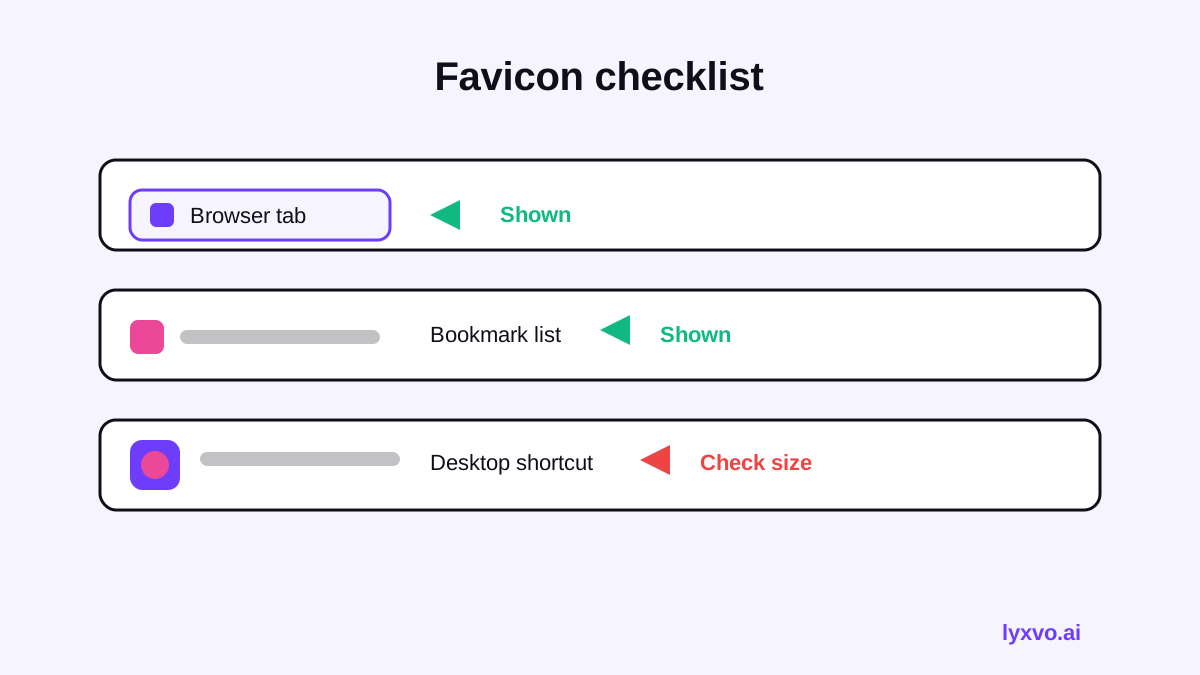
- Add the site as a bookmark and verify the icon shows in the list.
- Try a Windows shortcut or pinned site to see the larger sizes render cleanly.
How to make the icon set in Lyxvo AI
Lyxvo AI's logo and brand kit tools generate icons in the sizes you need for web, Android and iOS, so you do not have to export each size by hand. Start with the AI logo generator to create a simple, recognizable mark, or open the app icon generator to produce icon sets. You can then refine the mark in the Canva-style editor and export PNG at real size for each icon. Packaging the PNGs into a single `.ico` file is still a separate step in an icon tool, and you can use the design studio to start from a logo format.
Summary
A favicon ico multi size file keeps your icon sharp in legacy browsers and Windows surfaces. Pick a few clear sizes, combine them into one ICO, serve it from the site root, link it explicitly, and test with fresh caches. A simple master design makes every size look better.
Try it in Lyxvo AI
Describe it in your own words and the design agent starts on the right flow. Free to start.
Related tool: Free design templates you can edit in minutes