How to Generate an AI App Mockup from a Hand Sketch Photo

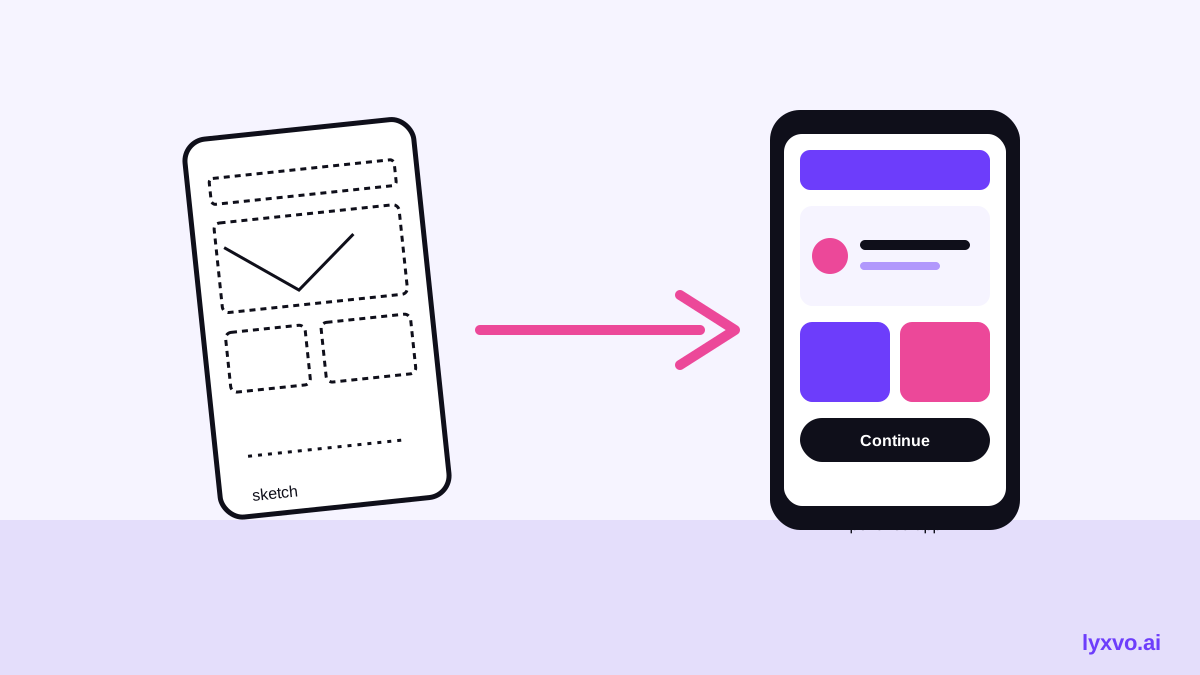
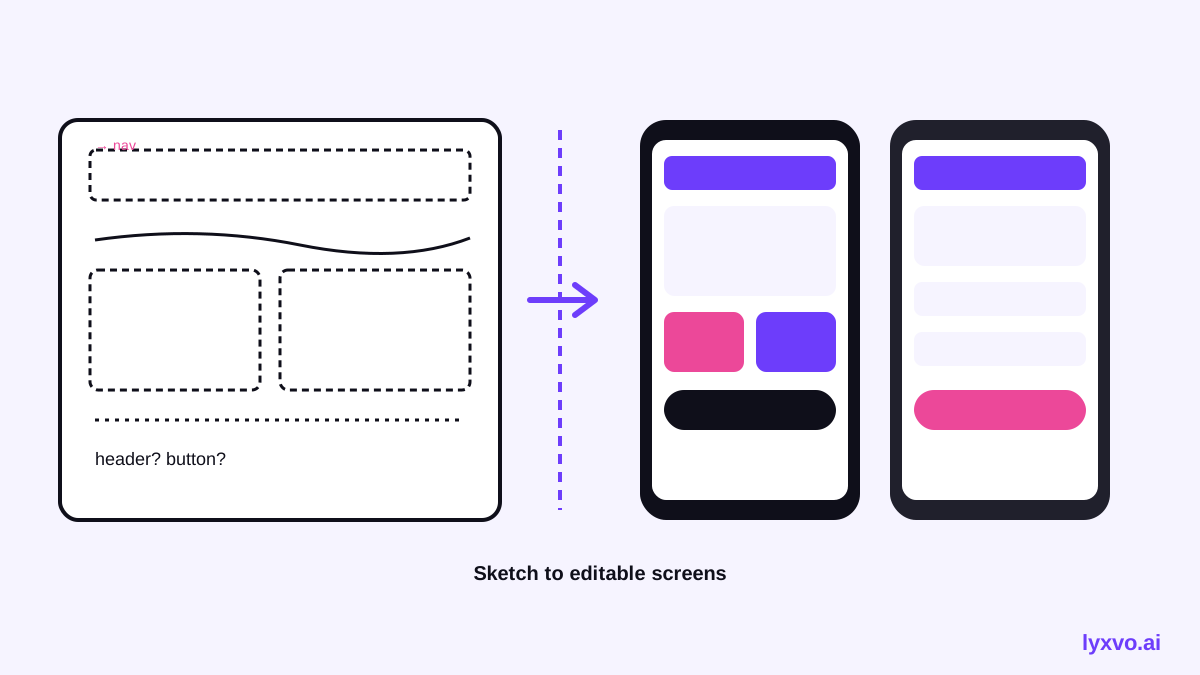
You can generate an AI app mockup from a hand sketch photo by taking a clear picture of your paper wireframe, describing the screens and flow, and letting an AI design agent turn it into structured, editable screens. The result is far faster to revise than redrawing everything in a design tool.
Paper sketches are still the fastest way to explore an app idea. The problem comes next: turning a napkin layout into screens you can test, share with a client, or hand to a developer. This guide walks through a practical workflow for generating an app mockup from a hand sketch photo, and shows how to do it in Lyxvo AI.
Why start from a hand sketch at all
A sketch captures layout decisions quickly: where the navigation sits, how many cards fit on a screen, which actions matter most. Redrawing it digitally from scratch often wastes time on pixel details before the structure is settled. A photo of the sketch gives an AI agent the structure, and you can add the visual polish afterward.
The trade-off is accuracy. A sketch is ambiguous, so the output is a strong first draft, not a finished product. Plan to review and refine it.
Prepare the sketch photo
The quality of the photo strongly affects the result. Follow these steps before you upload:
- Use bright, even light and avoid shadows across the paper.
- Shoot straight down so the page is not skewed. Crop tightly to the sketch.
- Keep one screen per photo if the sketch has many frames, or label each frame clearly.
- Write short labels for key elements ("tab bar," "search," "checkout") so the agent can read intent, not just shapes.
- Add a note on the paper for the platform: phone, tablet or web.
Tip: Hand-written text is often the most useful part of a sketch. Legible labels usually improve results more than sharper lines do.
Describe the flow, not just the screens
A single screen is easy. A usable app is a sequence. Before generating, write down:
- The main user goal (for example, "book a table in under a minute").
- The screens in order, and what moves the user from one to the next.
- Any states you care about: empty, loading, error, success.
- The brand basics: two or three colors, a font style, a tone such as playful or corporate.
This short brief lets the agent place content and buttons with intent instead of guessing.
Comparing approaches
| Approach | Speed | Editable output | Best for |
|---|---|---|---|
| Redraw in a design tool by hand | Slow | Yes | Final craft work |
| Photo-to-mockup with an AI agent | Fast | Yes, after review | Exploring and validating flows |
| Hand off the sketch as-is | Instant | No | Quick internal discussion only |
How to do it in Lyxvo AI
Lyxvo AI's design agent plans the screens first and then designs them, so you can check the structure before the visuals are finished. A practical sequence:
- Open the AI app design tool and choose your platform (iOS, Android or web). You can also start directly in the app studio or the web studio.
- Upload the sketch photo and paste your brief: goal, screen order, states and brand notes.
- Review the planned screens, then let the agent design the complete screens.
- Use the Canva-style editor to change text, photos and colors directly, and to fix any element the agent misread.
- Export what you need: PNG at real size for review, or HTML, Flutter or Kotlin Jetpack Compose code for development. You can also export to Figma as SVG and design tokens.
If you also need an icon set or brand identity for the app, the app icon generator and AI logo generator cover those steps. Lyxvo Lite gives you a daily free allowance to try this, and paid plans are listed on the pricing page. For a full multi-page app, the Lyxvo Engine is rented separately, and every account can try two pages free.
Checklist before you share the mockup
- Does every screen match a step in the user flow you wrote?
- Are the tap targets large enough and clearly labeled?
- Are empty, loading and error states present?
- Is the text readable at real device size?
- Have you removed anything the agent invented that the sketch did not show?
Common mistakes to avoid
- Uploading a blurry or angled photo. Retake it; the structure will be misread otherwise.
- Skipping the flow description. Without it, screens look good but do not connect.
- Treating the first output as final. Iterate on two or three rounds of feedback.
- Ignoring platform conventions. Bottom tab bars belong on mobile; web layouts need different navigation.
Next steps
Start with one core flow rather than the whole app. Generate that path, test it with a few people, then expand. When the structure holds up, move into polish and export. Explore related guides in the Lyxvo AI blog, and try the UI design generator if you want to focus on interface components.
Try it in Lyxvo AI
Describe it in your own words and the design agent starts on the right flow. Free to start.
Related tool: AI app designer for complete iOS and Android apps
Whole apps and websites are designed with the Lyxvo Engine, rented separately from the design plans; every account can try 2 pages free.