How to Generate Dashboard UI Screens from a Description
You can generate dashboard UI screens from a description by writing a clear brief of the users, the data and the layout you need, then letting an AI design agent produce screens you can refine. This guide walks through writing that brief, reviewing the result and turning it into something your developers can build. The method works for analytics panels, admin consoles, finance overviews and internal tools alike. The better your description, the less time you spend fixing layouts afterwards.
Why describe a dashboard instead of drawing it
Dashboards are dense. They combine navigation, filters, summary numbers, charts and tables, and each piece has to work together. Starting from a written description lets you explore several layout directions in minutes rather than spending a day on the first wireframe. You still make the final decisions; the description simply gives you a fast, consistent starting point.
A good description also doubles as documentation. The same text that produced the screen tells your team what the dashboard is for, who uses it and which numbers matter most.
Step 1: Define the user and the job
Before writing anything visual, answer three questions:
- Who opens this dashboard? A sales manager, a support lead, a finance analyst.
- What decision does it support? Reorder stock, approve refunds, spot churn early.
- How often is it used? Several times an hour, or once a week for a report.
These answers decide density. A daily operations screen can be packed with tables and filters; an executive summary should show four to six headline metrics and little else.
Step 2: Write a structured prompt
Vague prompts such as "make a nice analytics dashboard" produce generic results. A structured prompt covers the following parts:
- Platform: web desktop, tablet, or mobile.
- Purpose and audience: one sentence.
- Key metrics: list the numbers, with units and time ranges.
- Visualisations: line chart for revenue over time, bar chart for categories, table for orders.
- Navigation: sidebar sections or top tabs.
- Filters and actions: date range, region, export button.
- Visual tone: clean and light, dark mode, brand colours.
Example description
Web dashboard for an e-commerce operations manager. Top row: four KPI cards (revenue today, orders today, average order value, return rate) with percentage change. Main area: a line chart of daily revenue for the last 30 days and a horizontal bar chart of top 5 categories. Below: a table of the 10 most recent orders with status badges. Left sidebar with Overview, Orders, Products, Customers, Settings. Date range picker and export button top right. Clean, light theme with a deep blue accent.
This single paragraph gives the agent enough structure to place every element correctly.
Step 3: Generate and compare directions
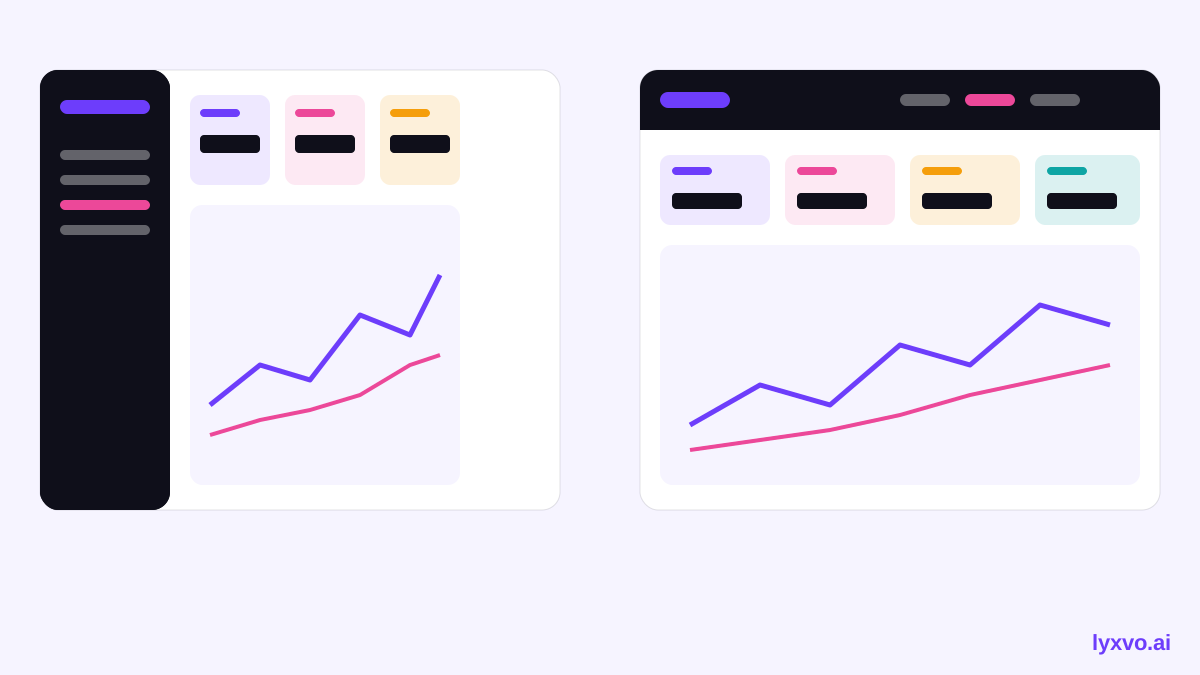
Generate two or three variants from the same brief, changing one thing each time, such as sidebar versus top navigation, or card grid versus single-column stack. Compare them on three points:
- Can you read the most important number within two seconds?
- Is the navigation obvious for a first-time user?
- Does the table remain readable when it has many columns?
Step 4: Refine the components
Once you choose a direction, refine the details:
- Typography: use one clear family, with larger weights for numbers and smaller, muted labels.
- Spacing: group related metrics with consistent gaps, and keep card padding uniform.
- Colour: reserve the accent colour for actions and status; avoid colouring every chart series.
- Empty and loading states: add them early, because real data is often missing at first.
- Responsive behaviour: decide how the four KPI cards stack on smaller widths.
Checklist before you hand off
- [ ] The primary metric is the largest element on the screen
- [ ] Every chart has a title, a unit and a time range
- [ ] Colours meet readable contrast on text and badges
- [ ] Navigation labels match the product's real sections
- [ ] Empty, loading and error states exist for each widget
- [ ] The layout is checked at desktop and tablet widths
Step 5: Export for your team
Designers and developers need different outputs. Export the approved screens as PNG at real size for stakeholder reviews, or as SVG with design tokens for handoff in a design tool. Developers who want a head start can export code, for example Flutter or Kotlin Jetpack Compose for mobile, or HTML for web. Treat generated code as a starting scaffold and review it against your data layer and accessibility requirements.
| Output | Best for |
|---|---|
| PNG at real size | Stakeholder reviews and presentations |
| SVG and tokens | Handoff to a design tool and a design system |
| HTML | Quick web prototypes |
| Flutter or Jetpack Compose | Mobile dashboards as a starting codebase |
How to do this in Lyxvo AI
In Lyxvo AI, you can describe a dashboard to the design agent and choose the platform, such as web or mobile, from the app design studio or the web design studio. The agent plans the screen first, then designs it, so you can review the structure before the visual details are finalised. You can then edit text, colours and images directly in the Canva-style editor, and export PNG, SVG with tokens, HTML, Flutter or Kotlin Jetpack Compose. For multi-page products, whole apps and websites use the Lyxvo Engine, which is rented separately, and every account can try two pages free. You can see the tools in more detail on the AI UI design generator page and the AI app design page. Plans and limits are listed on pricing.
Common mistakes to avoid
- Too many KPIs at the top. Limit the first row to four or five metrics.
- Charts without context. Always label the time range and comparison period.
- Ignoring the empty state. A new account with no data should still look intentional.
- Decorative colour everywhere. Colour should signal meaning, not decoration.
- Skipping real data tests. Check with long product names and large numbers.
Key takeaways
A clear description of the user, the job and the metrics produces far better dashboard screens than a general request for something modern. Generate a few variants, refine typography, spacing and states, and export in the format your team needs. Then validate the result with real data before development begins.
Try it in Lyxvo AI
Describe it in your own words and the design agent starts on the right flow. Free to start.
Related tool: AI UI design generator for apps and websites
Whole apps and websites are designed with the Lyxvo Engine, rented separately from the design plans; every account can try 2 pages free.