How to Generate Sales Pitch Slides from Spreadsheet Data

You can generate sales pitch slides from spreadsheet data by cleaning the numbers, choosing one message per slide, and letting a design tool turn each figure into a chart or callout. This guide walks through the process step by step, from preparing your data to checking the finished deck before you present.
Why spreadsheet data often makes weak slides
Most sales numbers start life in a spreadsheet built for analysis, not for an audience. Columns are narrow, labels are abbreviated, and there are dozens of rows where a pitch needs five. Pasting raw tables into slides usually produces a deck that is accurate but hard to follow.
The fix is to decide the story first and let the data serve it. A good sales pitch answers a few questions in order: how big is the opportunity, what is our traction, why now, and what do we need from the listener.
Step 1: Prepare the spreadsheet
Before you design anything, tidy the source file:
- Put one header row at the top and keep every column named clearly, such as "Region", "Q3 revenue" or "Deals closed".
- Remove merged cells, blank rows and notes mixed into the table.
- Use consistent units. Decide whether you show figures in thousands or full values and label the unit once.
- Check totals. Recalculate sums and percentages so the slide figures match the sheet.
- Save a summary tab with only the numbers you plan to present. This keeps the deck honest and easy to update.
Keep the full dataset in a separate file. Your slides should show a selection, and you should be able to answer questions about the rest.
Step 2: Outline the pitch in one message per slide
Write a one-sentence headline for each slide before you pick a chart. Headlines like "Revenue grew in every region last year" or "Churn fell after the onboarding change" tell you which data matters.
A typical sales pitch outline:
- Title and the problem you solve
- Market size or opportunity
- Traction: key sales figures over time
- Proof: customer results or case examples
- Pricing or unit economics
- Ask and next steps
Step 3: Match each message to the right chart
Choosing the chart type matters more than decoration.
| What you want to show | Best visual | Avoid |
|---|---|---|
| Change over time | Line or column chart | Pie chart with many slices |
| Comparison across items | Sorted bar chart | 3D charts |
| Share of a whole | Pie or donut with 2 to 4 parts | Long pie with 10 slices |
| One headline number | Large callout with a short label | Full table |
| Several metrics at once | Small set of KPI cards | Dense multi-column grid |
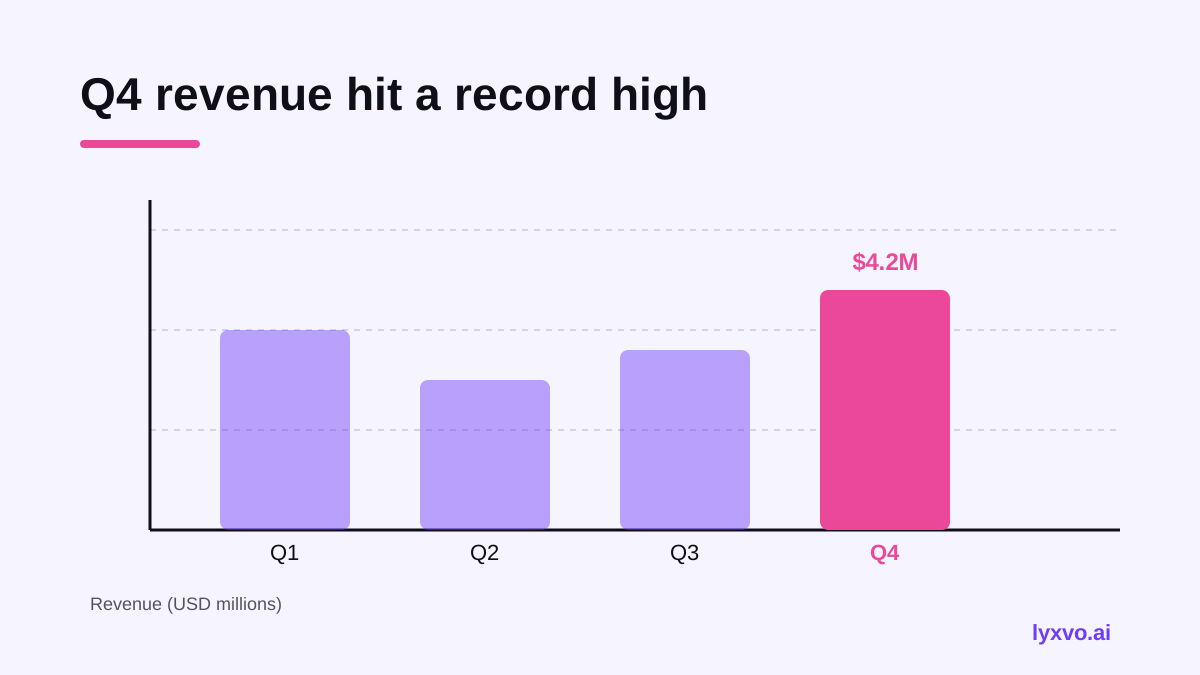
Keep axes labeled, start bars at zero, and highlight the one bar or line that supports the headline.
Step 4: Build the deck
You can build the slides by hand in any presentation tool, or you can use an AI design workflow to speed up the layout. In Lyxvo AI, the design agent can plan and design presentation slides and pitch decks, so you describe the story and bring in your figures. You can then edit text, colors and photos directly in the Canva-style editor, use ready-made templates, and export the result.
A practical workflow in Lyxvo AI:
- Open the pitch deck format in the studio and describe your audience and the headline for each slide.
- Paste or type the summary figures from your prepared tab into the slides, and adjust the labels to match your headlines.
- Use the editor to change colors, swap a template, or refine text on any slide.
- Export the deck when the numbers and wording are final.
If you want to see the general approach first, the AI presentation maker page explains the tool in more depth.
Step 5: Check accuracy before you present
Automated or manual, every number needs a check:
- Compare each slide figure against your summary tab.
- Confirm that percentages add up and that the time period is stated.
- Make sure the chart scale does not exaggerate growth.
- Read every headline aloud and ask whether the chart proves it.
- Remove any slide that does not support your ask.
Step 6: Prepare for questions
A strong deck leaves room for discussion. Keep a backup slide with the full table, note where each figure came from, and be ready to explain definitions such as what counts as an active customer or how you calculated growth.
Common mistakes to avoid
- Putting six charts on one slide
- Using decimals and currency symbols inconsistently
- Showing data without a date range
- Copying spreadsheet colors and gridlines into the slide
- Forgetting that the audience may not know your internal terms
Checklist before you send the deck
- [ ] Every headline states one clear point
- [ ] Every figure matches the source sheet
- [ ] Units and time periods are labeled
- [ ] Charts are the simplest type that fits the message
- [ ] The ask and next steps are on the final slide
- [ ] A backup slide holds the detailed data
If you also need an overview for a broader audience, a flyer or a poster can reuse the same headline numbers in a different format.
Final thoughts
Generating pitch slides from spreadsheet data is mostly about preparation and restraint. Clean the numbers, decide the message of each slide, choose the simplest chart that proves it, and check every figure. A design tool can handle layout and speed up the work, but the clarity of the story is still yours to shape.
Try it in Lyxvo AI
Describe it in your own words and the design agent starts on the right flow. Free to start.
Related tool: AI presentation maker for slides and pitch decks