How to Generate a Shot List and Storyboard from a Screenplay
To generate a shot list and storyboard from a screenplay, you break each scene into shots, decide the camera position and timing for every shot, and then draw or generate a frame for each one in sequence. Done well, this turns written action and dialogue into a visual plan your whole crew can follow.
Why shot lists and storyboards come from the screenplay
A screenplay tells you what happens. A shot list tells you how it will be captured, and a storyboard shows what each captured moment looks like. Working from the script first keeps your visual plan honest: every shot should serve a line of action or dialogue, and every important beat should have a shot.
Storyboarding has a long history in animation and film. The modern process was developed in animation studios in the early 1930s, and the same idea, a graphic sequence of images used to pre-visualize a sequence before filming, still underpins production today (Storyboard, Wikipedia). The method has not changed much, but the tools have. Teams now generate rough frames from text far faster than they could draw them by hand.
What you need before you start
- A locked or near-locked screenplay, with scene headings, action lines and dialogue
- A short note on tone and pacing (for example, slow dread, or quick comedic cuts)
- Your locations, characters and any props that matter to the frame
- A target format: film, short video, animation, or a motion graphic
Tip: If the script is still changing, run the process anyway on the current draft. Each revision is quick to re-plan once the shot list exists.
Step 1: Break the screenplay into scenes
Go through the script scene by scene. For each scene heading, write down:
- Location and time of day
- Who is present
- The single purpose of the scene (what changes by the end)
- The emotional key (tension, relief, humor, reveal)
This gives you a scene map. Scenes that do not change anything are candidates for trimming before you shoot a single frame.
Step 2: Turn each scene into shots
Now decide how each scene is filmed. Most scenes need between three and ten shots. Ask yourself:
- Where does the audience need to orient? That is usually an establishing or wide shot.
- Who is speaking, and do we need reaction shots?
- Where should the camera move, and why?
- What is the single most important image in this scene? Give it a close-up or a distinct angle.
At this stage, think in shot types: extreme wide, wide, medium, close-up, extreme close-up, over-the-shoulder, point of view, and insert shots of objects that matter to the plot.
Step 3: Build the shot list
A shot list is a table, not a drawing. Each row is one shot. Keep it consistent so editors, cinematographers and the director can all read it.
| Shot # | Scene | Shot type | Camera movement | Subject and action | Lens or angle | Est. duration | Notes |
|---|---|---|---|---|---|---|---|
| 1 | 3 – Kitchen, night | Wide | Static | Mara enters, door swings shut | Eye level | 4 s | Establish the empty house |
| 2 | 3 – Kitchen, night | Close-up | Slow push-in | Mara's hand finds the note | Shallow focus | 3 s | Plant the clue |
| 3 | 3 – Kitchen, night | Over-the-shoulder | Static | Mara reads, reaction on her face | 50 mm feel | 6 s | Dialogue beat |
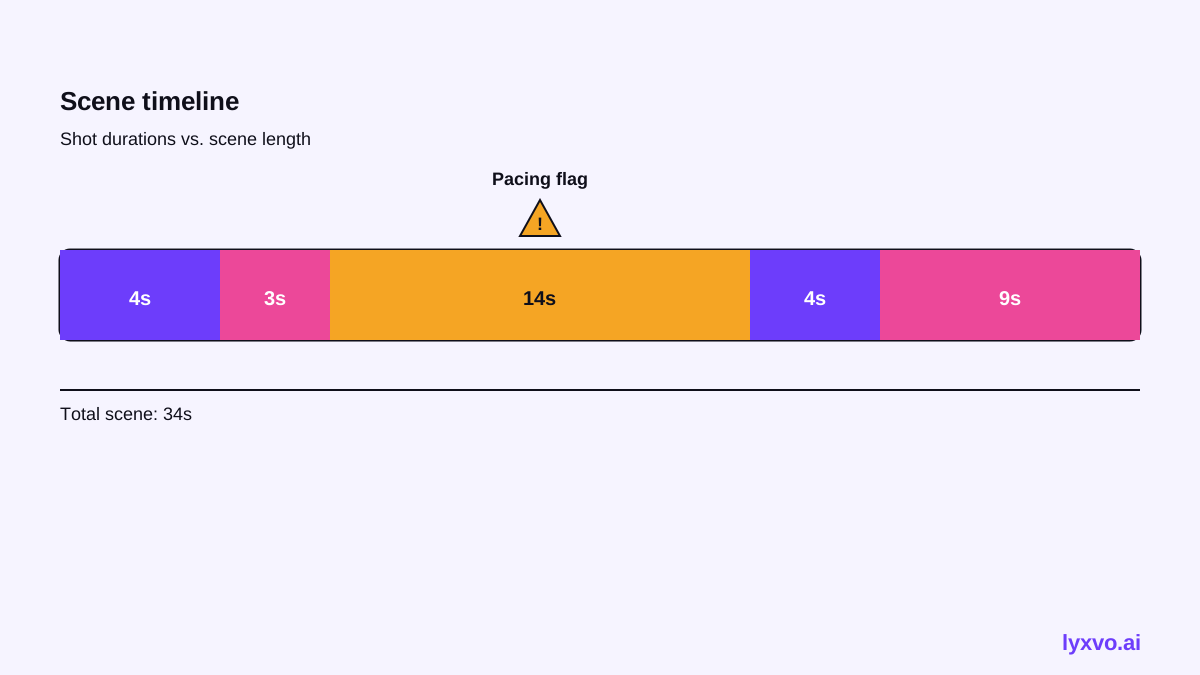
Include the duration column even if it is an estimate. It is the fastest way to catch a scene that will run too long.
Step 4: Create the storyboard frames
A storyboard is the visual counterpart to the shot list: one frame per shot, in order, with a short caption for action, dialogue and camera direction. Good storyboard frames are simple. They need composition, framing and the key pose or expression, not detail.
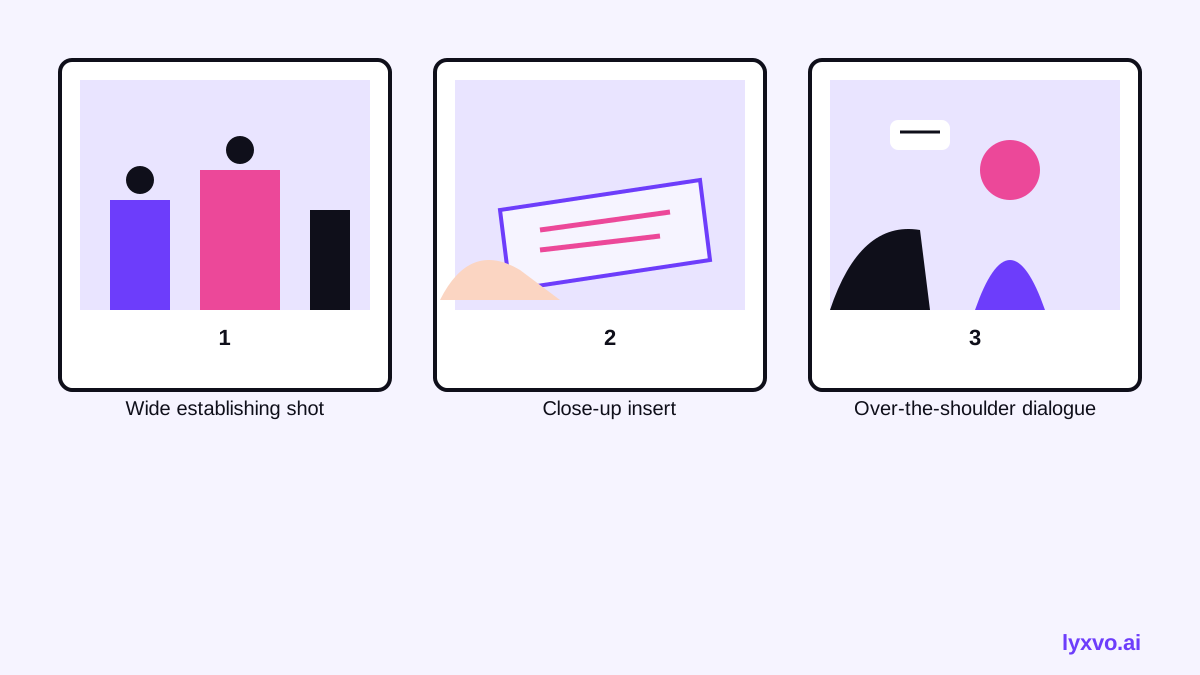
When drawing by hand, sketch thumbnails first and refine only the frames that carry the story. When generating with AI, write a precise prompt for each shot using the shot list row: subject, shot type, angle, lighting and mood. Keep character descriptions identical across frames so the sequence stays consistent.
Step 5: Check timing, coverage and continuity
Before you share the plan, run a quick review:
- Coverage: Does every important line of action have a shot?
- Continuity: Do the eyelines, screen direction and props match from shot to shot?
- Pacing: Add the durations. Is the scene longer than the page suggests it should be?
- Variety: Are you repeating the same framing too often?
- Budget: Which shots need extra locations, vehicles, effects or actors? Flag them.
Adapting for animation, motion graphics and video
For animated work, add a column for layers or camera rigs, and note any timing in frames or seconds. For short social videos, storyboard in the aspect ratio you will publish, because the composition changes between vertical and horizontal. Shot lists for ads are often shorter, with the hook shot carrying most of the weight.
Generate a shot list and storyboard in Lyxvo AI
Lyxvo AI's design agent can help you turn a plan into visual frames. Open the AI storyboard generator to start a storyboard page, or use the design studio in a format that fits your output. A practical workflow:
- Paste each scene's shot list rows into the brief, one scene per generation, so the agent has the shot type, subject and mood for each frame.
- Ask for one frame per shot in sequence, keeping character and location descriptions identical.
- Review the frames in the editor and edit text, colors and captions directly, the same way you would in a Canva-style editor.
- Export the storyboard as PNG at real size for sharing, or as a PDF-style set of pages for review.
If you also need a title card, pitch slide or promotional still from the same project, the AI presentation maker and the AI poster maker can reuse the same visual direction. Browse the free design templates to start from a layout instead of a blank page. You can start free with Lyxvo Lite, which has a daily limit; plan options are listed on the pricing page.
Note: Generated frames are planning aids. Always check them against the screenplay and your crew's needs before you treat them as final.
Common mistakes to avoid
- Writing a shot list without reading the whole script first
- Storyboarding every line of dialogue instead of the key beats
- Forgetting continuity across shots and days of shooting
- Using the same shot type for every scene, which flattens emotion
- Ignoring the output format, so a vertical social cut is planned in widescreen
Final checklist
- [ ] Scene map with purpose and emotional key for each scene
- [ ] Shot list with type, movement, subject, lens or angle, and duration
- [ ] One storyboard frame per shot, in order
- [ ] Continuity, pacing and coverage reviewed
- [ ] Budget-heavy shots flagged
- [ ] Exported and shared with the crew in the format they will use
Try it in Lyxvo AI
Describe it in your own words and the design agent starts on the right flow. Free to start.
Related tool: AI storyboard generator for ads and short videos