Logo and Favicon Bundle for Startup: What You Need and How to Make It
A logo and favicon bundle for startup use is the set of logo files, icon sizes and brand assets that let your name look right everywhere, from a browser tab to an app store listing. This guide explains what belongs in the bundle, which sizes matter in 2026, and how to create the whole set quickly.
What a startup logo bundle actually contains
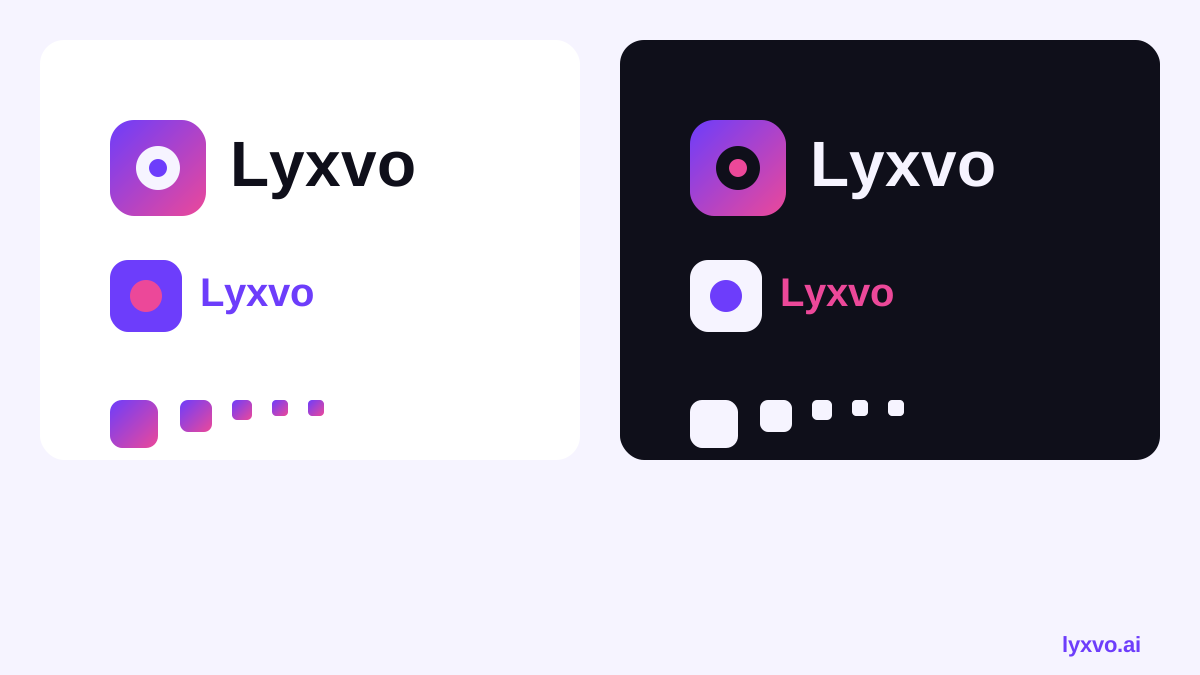
A logo is not one file. Most startups need a small set of variants so the mark stays readable at every size and on every background.
- Primary logo (full wordmark plus symbol) for websites, decks and documents
- Symbol or icon mark on its own, for square spaces and avatars
- Wordmark (text only) for narrow headers and footers
- Light and dark versions so the logo works on white and on dark backgrounds
- Favicon and app icons in several pixel sizes
- Color palette and font references so the brand stays consistent
Favicon and icon sizes you will need
Browsers, phones and social platforms each ask for different sizes. A practical starting list is below. Always check the current requirements of each platform before you publish, because specifications change.
| Use | Common size(s) | File format |
|---|---|---|
| Browser favicon | 16x16, 32x32 | PNG or ICO |
| Apple touch icon | 180x180 | PNG |
| Android / web app icon | 192x192, 512x512 | PNG |
| Social profile picture | 400x400 or larger, square | PNG or JPG |
| Logo for documents | Vector, scalable | SVG or PDF |
Keep the symbol simple. At 16x16 pixels, fine lines and small text disappear. Test the favicon at actual size before you accept the design.
Principles that make a logo work at every size
- Reduce detail for small sizes. Use a bold silhouette and fewer elements in the favicon version.
- Pick two or three colors. Limited palettes reproduce cleanly on screens and print.
- Check contrast on both backgrounds. A logo that disappears on dark mode fails the light/dark test.
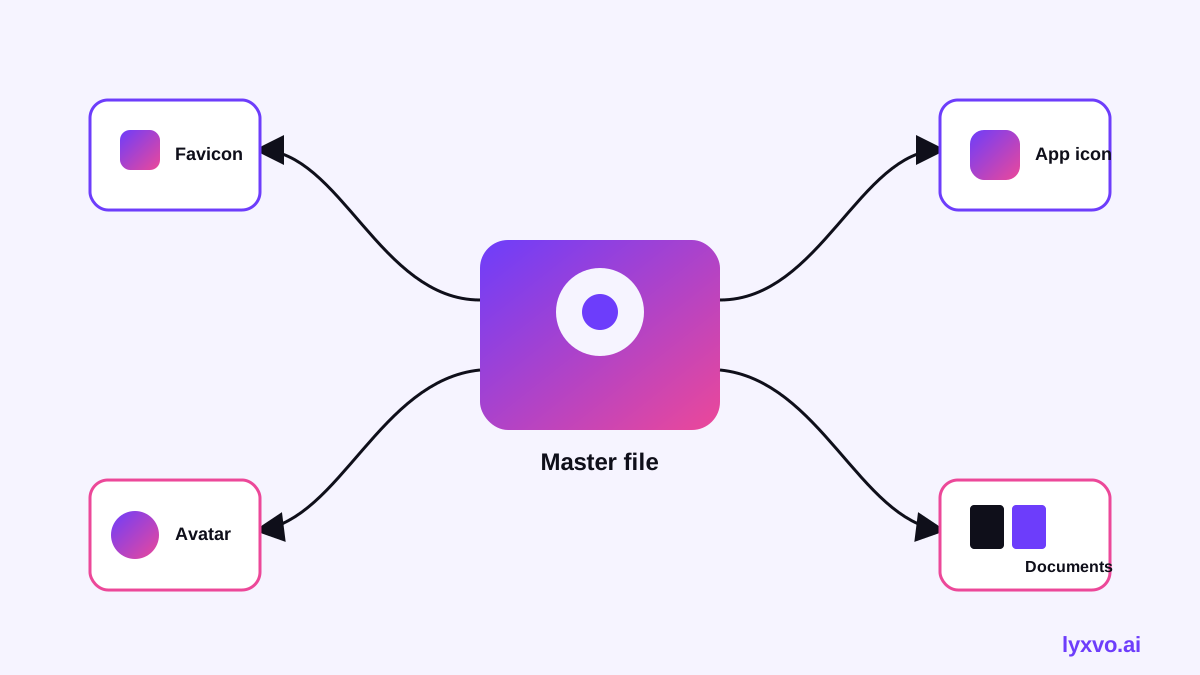
- Use vector files as the master. Export PNG and ICO from the vector so every size stays sharp.
- Name files clearly. For example: `logo-primary-light.svg`, `favicon-32.png`, `app-icon-512.png`.
Step-by-step: building the bundle
1. Write a short brief
Note your startup name, the one idea the brand should communicate, two or three colors you like, and any styles to avoid. A clear brief makes every later step faster.
2. Generate the logo concepts
Use an AI logo tool to explore directions quickly, then pick one concept and refine it. You can start with the AI logo generator or go directly to the logo format in the Lyxvo studio.
3. Create the favicon and app icon from the symbol
Simplify the symbol for small sizes. Check how it reads at 16 pixels, then produce the 32, 180, 192 and 512 pixel versions. The app icon generator is useful for the mobile sizes.
4. Check both backgrounds
View every variant on white, black and your brand color. Fix anything that loses contrast.
5. Export and organize
Save the vector masters, then export the raster sizes. Put everything in one folder with a readme listing each file and its use.
How to make the full bundle in Lyxvo AI
Lyxvo AI's design agent can produce a logo and brand kit with the icon sizes for Android, iOS and web in one flow. The general process is:
- Describe your startup, industry, mood and colors to the design agent.
- Review the concept options and choose one.
- Refine the chosen logo in the Canva-style editor by editing colors, text and shapes directly.
- Export the files you need: PNG at real size for raster icons, and SVG for the vector master. Exports to Figma (SVG and tokens) are available if your team designs there.
Once the logo is final, you can use the same colors and style on social media posts and in pitch decks so the brand stays consistent.
Common mistakes to avoid
- Using a complex illustration as the favicon
- Exporting only one large PNG and scaling it down in the browser
- Forgetting the dark-mode version
- Letting the wordmark become unreadable at small widths
- Not testing the icon in real tabs and on a home screen
Checklist before you launch
- [ ] Vector master saved (SVG)
- [ ] Favicon tested at 16 and 32 pixels
- [ ] Apple touch icon at 180 pixels
- [ ] Android and web app icons at 192 and 512 pixels
- [ ] Light and dark versions checked
- [ ] Social profile image cropped and tested
- [ ] Files named and documented in one folder
A complete logo and favicon bundle takes an afternoon to build when you work from a clear brief and export from a single vector master. Start with the concept, lock the symbol, then generate every size from it.
Try it in Lyxvo AI
Describe it in your own words and the design agent starts on the right flow. Free to start.
Related tool: AI logo generator with a complete brand kit