How to Make a Conference Talk Deck From an Outline
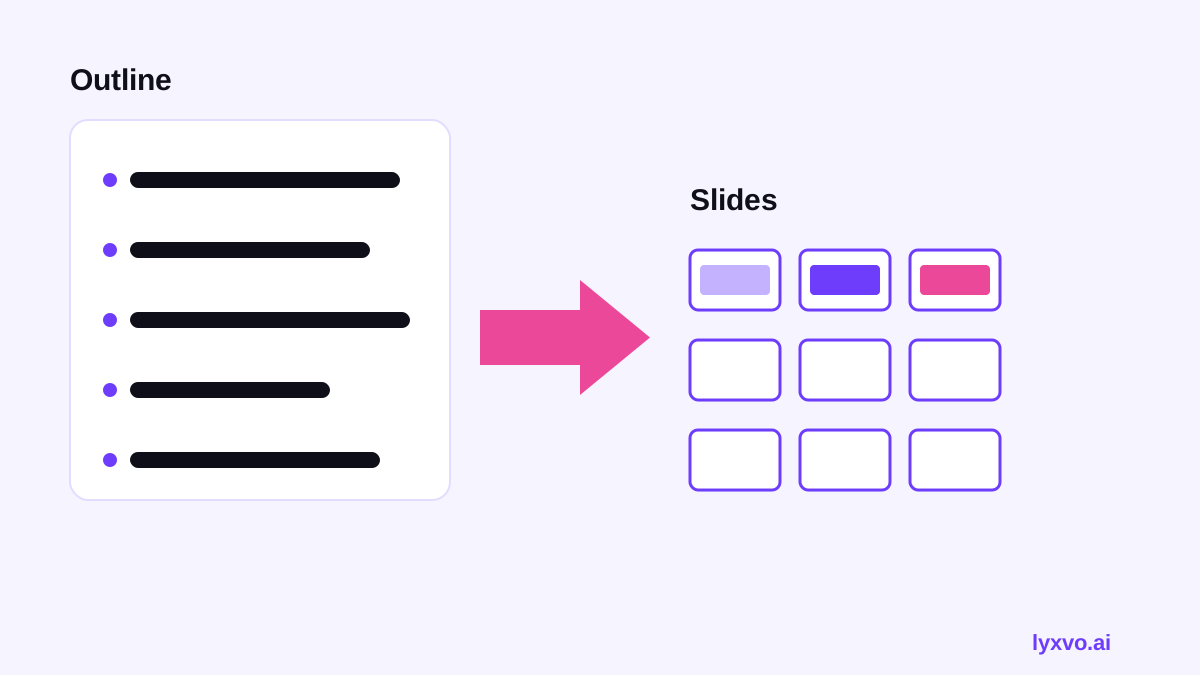
To make a conference talk deck from outline, you map each outline point to one slide, add a single clear message per slide, and then design and rehearse the deck around that spine. This guide walks you through the process step by step, then shows how to build the finished deck in Lyxvo AI.
Why start from the outline
An outline is the skeleton of your talk: the problem, the argument, the evidence and the takeaway. A deck that starts from slides tends to drift, with too many topics and no through-line. Starting from the outline keeps every slide earning its place.
Conference audiences are usually switching between several talks, so your deck needs to make one idea obvious in a few seconds. Build the structure first, then the visuals.
Step 1: Turn the outline into a message map
Write each outline section as one sentence that states what the audience should understand, not just the topic. "Caching" is a topic. "Caching cut our page load time in half" is a message.
- Keep one message per section.
- Limit the talk to the number of sections you can deliver in your time slot (a common rule of thumb is roughly one to two minutes per slide, but check your organizer's guidance).
- Cut any section that does not support the central claim.
Step 2: Build a slide-by-slide plan
Turn the message map into a slide list. A typical conference structure looks like this:
| Slide block | Purpose | Typical count |
|---|---|---|
| Title and speaker | Set context and credibility | 1-2 |
| Problem or hook | Why this matters now | 1-3 |
| Core argument | Main ideas, one per slide or section | Depends on length |
| Evidence and examples | Data, demos, case details | 2-6 |
| Takeaways and call to action | What to remember or do | 1-2 |
| Q&A and contact | Close and invite questions | 1 |
Tip: Write the speaker notes for each slide in one or two sentences before designing it. If you cannot explain the slide's job, it probably does not need to exist.
Step 3: Design for a room, not a laptop
Conference slides are read from the back row. Follow these basics:
- Use one headline per slide that states the message.
- Keep body text short; move detail into speaker notes or a handout.
- Use large type, high contrast and simple color palettes.
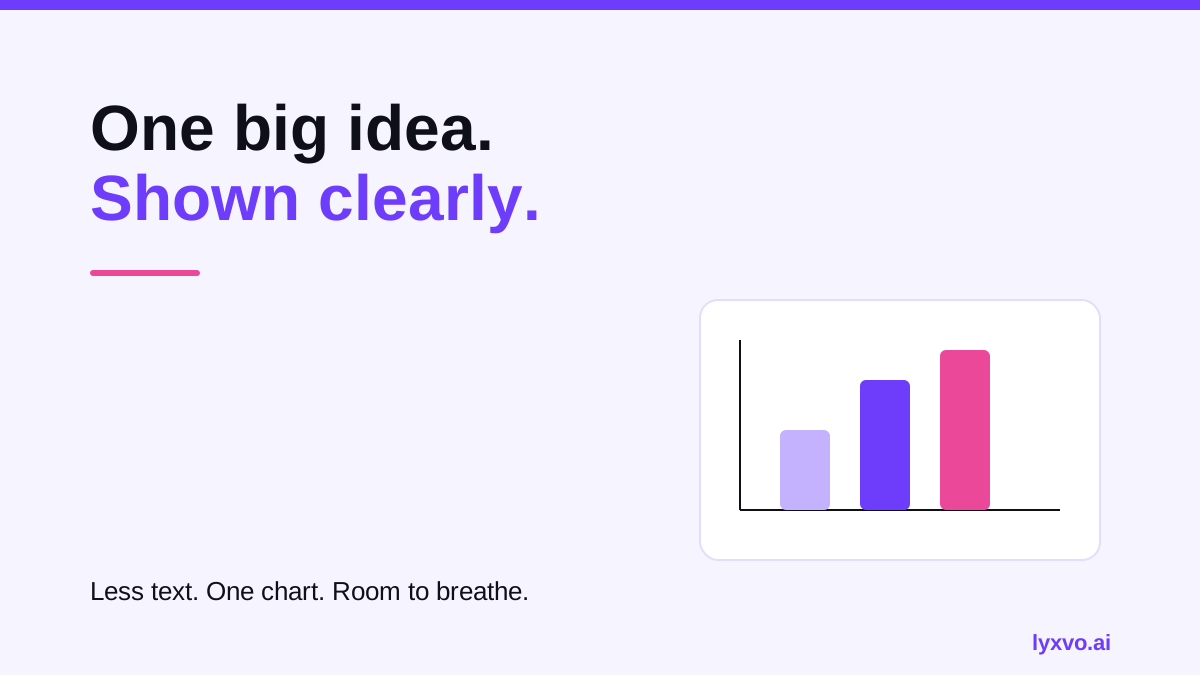
- Show one chart or image per slide, labeled clearly.
- Use consistent layout, fonts and spacing across all slides.
Step 4: Check the flow
Read only the slide headlines in order. They should tell the whole story on their own. If they do not, reorder the sections or rewrite the headlines until they do. Then check:
- Does the opening hook arrive within the first minute?
- Does each section lead logically to the next?
- Is the takeaway repeated in the closing slide?
- Is every chart backed by a sentence the audience can understand?
Step 5: Prepare for the stage
A deck is ready only after a rehearsal.
- Time a full run-through with a timer and cut to fit your slot, leaving room for questions.
- Export a backup PDF in case the venue laptop or cable fails.
- Check the aspect ratio the organizer asks for (widescreen is common, but confirm).
- Keep fonts embedded or use widely available ones so the layout does not break on another machine.
How to build this deck in Lyxvo AI
Lyxvo AI's design agent can plan and design a slide deck from your outline. In the Studio, use the pitch and slide format at /design/?format=slide-pitch, or start from the presentation tool at /ai-presentation-maker/.
A practical workflow:
- Paste your outline in section order, with your key message for each section.
- Let the agent plan the slide sequence, then review and reorder slides to match your message map.
- Adjust text, photos and colors directly in the Canva-style editor.
- Use ready-made layouts from /free-design-templates/ if you want a starting style.
- Export your finished deck for the event, and keep a PDF copy as a backup.
Lyxvo AI also offers Magic Resize, so you can adapt a deck layout for other formats, such as a video version of the talk, and real-time collaboration if a colleague is reviewing slides with you.
Common mistakes to avoid
- Turning every outline bullet into its own slide, which makes the talk feel like a list.
- Writing full paragraphs on slides that the audience will read instead of listening.
- Skipping rehearsal and discovering the talk runs too long.
- Forgetting a backup file for the venue.
Final checklist
- [ ] Each outline section has one clear message.
- [ ] The slide count fits your time slot.
- [ ] Headlines alone tell the story.
- [ ] Text is large, short and readable from a distance.
- [ ] Speaker notes are written for complex slides.
- [ ] The talk has been rehearsed and timed.
- [ ] A PDF backup is saved.
With the outline as your guide and a focused message per slide, a conference deck becomes a faster build and a stronger talk.
Try it in Lyxvo AI
Describe it in your own words and the design agent starts on the right flow. Free to start.
Related tool: AI presentation maker for slides and pitch decks