Mobile App Prototype for School Attendance Tracking
A mobile app prototype for school attendance tracking lets you test how teachers mark a register, how parents get alerts and how administrators read reports before any code is written. This guide walks through planning, screen design, testing and handoff, with a practical section on doing it in Lyxvo AI.
Why prototype attendance tracking before building it
Attendance is a small task that happens dozens of times a day, under time pressure, often on a phone in a noisy classroom. If the marking flow takes too many taps, teachers will fall back to paper. A clickable prototype shows you where that happens while changes are still cheap.
A good prototype answers three questions:
- Can a teacher mark a full class in under a minute, even with a poor connection?
- Can a parent or guardian understand an absence notice without reading a policy document?
- Can an administrator find chronic absence patterns without exporting a spreadsheet?
A prototype is not the final product. Its job is to make the wrong decisions visible early, when they cost an afternoon instead of a release cycle.
Step 1: Define the users and their core tasks
Most school attendance apps serve three groups. Write down the single most important task for each before you draw anything.
| User | Core task | Success looks like |
|---|---|---|
| Teacher | Mark today's register | Full class marked in one screen, with changes possible later |
| Parent or guardian | Learn why a child is absent and report an excuse | Notice received, excuse submitted in two taps |
| Administrator | Spot patterns of absence | Filter by class, date range and reason, then export |
Keep the scope tight for the first prototype. Attendance for one class on one device is enough to test the core flow. Add offline sync, multiple schools and integrations with student information systems later.
Step 2: Map the main user flows
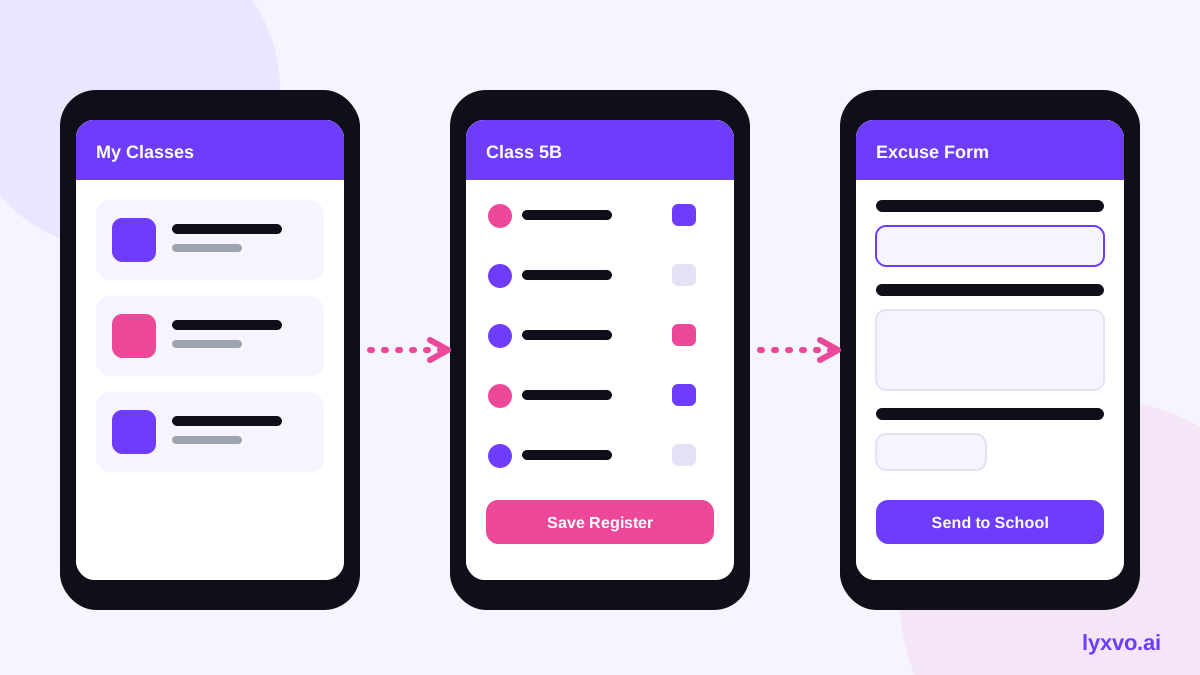
Sketch the path from start to finish for each core task. For the teacher, a typical flow looks like this:
- Open the app and choose a class (remember the last class used).
- See the student list with every student marked present by default.
- Tap only the students who are absent or late.
- Choose a reason for absence if needed.
- Submit, with a confirmation and an undo option.
Defaulting everyone to present is a common design choice because most students attend most days. Test it with teachers, because some schools record absence first and need a different default.
Step 3: Design the key screens
For a first prototype, five screens cover most of the value:
- Class picker with today's date and status of each class (marked or not yet marked).
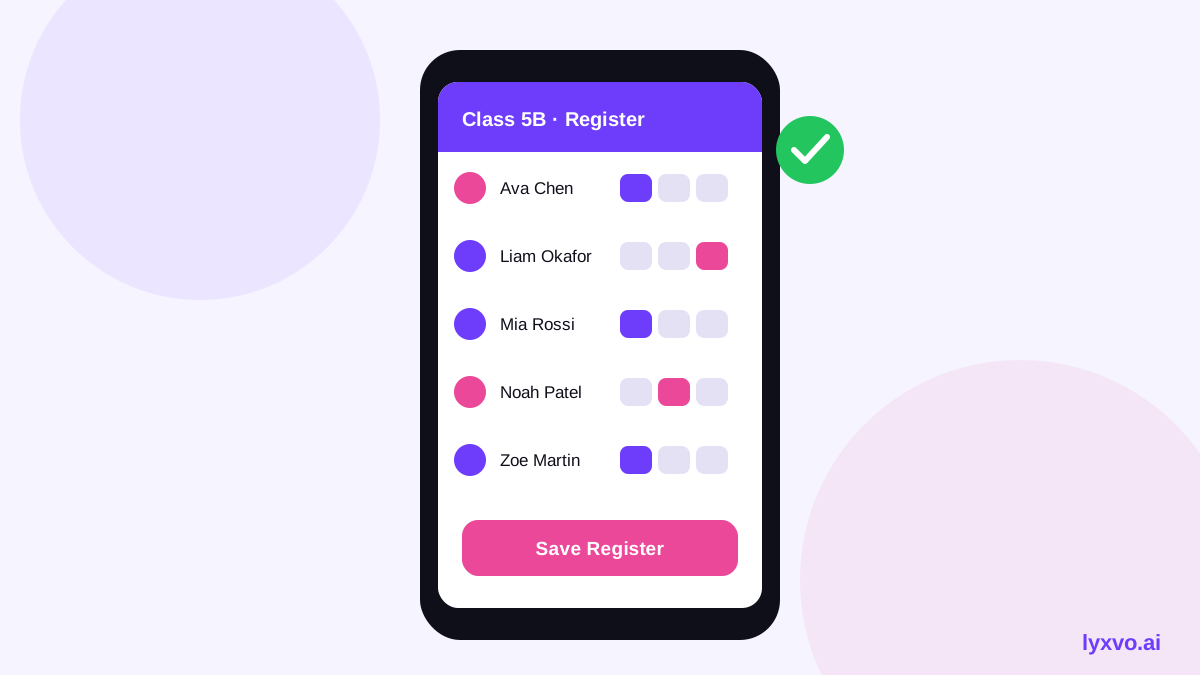
- Register with large tap targets, name and photo, and a clear present, absent, late toggle.
- Student detail showing attendance history and any notes.
- Parent alert explaining the absence and offering a simple excuse form.
- Admin report with filters and a chart of trends.
Use readable text sizes, high contrast and icons paired with labels. Many teachers use the app standing up, in bright light, with one hand free.
Step 4: Build a clickable prototype
A clickable prototype lets people tap through the flow without writing code. You need linked screens, realistic sample data (real-looking names, a full class of 28, a few absences) and the main transitions. Skip animation at this stage.
If you want to speed this up, the AI app design tool and the UI design generator can produce mobile screens from a text description, which you then refine by hand.
Checklist before you test
- Every screen has a clear next action.
- Sample data includes a late student, an excused absence and a student with no photo.
- The back button and undo path work.
- Text sizes are large enough for a teacher standing at the front of the room.
- The prototype opens on a phone, not just a desktop browser.
Step 5: Test with real people
Run short sessions of about 20 to 30 minutes with two or three teachers, one parent and one administrator. Give each person a task, such as "mark three students absent and submit", and watch without helping. Note where they hesitate, tap the wrong thing or ask a question.
Ask after each task:
- What did you expect to happen when you tapped that?
- Was anything missing?
- Would you use this during a real lesson?
Change one thing at a time, then test again with someone new. Two rounds of testing with small groups usually reveal most of the major problems.
Step 6: Check accessibility and privacy
Attendance data concerns minors, so treat privacy as a design requirement from the start:
- Show only the data each role needs. Teachers should not see unrelated family details.
- Use plain-language reasons for absence and avoid labels that stigmatise students.
- Make sure colour is never the only signal for present, absent or late.
- Check that the prototype works with screen-reader labels and larger system fonts.
Local school data rules differ, so confirm requirements with your school or district before collecting real data.
Step 7: Hand off to developers
A prototype becomes useful to engineers when it comes with specifications. For each screen, record the states (empty, loading, error, all marked), the validation rules (for example, an absence reason is optional but a late time must be a time), and the content text. Export the design tokens for colours, type and spacing so the build matches the prototype.
How to do this in Lyxvo AI
Lyxvo AI's design agent plans and then designs complete mobile screens for iOS, Android and web. For an attendance prototype you can:
- Open the app design studio and describe the product in plain language: a register for teachers, parent excuse alerts and an admin report, with a clean, accessible style.
- Review the planned screens, then ask the agent to add the five screens listed above with realistic sample data.
- Edit text, photos and colours directly in the Canva-style editor, and use Magic Resize to adapt layouts to other phone sizes.
- Share the file with your team for real-time collaboration while you run feedback sessions.
- Export to Figma (SVG and tokens) for designers, or to Flutter or Kotlin Jetpack Compose code for developers, to carry the approved design into the build.
For a single screen or a small set of screens, this covers the prototype. Whole multi-page apps are handled by the Lyxvo Engine, which is rented separately; every account can try two pages free. Current plan prices are on the pricing page, and details on exports are in the docs.
If you also need a poster or flyer to announce the new app to parents, the flyer maker works from the same brand kit.
Common mistakes to avoid
- Designing for ideal conditions. Test with slow networks and interruptions in mind, even if the first build is online-only.
- Too many roles at once. Prototype the teacher flow well before adding administrator dashboards.
- Ignoring the default state. Whatever is pre-selected will be the most-used path.
- Skipping the feedback loop. A prototype nobody from the school has tried is only a guess.
Summary
A mobile app prototype for school attendance tracking should start from the teacher's register task, use realistic data, and be tested with real teachers, parents and administrators before any development begins. Keep the first version focused, design for speed and privacy, and document states and rules for the developers. Once the flow holds up in testing, the prototype becomes a reliable specification for the real app.
Try it in Lyxvo AI
Describe it in your own words and the design agent starts on the right flow. Free to start.
Related tool: AI app designer for complete iOS and Android apps
Whole apps and websites are designed with the Lyxvo Engine, rented separately from the design plans; every account can try 2 pages free.