Panel Layout for Webcomic Storyboards: An AI-Assisted Guide
A good panel layout for webcomic storyboard AI work turns a script into pages that read clearly, pace the story and leave room for dialogue. This guide shows how to plan panels before you draw, how to choose shot sizes and gutters, and how to use Lyxvo AI to sketch the layouts quickly.
Why panel layout matters more than the art
In a webcomic, the reader scrolls or swipes through a sequence of panels. The layout decides what they see first, how long a beat lasts and where the joke or twist lands. Strong art in a weak layout still reads poorly, while simple art in a clear layout can carry a story well.
Before you draw a single line, a storyboard lets you test the rhythm of the page. You can move a panel, shrink a reaction shot or split a big moment into two beats without redrawing finished pages.
Step 1: Break your script into beats
Start with the script, not the grid. Mark each moment where the story changes: a line of dialogue, a reveal, a movement or a shift in emotion. A common rule is one beat per panel, with larger panels reserved for moments you want the reader to linger on.
- List every beat in order.
- Note the emotional tone of each one (tense, funny, quiet, shocking).
- Mark which beats end a page, since page turns are a built-in suspense tool.
Step 2: Choose shot sizes for pacing
Shot size controls how close the reader feels to a character. Use a mix so the page does not feel repetitive.
| Shot | Typical use | Pacing effect |
|---|---|---|
| Establishing / wide | Setting, arrival, time passing | Slows the reader down |
| Medium | Conversation, action setup | Neutral, keeps flow |
| Close-up | Emotion, a key line | Speeds up attention |
| Extreme close-up | Detail, shock, a hidden clue | Creates a hard stop |
Avoid putting three close-ups in a row unless you want a frantic feel. Alternate wide and close shots to give the eye a rest.
Step 3: Build the page grid
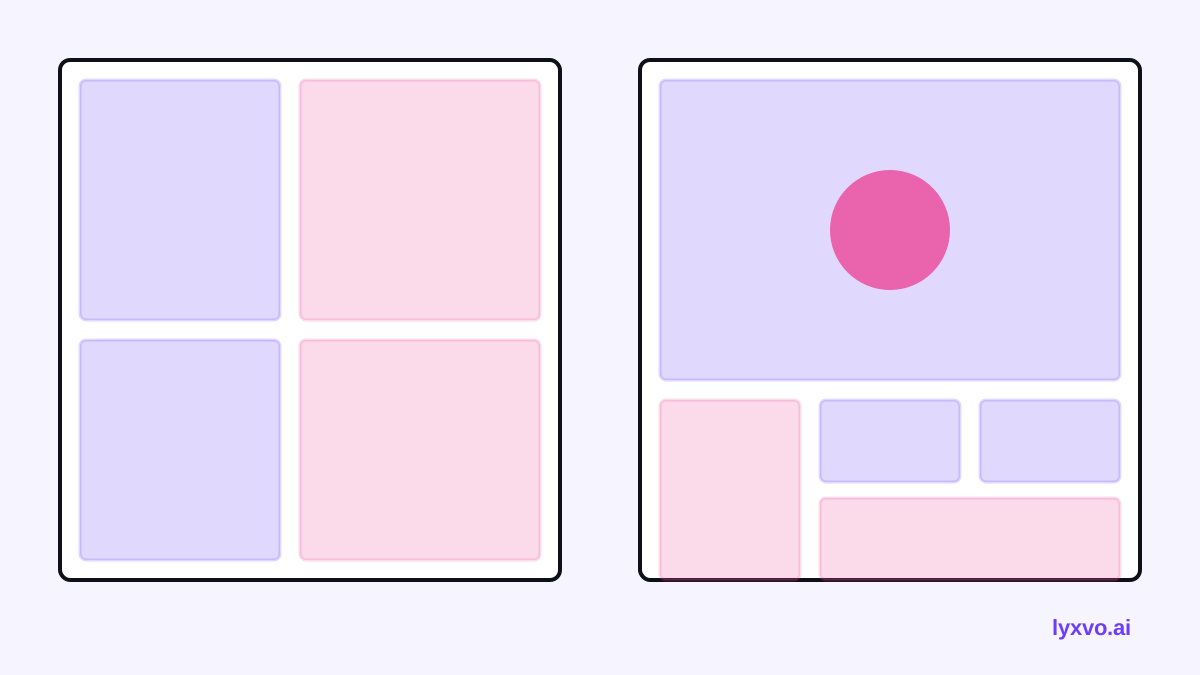
Most webcomic pages use a simple grid: two to four rows with one to three panels each. A few practical habits help:
- Put the most important panel in the largest space, often the top half or the right side where the eye lands last.
- Keep dialogue balloons in areas that do not hide faces or key props.
- Leave consistent gutters (the gaps between panels) so the reader's reading path stays predictable.
- For vertical scrolling formats, think in tall strips and use the scroll itself as a reveal.
Tip: if the page feels crowded, cut a panel instead of shrinking everything. Fewer, stronger panels almost always read better.
Step 4: Sketch layouts fast with AI
AI tools are useful at this stage because you can test several layouts for the same script in minutes. In Lyxvo AI, the storyboard workflow lets you describe the scene and get a panel arrangement you can edit, rather than starting from a blank page. You can then:
- Generate a first pass of the page with the beats you listed.
- Swap shot sizes by editing the frame directly in the Canva-style editor.
- Duplicate a page layout to keep rhythm consistent across an episode.
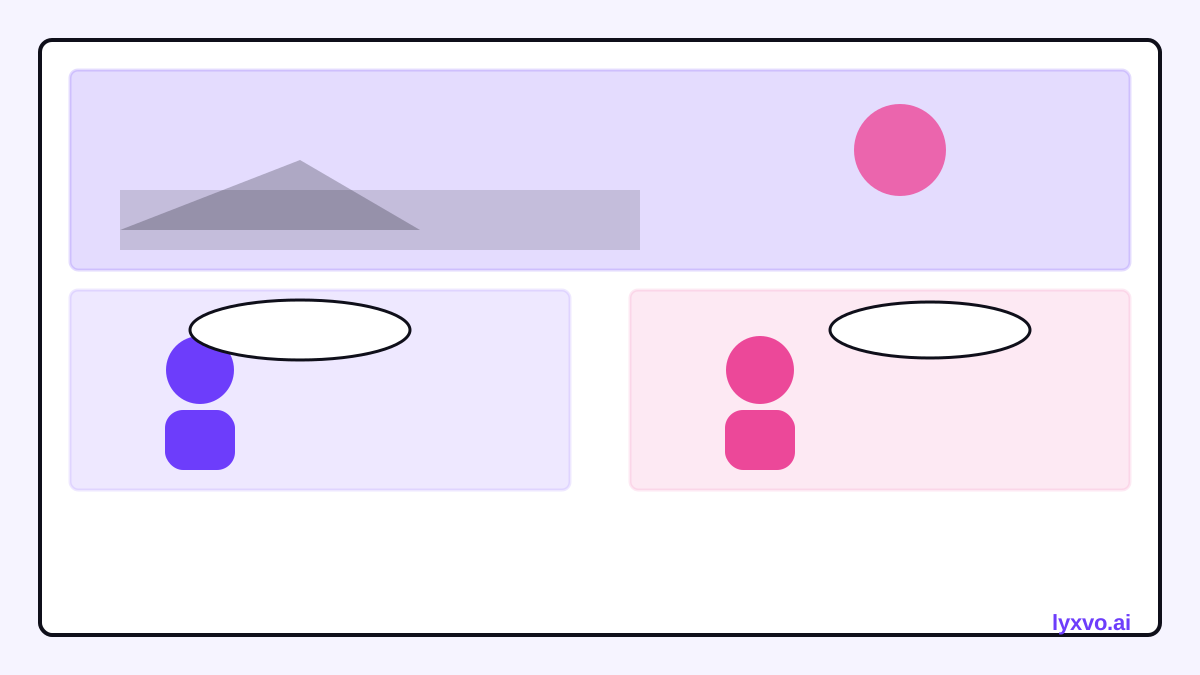
If you need a dedicated storyboard setup, the AI storyboard generator page explains the options. For quick reference layouts, you can also browse free design templates.
Step 5: Check the read-through
Before you commit to art, read the storyboard like a reader:
- Can you follow the order without numbering the panels?
- Does each page end on a hook or a clear pause?
- Is there at least one wide shot per scene so the location is clear?
- Do the dialogue and the important action sit in different panels?
If the answer to any of these is no, fix the layout now. It costs far less than redrawing a finished page.
Step 6: Export and hand off to the artist
Once the layout works, export a clean version at a readable size so the artist or letterer can use it as a guide. Keep a labeled copy of each page with beat notes in the margin. This gives you a reference for pacing when you revise later.
Common mistakes to avoid
- Every panel the same size. Equal panels make everything feel equally important, which flattens drama.
- Too many beats per page. If a page needs five pages of dialogue to read, split it.
- Ignoring the page turn. The last panel of a page is prime real estate for a reveal.
- Unclear eye path. If readers have to hunt for the next panel, adjust the gutters or the staggering.
- Skipping the read-through. Layouts that look good as thumbnails can fail when read in order.
Quick checklist
- [ ] Script broken into one beat per panel
- [ ] Shot sizes alternate for pacing
- [ ] Key panel is the largest or most prominent
- [ ] Dialogue placed away from faces and key props
- [ ] Page ends on a hook or pause
- [ ] Read-through done in order without labels
With a planned grid, varied shots and a fast sketching step, your webcomic pages will read smoothly before the first final line is drawn. For the full set of tools, see the AI ui design generator and the overview on the Lyxvo AI blog for more production tips. You can start with the free Lyxvo Lite plan, and check pricing when you need higher daily limits.
Try it in Lyxvo AI
Describe it in your own words and the design agent starts on the right flow. Free to start.
Related tool: AI storyboard generator for ads and short videos