Pre-Visualization Frames for Indie Game Cutscenes
Pre-visualization frames for indie game cutscenes are rough, sequential images that show camera angles, character blocking, and timing before any engine work begins. They let a small team test pacing and staging cheaply, so costly animation and scripting time goes only into scenes that already work.
Why pre-visualization matters for indie cutscenes
A cutscene is expensive to get wrong. Once a scene is animated, lit, voiced and wired into gameplay, changing the camera angle or cutting two seconds can cost days. Pre-visualization, usually shortened to previs, moves those decisions to the stage where a change costs only a few minutes.
For indie teams, previs does three jobs at once. It acts as a shared reference for writers, artists and the person building the scene in the engine. It exposes pacing problems, such as a reveal that lands before the audience understands the stakes. And it produces a shot list that can be estimated, scheduled and handed to whoever animates or films the scene.
What a good pre-visualization frame contains
A frame does not need to be beautiful. It needs to answer specific questions. Before you draw or generate a single panel, decide what each frame must communicate.
The essential parts of each frame
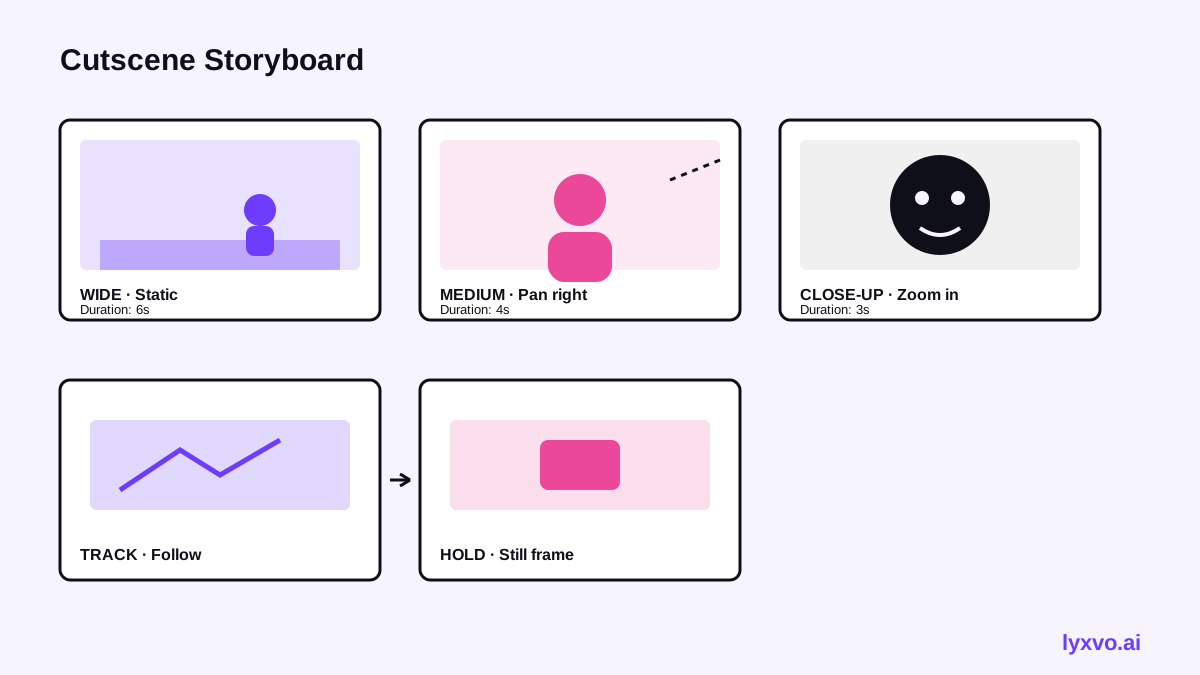
- Shot framing: wide, medium, close-up, or extreme close-up.
- Camera movement: static, pan, dolly, or cut.
- Blocking: where each character stands and what they face.
- Action beat: the one thing that happens in this shot.
- Dialogue or sound cue: the line or sound that anchors the timing.
- Duration estimate: a rough number of seconds.
If a frame cannot be described with these six items, it is probably trying to do too much. Split it.
A step-by-step workflow for indie teams
- Write the beat sheet first. List the story beats of the scene in plain sentences, one per line. Keep it to the emotional turns, not the dialogue.
- Map beats to shots. Assign one or more shots to each beat. Most beats need a wide establishing shot, then coverage of the characters.
- Sketch the frames. Use thumbnails, grey-box shapes or generated panels. Speed beats polish at this stage.
- Add timing. Estimate durations and sum them. A thirty-second cutscene that adds up to ninety seconds is a pacing problem you can fix now.
- Review with a timer. Play the frames at real speed with the dialogue read aloud. Note where attention drifts.
- Freeze the shot list. Once approved, the list becomes the contract for animation, camera setup and audio.
Example: a two-minute reveal scene
Suppose a scene where a character discovers a locked door is already open. The beat sheet might read: *curiosity, unease, recognition, dread.* Mapped to shots, that could be a wide hallway shot (establishing, 4 seconds), a medium shot of the character's hand on the handle (3 seconds), a slow dolly toward the open door (6 seconds), and a close-up of the character's face reacting (2 seconds). Reviewing those frames at real speed often reveals that the dread beat needs a longer hold, which is far cheaper to discover in a storyboard than in an animated render.
Common mistakes and how to avoid them
| Mistake | Why it hurts | Fix |
|---|---|---|
| Drawing every frame in detail | Slows review and locks in ideas too early | Use rough panels until the shot list is approved |
| No durations | Pacing problems stay hidden | Write a duration under every frame |
| Ignoring audio | Dialogue timing breaks the cut | Read the lines aloud during review |
| Changing shots after animation starts | Costly rework | Freeze the shot list before production |
| Frames that are not tied to beats | Scenes feel padded | Make each shot serve one beat |
Tip: If you are a solo developer, keep a single shared document with the beat sheet, the frames and the durations together. Fewer places to update means fewer mismatches.
Creating pre-visualization frames with Lyxvo AI
You can build storyboard-style frames in Lyxvo AI using the storyboard tool and the studio. Describe each shot in text, generate the panels, then refine them in the Canva-style editor, where you can edit text, swap images and adjust colors directly. Lyxvo AI also supports design to video, which helps you check the rhythm of a sequence before committing to animation. Export frames as PNG at real size for review, or use the collaboration features to share them with your team in real time.
You can start from the AI storyboard generator for the sequence layout, or open the slide and pitch studio if you want to present the cutscene plan to a publisher or collaborator. For a quick title card or key art for the scene, the YouTube thumbnail maker can also help when you share the cutscene publicly. Lyxvo Lite gives you a daily free allowance to try this workflow, and paid plans are listed on the pricing page.
Checklist before you hand off the shot list
- Every beat has at least one frame.
- Every frame has framing, movement, blocking, action and duration.
- The total runtime matches the target length.
- Dialogue has been read aloud against the timing.
- The shot list is saved and labeled with a version number.
Note: Tools, engine features and platform conventions change over time. Check current documentation for your engine and for any specific delivery requirements before you finalize a production schedule.
Next steps
Start with one short scene, not your whole game. Run the workflow end to end, measure how long the review took, and adjust. Once the process feels reliable, apply it to the rest of your cutscenes. For more practical guides, browse the Lyxvo AI blog, and see the documentation for details on exports and collaboration.
Try it in Lyxvo AI
Describe it in your own words and the design agent starts on the right flow. Free to start.
Related tool: Free design templates you can edit in minutes