Printable Baby Shower Invite Designer Online: A Practical Guide
A printable baby shower invite designer online lets you create a polished invitation without design software or a print shop's help. This guide walks through choosing the right size, writing the details guests need, and exporting a file ready for home or professional printing.
Why a printable invite still works
Many hosts prefer a printable invitation because it is simple to share, easy to print at home, and cheap to reproduce. You can send the file by message, email or a link, and guests who want a keepsake can print a copy. A printable design also lets you match the baby shower theme across the invite, the signage and the games.
Choose the right size and format first
Before you design anything, decide how the invite will be printed. Common choices are:
| Use | Typical size | Notes |
|---|---|---|
| Folded card | A6 or 5 x 7 in | Good for mailing and keepsakes |
| Standard card | 4 x 6 in | Fits most envelopes and home printers |
| Digital share | 1080 px wide | For messages and social posts |
Check your home printer's paper settings and your envelope size before you finish the layout. A design that is even slightly too large can crop the edges.
For a digital copy, a square or vertical format works well on phones. For print, keep important text at least 0.25 inches (about 6 mm) away from the edges so nothing gets trimmed.
Step-by-step: designing your invite
1. Pick a template and a mood
Start with a layout that already has balanced spacing, then adapt it. Soft pastels, botanical line art, or a simple neutral palette suit most baby showers. Limit yourself to two or three colors so the card stays readable.
2. Write the essential details
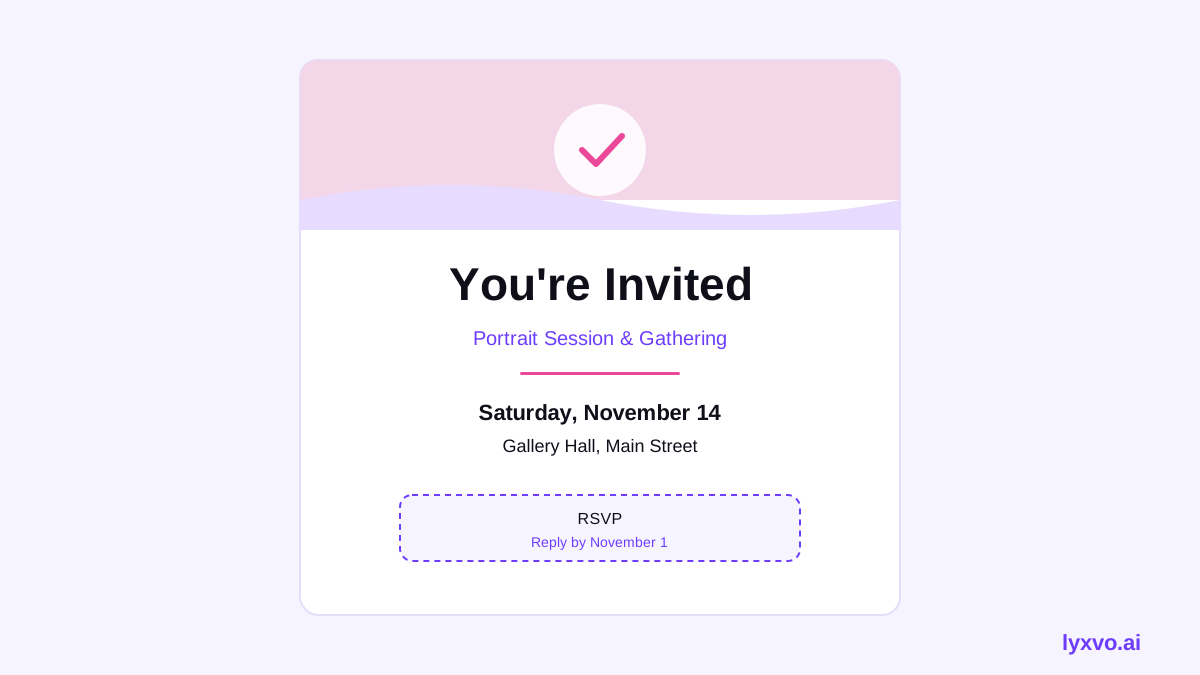
Guests need four things, clearly stated:
- Who the event is for (parents' names or the baby's name, if you know it)
- Date and start time, with the end time if it matters
- Location, including the address or venue name
- RSVP method and deadline
Add a short line of warm wording, and optionally a gift registry link or a note such as "Books in lieu of cards."
3. Set the typography
Use one display font for the headline and one clean font for the details. Keep the date and location at a size that reads easily from arm's length. Avoid decorative scripts for the address.
4. Check accuracy and spelling
Read every line aloud. Confirm dates against a calendar, since a day-of-week mismatch is a common error. Ask one other person to proofread the final version.
Exporting a print-ready file
For home printing, export a PDF at the exact card size with no extra margin. For a print shop, ask for a high-resolution file; 300 dpi is the usual standard for crisp text and images. Save a PNG or JPG too, so you can share the design digitally.
Print a single test copy on plain paper first. This shows whether the layout fits and whether the colors look right before you use card stock.
Designing it in Lyxvo AI
You can make this invite in Lyxvo AI's design studio. Open the invitation maker to start from a related layout, or use the flyer studio if you prefer a single-page printed sheet. In the Canva-style editor you can change text, photos and colors directly, and export as a PNG at real size or as a PDF-ready print file. If you want the same look for a social post, use Magic Resize to adapt the design to other sizes, and explore free design templates for more starting points. Lyxvo Lite gives you a daily allowance to try things out, and paid plans are listed on the pricing page.
Final checklist before you send
- Size matches your card or paper
- Text stays inside a safe margin
- Date, time, address and RSVP details are correct
- Colors look right in a test print
- You have saved a PDF for printing and an image for sharing
With a clear layout and checked details, a printable invitation can look thoughtful and be ready to send in a single afternoon.
Try it in Lyxvo AI
Describe it in your own words and the design agent starts on the right flow. Free to start.
Related tool: Free design templates you can edit in minutes