How to Resize One Poster into Multiple Sizes with AI
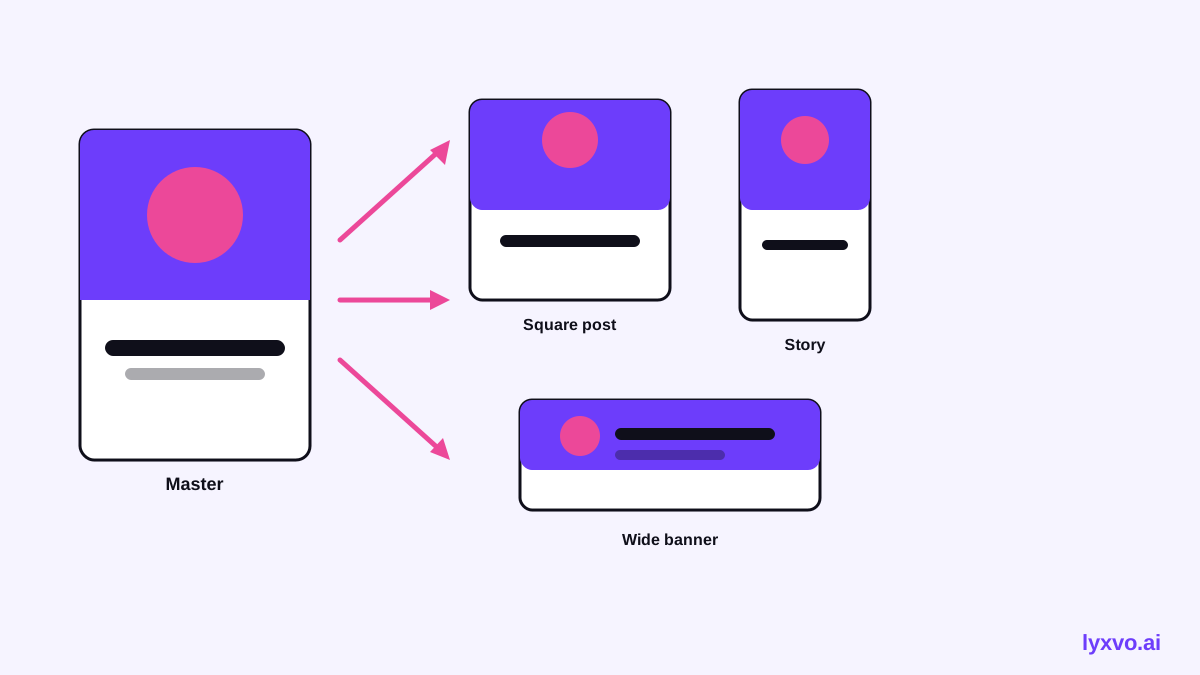
You can resize one poster into multiple sizes with AI by starting from a single master design and letting the tool adapt the layout to each target format. This guide explains the process, the sizes you are likely to need in 2026, and how to check every version before you publish.
Why one poster rarely fits every size
A poster designed for an A3 print looks very different when it is cropped into a square Instagram post, a vertical story or a wide website banner. The proportions change, text that was comfortable at print size can become too small on a phone, and photos that filled a portrait page may lose their subject when forced into a landscape frame.
Manual resizing usually means rebuilding the layout for each format. AI-assisted resizing shortens that work: you keep one master design, and the tool recalculates positions, scales type and crops images for each target. Your job becomes reviewing and fine-tuning instead of starting over.
Know the sizes you need before you start
Platform specifications change over time, so treat any list as a snapshot and confirm current recommendations on each platform before a big campaign. As a general planning guide, these are the formats most often needed from one poster:
| Format | Typical use | Shape |
|---|---|---|
| Square post | Feed posts on Instagram, Facebook, LinkedIn | 1:1 |
| Vertical story | Stories, Reels covers, TikTok | 9:16 |
| Portrait print | A3 or A4 flyers and posters | Approx. 1:1.41 |
| Landscape banner | Website header, X and YouTube banners | Wide, about 16:9 or wider |
| High-resolution print | Print shops | Export at 300 dpi |
Tip: Build the master poster with the most demanding shape in mind. Designs with generous margins and a clear central subject adapt to more sizes with fewer fixes.
Step-by-step: resize one poster with AI
- Prepare the master. Use your strongest version: final copy, approved colors and a clean hierarchy with one headline, one main visual and one call to action.
- Set the target sizes. Choose only the formats you will actually publish. Each extra size is more to review.
- Run the resize. Let the AI generate each version. Good tools move the headline, shrink supporting text and re-crop images instead of stretching them.
- Check the focal point. Confirm faces, products and key words sit inside the safe area of every crop. Stories, for example, hide content at the top and bottom where interface elements appear.
- Fix text and spacing. Automatic scaling sometimes leaves text too small or lines too long. Adjust line breaks and font sizes per version.
- Verify brand consistency. Compare colors, logo placement and fonts across all sizes so the set reads as one campaign.
- Export at the right resolution. Use screen exports for social and web, and a 300 dpi export for print.
- Name and store the files. Label each file with its format and date, such as poster_ig-square_2026-10-29.png, so the set stays organized.
Common problems and how to avoid them
- Cropped faces or cut-off products. Keep the subject centered and leave breathing room around it in the master.
- Tiny text on phones. Set a minimum font size you will not go below, and shorten copy for vertical formats.
- Overcrowded square versions. Remove secondary details rather than shrinking everything.
- Blurry print files. Print needs 300 dpi at the final physical size. A small screen-resolution export will look soft on paper.
- Inconsistent colors. Export color values from one brand reference and reuse them everywhere.
How to resize one poster in Lyxvo AI
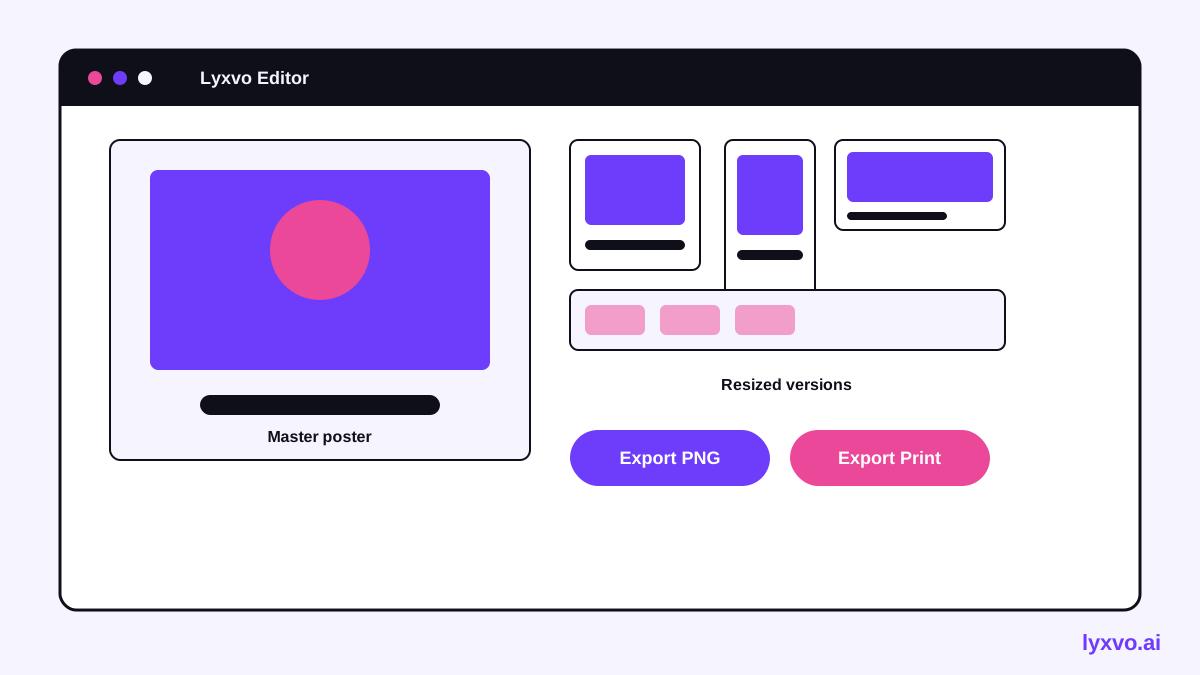
Lyxvo AI includes a Magic Resize feature in its editor, which adapts an existing design to other formats. You can start from the studio, pick a format, and then refine the result in the Canva-style editor, where you edit text, photos and colors directly.
A practical workflow in Lyxvo AI looks like this:
- Open or create your poster in the flyer and poster studio or start from a poster maker template.
- Use Magic Resize to generate the other formats you need, then open each one.
- Adjust headline size, line breaks and image crops in the editor so every version keeps the focal point clear.
- For social versions, use the dedicated social media post generator or the Instagram post and Instagram story studios to confirm exact sizes.
- Export PNG at real size for screens, or use the print-ready export at 300 dpi for physical printing.
If your poster is also a video teaser, Lyxvo AI can convert a design to video, and you can use translate to create language versions of the same layout. Collaboration in real time lets a team review each size together before export.
Checklist before you publish
- Every version has the headline and call to action readable at phone size.
- No important element sits in the top or bottom safe zones of vertical formats.
- Images are sharp and not stretched.
- Colors and logo match across all sizes.
- Print files are 300 dpi at final size.
- Files are named by format and date.
Final thoughts
Resizing one poster into multiple sizes with AI is faster than rebuilding each layout, but it still rewards careful review. Start with a strong master, pick only the formats you need, and check focal points and text on every version. If you want a faster starting point, explore free design templates and the flyer maker to build a master you can adapt across channels.
Try it in Lyxvo AI
Describe it in your own words and the design agent starts on the right flow. Free to start.
Related tool: AI poster maker for events, promos and concerts