Thumbnail for Vlog Series with Recurring Host: A Practical Guide
A thumbnail for a vlog series with a recurring host needs to do two jobs at once: look like it belongs to the series and still stand out in a crowded feed. This guide shows you how to build a repeatable thumbnail system around your host, so every new episode is recognizable within a split second. The approach below works whether you design by hand, in a desktop editor, or with an AI design tool such as [Lyxvo AI's YouTube thumbnail maker](/youtube-thumbnail-maker/).
Why a recurring host changes the thumbnail job
When a host appears in every episode, your thumbnail has a hidden advantage: viewers already know the face. A familiar expression, a recognizable outfit or a signature pose can act as a brand marker. That only works if the rest of the thumbnail stays consistent too. Otherwise each episode looks like a different channel.
The goal is a series template: a fixed structure with a few swappable parts (topic text, episode number, accent color, background scene). Viewers learn the structure once and then recognize new episodes instantly.
Step 1: Lock the series template
Before you design episode one, write down the elements that never change:
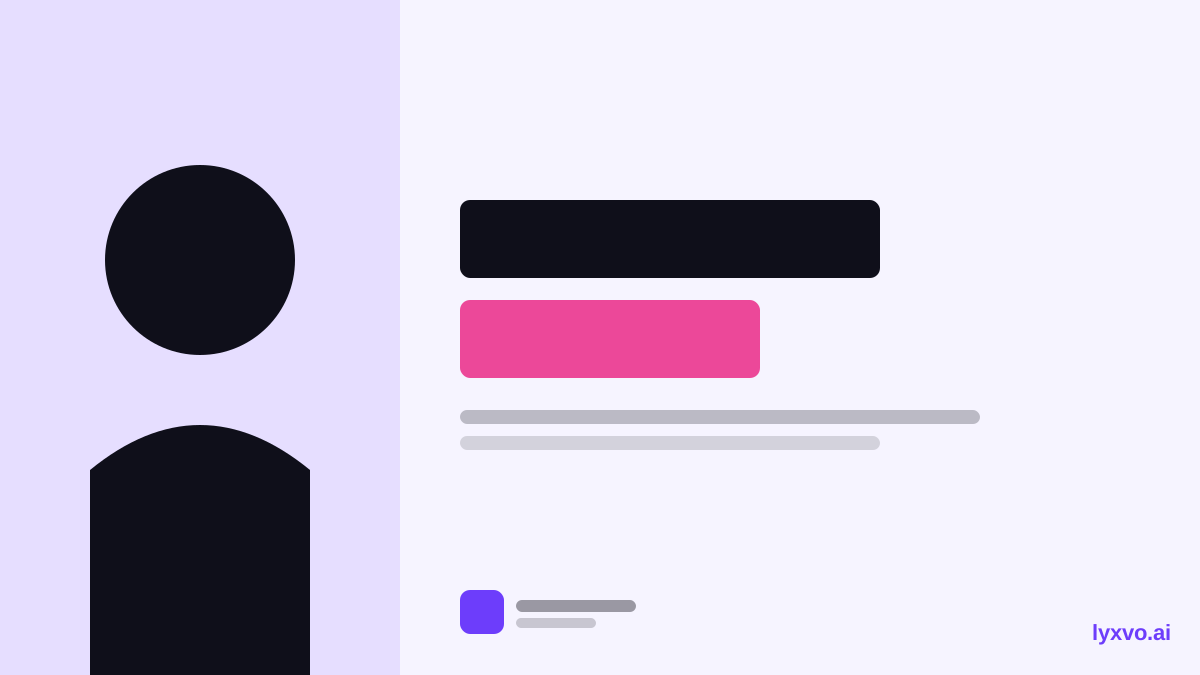
- Host position: left third, right third, or centered. Pick one and keep it.
- Host crop: head-and-shoulders, waist-up, or full body.
- Text zone: the side opposite the host, usually the right or left third.
- Brand strip: a logo, series name or color bar in a fixed corner.
- Font pair: one heavy headline font and one simple secondary font.
- Color system: two or three brand colors, plus one accent for episode highlights.
Write these as a short spec you can reuse. A one-page spec saves hours later.
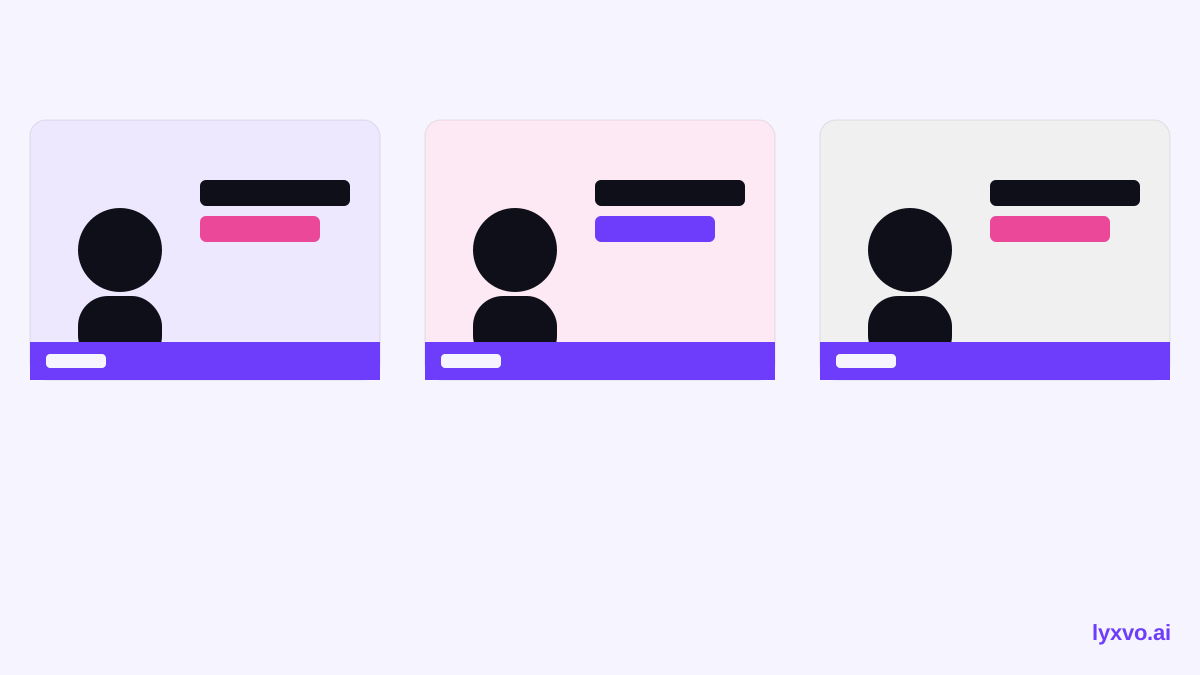
Tip: Keep a copy of your last three thumbnails side by side. If the host position or text zone drifts between them, fix the spec before making the next one.
Step 2: Design around the host's face
The host's face carries most of the click appeal, so protect it:
- Place the face in the upper half of the frame, with eyes near the upper third line.
- Leave breathing room in the direction the host is looking.
- Keep text away from the face, including any stroke or shadow around letters.
- Use the same lighting setup or a consistent color grade across shoots so the host looks the same from episode to episode.
If you use a cutout of the host, make sure the edge is clean at thumbnail size. Hair edges and glasses are the first things to break.
Step 3: Make the topic text do the work
The text should tell viewers what this episode is about in two to four words. Some practical rules:
- Use one headline, not three competing lines.
- Pick a short, high-contrast phrase: a number, a question, or a result.
- Use the accent color only for the key word.
- Test readability at phone size. If you squint and cannot read it, enlarge it or cut words.
Example of a series template in use
Suppose your vlog series is "Weekend Renovation" and your host is on the left third. Your fixed elements are: host left, text right, orange brand strip bottom-left, and a bold sans-serif headline.
| Episode | Headline | Accent word | Background |
|---|---|---|---|
| 12 | Tiled the bathroom | Tiled | Bathroom wall |
| 13 | Fixed a leaking tap | Leaking | Kitchen sink |
| 14 | Built a shelf | Shelf | Garage bench |
The host, the text zone and the brand strip never move. Only the headline, the accent word and the background change. Viewers see the layout before they read the words.
Step 4: Build a repeatable production workflow
To keep a series consistent over months, separate the reusable work from the per-episode work:
- Create the template once: layout, fonts, colors, brand strip, and a host cutout or reference photo.
- Duplicate for each episode: never start from a blank canvas.
- Swap only the variables: headline, accent word, background image, episode number.
- Check against the previous three: place them side by side before export.
- Export at the platform size and keep the source file for future edits.
Step 5: Check the thumbnail at real size
Before you upload, check these points:
- Does the host's face read clearly at small size?
- Is the headline legible in the first half second?
- Does this thumbnail look like the rest of the series at a glance?
- Does the thumbnail match what the video delivers? Misleading thumbnails hurt retention.
How to build this series template in Lyxvo AI
Lyxvo AI can help you set up the template and produce episode variations. A practical way to work:
- Open the YouTube thumbnail studio and generate a first thumbnail based on your series spec: host position, headline style and colors.
- Use the Canva-style editor to adjust text, photos and colors directly, and to lock your brand strip and text zone into the layout you want to reuse.
- Duplicate that design for each new episode, then edit only the headline, accent word and background photo.
- Use Magic Resize if you also need the same design for other placements, such as a social media post for the episode.
- Export a PNG at the real size when you are ready to upload.
If you prefer a starting point, the free design templates library and the YouTube thumbnail maker page show the format options. The Lyxvo AI features described here are the ones listed for the editor and export tools; check pricing for what your plan includes.
Common mistakes to avoid
- Changing the host position between episodes. It breaks recognition.
- Using different fonts every week. Pick a pair and keep it.
- Crowding the frame. One face, one headline, one idea.
- Designing only for desktop. Most viewers see thumbnails on a phone.
- Skipping the side-by-side check. Drift happens slowly and you only notice it when you compare.
Summary
A good thumbnail for a vlog series with a recurring host is a system, not a one-off image. Lock the host position, text zone, fonts and colors into a template, change only the episode-specific parts, and check each new thumbnail against the series at real size. Once the template is set, each new episode takes minutes instead of hours, and your audience learns to recognize your channel at a glance.
Try it in Lyxvo AI
Describe it in your own words and the design agent starts on the right flow. Free to start.
Related tool: AI YouTube thumbnail maker