Thumbnail Maker for Gaming Let's Play Videos: A Practical Guide
A thumbnail maker for gaming Let's Play videos helps you turn a gameplay moment into a click-worthy image in minutes instead of hours. The thumbnail is often the first thing a viewer judges, so a clear, well-sized design matters as much as the video itself.
Why the thumbnail matters for Let's Play videos
In a Let's Play video, the thumbnail has one job: make someone pause in a crowded feed and want to see what happens next. Viewers scroll quickly, and they decide in a fraction of a second. A good gaming thumbnail usually shows one clear subject, one strong emotion or moment, and a short phrase that explains the stakes.
The thumbnail also sets expectations. If it promises a boss fight and the video delivers a tutorial, viewers leave quickly. Aim for a thumbnail that honestly previews the best moment of the video.
What makes a gaming thumbnail work
Most high-performing gaming thumbnails share a few traits:
- One focal point. A character's face, a dramatic in-game moment, or a single object. Avoid cluttered screens.
- Strong contrast. Bright subjects against darker backgrounds stand out in both light and dark feed themes.
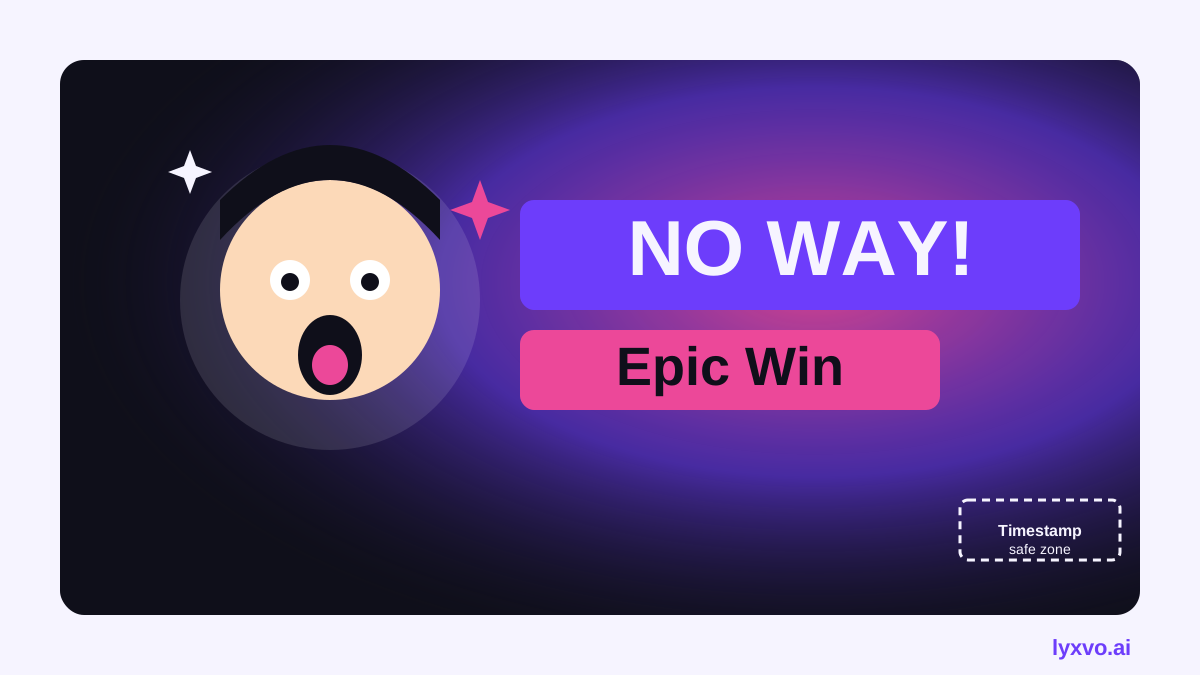
- Readable text. Two to four words in a bold font, placed where it won't be hidden by the timestamp in the corner.
- Clear emotion. Surprise, frustration, or excitement read well even at small sizes.
- Clean edges. Cut out the subject or use a clear crop so it doesn't blend into the game background.
Choose the right size and format
YouTube thumbnails are generally designed at 1280 x 720 pixels (a 16:9 ratio), saved as a JPG or PNG under the platform's file size limit. Keep the important content toward the center, because the video length label sits in the bottom-right corner. Check the current upload specifications in the platform's help documentation before you publish, since requirements can change.
If you also cut Shorts or post to other platforms, you will need different sizes. Designing the thumbnail first and then resizing it for other channels saves time.
Step-by-step: make a gaming thumbnail
- Pick the moment. Scrub your footage for the most readable frame: a reaction, a near miss, a boss reveal, or a clutch win.
- Set the canvas. Start with a 16:9 canvas sized for YouTube thumbnails.
- Isolate the subject. Remove or blur busy game UI in the background so the face or action pops.
- Add a color boost. Increase saturation and contrast a little. Gaming footage can look flat, so a small lift helps.
- Write the text. Keep it to a few words that add information the image doesn't already show, such as "Last Chance" or "I Almost Quit."
- Add one accent. An arrow, a glow, or a colored shape to direct the eye. Don't use more than one or two.
- Check at small size. Shrink the design to a phone-sized preview. If the text or face is hard to read, simplify.
- Export and test. Save a clean export and compare it against your other recent thumbnails so your channel looks consistent.
Common mistakes to avoid
| Mistake | Better approach |
|---|---|
| Tiny text that vanishes on phones | Fewer words, larger type |
| Busy HUD and minimap in the background | Crop tighter or blur the UI |
| Misleading moment | Show a real, honest highlight from the video |
| Inconsistent style across uploads | Reuse the same fonts, colors and layout |
| Text covering the face | Place text on the opposite side |
Tip: Build a small set of templates (for example, "face left, text right" and "action center, bold title") so each new video takes minutes instead of starting from zero.
Make a gaming thumbnail in Lyxvo AI
Lyxvo AI includes a design agent that can create social and video-related graphics, and a Canva-style editor where you can change text, photos and colors directly. To start a 16:9 thumbnail project, you can open the YouTube thumbnail maker or go straight to the YouTube thumbnail studio format.
A practical workflow:
- Describe the video in plain language, for example: "Horror game Let's Play, a shocked character in the foreground, bold red text reading 'NOPE', dark background."
- Review the generated layout, then swap in your own gameplay screenshot or photo.
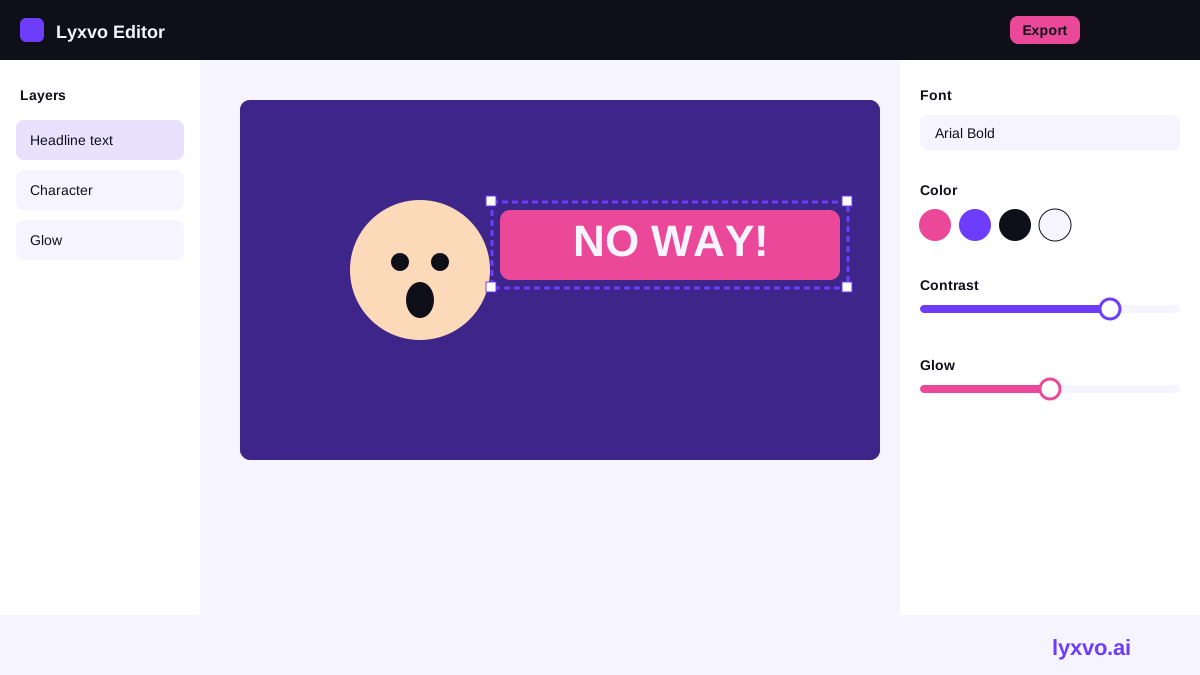
- Use the editor to adjust the headline, font color and contrast so the text is readable at small size.
- Export a PNG at the correct size and check it in a phone-sized preview before publishing.
If you want a matching look across channel art, banners and social posts, you can also browse free design templates as a starting point. Lyxvo Lite offers a free daily allowance, and paid plans are listed on the pricing page.
Test and improve your thumbnails
Treat thumbnails as an experiment. Change one variable at a time: the face, the text, or the color. Keep notes on which versions earn more clicks in your analytics, and carry those lessons into the next design. Over time you will develop a recognizable style that viewers learn to spot.
Quick checklist before you publish
- Is the main subject clear within one second?
- Is the text readable at phone size?
- Does the image honestly show something in the video?
- Is the composition clear of the timestamp corner?
- Does it match your channel's visual style?
A well-made thumbnail for a Let's Play video does not need to be complicated. Pick a strong moment, keep the design simple, and check it at small size. With a consistent system, a thumbnail maker can help you publish polished thumbnails for every upload.
Try it in Lyxvo AI
Describe it in your own words and the design agent starts on the right flow. Free to start.
Related tool: AI YouTube thumbnail maker