How to Turn Comic Book Pages Into a Storyboard
You can turn comic book pages into a storyboard by treating each panel as a shot, then adding camera direction, timing and dialogue cues. This guide shows a practical workflow you can follow with any comic and with Lyxvo AI.
Why comic pages work as a storyboard source
A comic page already does much of the storyboard job. Each panel has a framing choice, a moment in time and a reason for existing. What it lacks is the production language a film or animation crew needs: shot size, camera movement, duration and audio.
That means the conversion is mostly translation, not redrawing. You keep the composition and story beats, then add the details that let someone shoot or animate the scene.
Before you start: what to gather
- The full page or spread, at the highest resolution you have
- The script or dialogue, including caption boxes and sound effects
- A rough idea of the intended length, such as 30 seconds per page or a full episode
- Notes on any panels that will change in the adaptation (for example, a double-page splash becoming a slow push-in)
Check the rights before you publish a storyboard based on someone else's comic. Use it for private development, pitching or your own original work.
Step 1: Break the page into shots
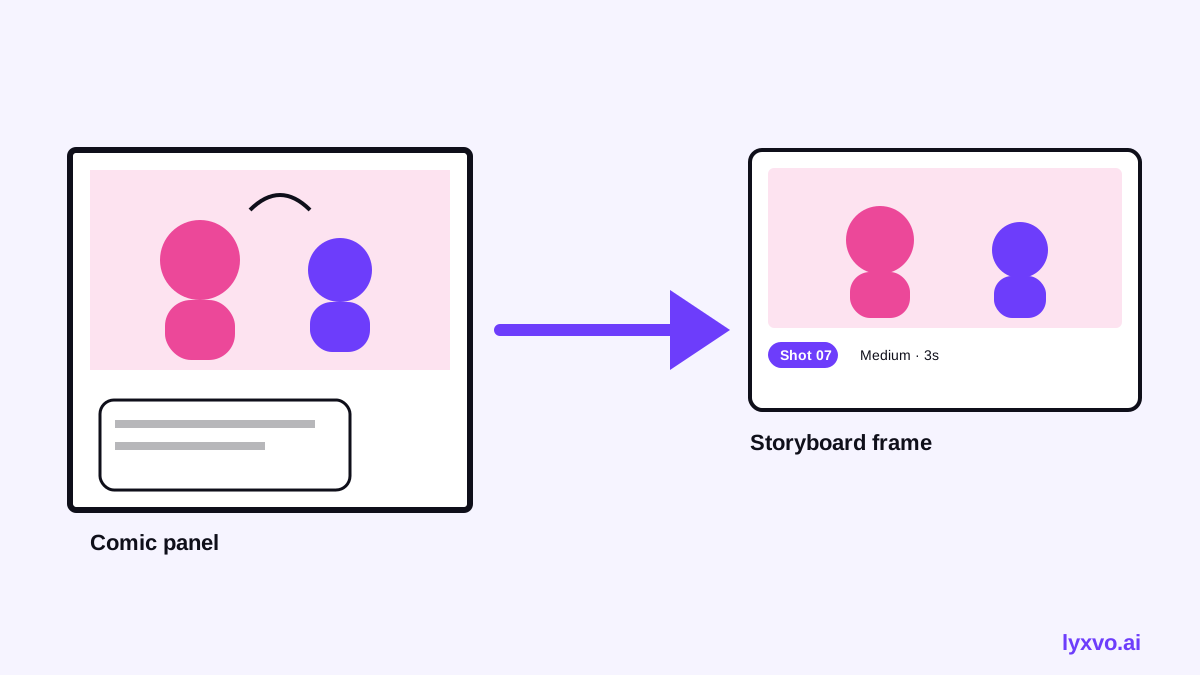
Number every panel from top to bottom, left to right, as readers already expect. Then decide whether each panel is one shot or several. A single wide panel can become two shots if the action moves across it.
Working through a sample page
Imagine a page with three panels: a close-up of a hand dropping a key, a medium shot of a character turning around, and a wide establishing panel of a rainy street. That is three shots, with the key drop possibly split into an insert shot plus a reaction.
Step 2: Add camera and framing notes
Comic framing and film framing overlap but are not identical. Translate each panel into standard shot terms:
| Comic panel | Storyboard shot |
|---|---|
| Full-body figure in a large box | Wide or full shot |
| Waist-up figure | Medium shot |
| Face filling the box | Close-up |
| Object filling the box | Insert or extreme close-up |
| Tiny figure in a big scene | Establishing or wide |
Write a short camera note for each shot, such as "static, eye level" or "slow push-in on face." Comics imply motion through layout; storyboards must state it.
Step 3: Add timing and duration
Comics have no clock, so you must set one. A useful starting point is to give each shot a rough duration based on how much happens in it. Dialogue takes time to read and speak, so estimate using the length of the lines. Mark silent beats longer, because readers linger on them and viewers need room too.
A simple timing checklist
- Count the words in each speech balloon and caption
- Add a second or two for reactions and empty panels
- Note any sound effect that should run under the image
- Total the shots and compare with your target length
Step 4: Write the audio and dialogue layer
Copy dialogue and captions into each shot, marked with the speaker. Keep sound effects, music cues and ambient sound as separate notes. Comics often use lettering style to show volume or emotion, so describe that intent in plain words, such as "whispered" or "shouted."
Step 5: Layout the storyboard
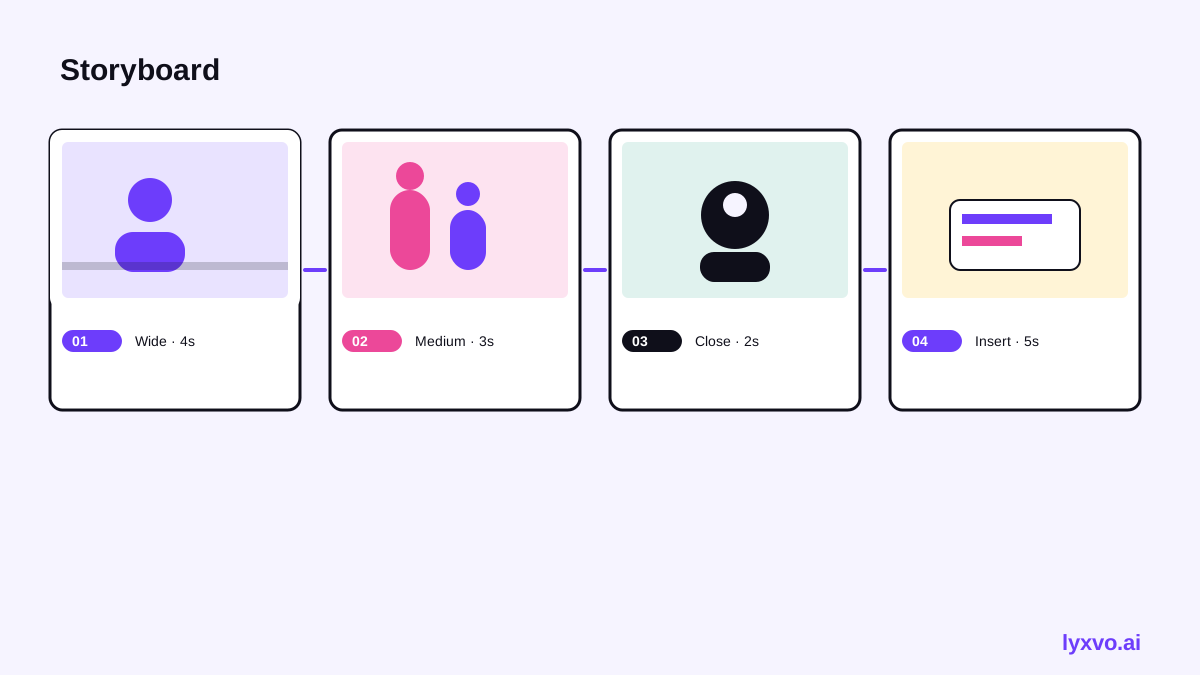
Place each shot in a frame with its number, camera note, duration, dialogue and an action description underneath. Keep the frames in reading order. If a shot needs a visual change from the original panel, such as a different angle to suit the camera, note the reason briefly so reviewers understand the choice.
How to do this in Lyxvo AI
Lyxvo AI's design agent can help you build storyboard frames as designed pages rather than hand-drawn sketches. Its AI storyboard generator is the tool page for this kind of work. In the editor, you can edit text, photos and colors directly, so you can revise dialogue and camera notes on each frame without starting over. Magic Resize helps you adapt the same layout when you want to present the storyboard as a slide deck for review.
For a quick start, open the Studio and choose a presentation format for a shot-by-shot review deck. You can also export your frames as PNG at real size for sharing, or export to design to video if you want a rough animatic. Check pricing for the plan that fits your daily use, since Lyxvo Lite has a daily limit.
Common mistakes to avoid
- Copying every panel exactly. Some comic panels are poses, not shots, and will merge with the next beat.
- Forgetting the audio layer. A silent storyboard can hide pacing problems.
- Ignoring timing. Without durations, a storyboard cannot show whether the sequence fits the episode.
- Missing the camera direction. Layout tells the reader where to look; a storyboard must say where the camera goes.
Quick checklist
- [ ] Panels numbered in reading order
- [ ] Each panel translated into a shot with a framing choice
- [ ] Camera movement noted for every shot
- [ ] Duration estimated per shot and total checked
- [ ] Dialogue, captions and sound cues placed under each frame
- [ ] Rights and attribution confirmed for any source comic
Next steps
Start with one page. Once the process feels natural, apply it to a full chapter. If you are building new original material, try the AI storyboard generator to test your shot list visually before committing to production.
Try it in Lyxvo AI
Describe it in your own words and the design agent starts on the right flow. Free to start.
Related tool: AI storyboard generator for ads and short videos