How to Turn a Sales Call Transcript into Slides

Turning a sales call transcript into slides is one of the fastest ways to prepare a follow-up proposal, because the buyer has already told you what matters to them. This guide shows a practical process for going from raw transcript to a clean, client-ready deck.
Why a transcript is the best starting point
A sales call transcript contains the exact words your prospect used: their goals, their frustrations, the numbers they mentioned and the objections they raised. Slides built from that language feel relevant because they reflect the buyer's own priorities, not your generic pitch.
The challenge is that transcripts are long, repetitive and messy. Your job is to filter, organize and visualize what was said.
Step 1: Clean up and skim the transcript
Before you design anything, read the transcript once without taking notes. Then go back and fix the obvious problems:
- Remove filler words and small talk that carries no information.
- Attribute each quote to the right speaker (buyer, champion, decision-maker).
- Mark timestamps for anything important so you can find it again.
Step 2: Extract the key content
Read again and highlight five types of information:
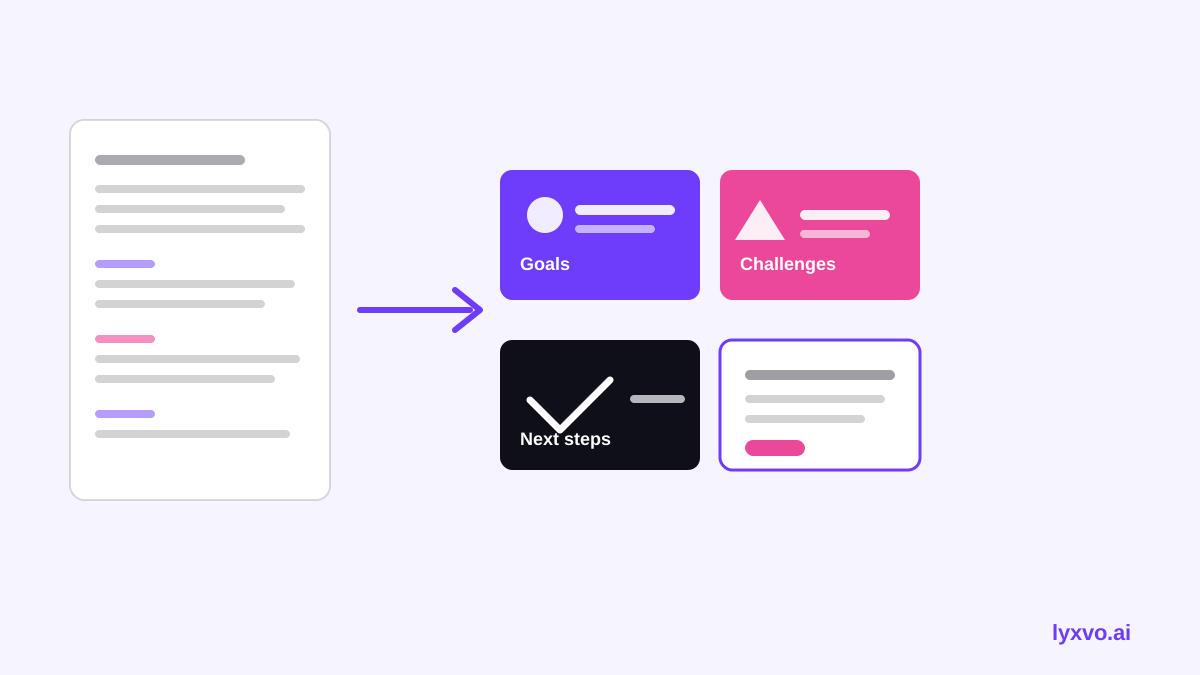
- Goals: what the buyer wants to achieve, in their words.
- Pains: problems they described, including the cost of doing nothing.
- Numbers: volumes, budgets, timelines, targets.
- Objections and concerns: anything they worried about.
- Next steps: what both sides agreed to do.
Copy each item into a simple list. Keep the buyer's wording where possible; it makes the deck sound like a summary of their own conversation.
Step 3: Map the items to a slide structure
A follow-up deck usually works best with a short, predictable flow. Use this structure as a starting point:
| Slide | Purpose | Source in transcript |
|---|---|---|
| Title and context | Remind them why you met | Call date, attendees |
| Their goals | Show you listened | Goal statements |
| Current challenges | Name the pains | Pain points, costs |
| Your proposed solution | Connect to their needs | Feature requests |
| Proof and examples | Build trust | Questions they asked |
| Concerns addressed | Handle objections | Objections and answers |
| Timeline and pricing | Make it concrete | Budget, dates |
| Next steps | Drive the decision | Agreed actions |
One idea per slide. If a slide needs more than three or four bullets, split it.
Step 4: Write the slide text
For each slide, turn the extracted notes into short, specific statements:
- Lead with the buyer's goal or pain, then your response.
- Use their numbers exactly as they said them.
- Quote one short line from the call on the goals and challenges slides when it adds credibility.
- Keep objections honest: state the concern, then the answer, without dismissing it.
Note: Only include figures the prospect actually gave you or that you can verify. Never invent results or metrics for a slide.
Step 5: Design the deck
This is where many reps lose time. Choose a clean template, one readable font pairing, and two or three brand colors. Keep text large, add one visual per slide where it helps (a simple chart for their numbers, an icon for each goal), and leave white space.
Step 6: Review against the transcript
Before sending, check each slide against the source. Ask: Did they really say this? Is the number correct? Does the next step match what was agreed? A deck that mirrors the call builds trust; one that drifts from it loses it.
How to do this in Lyxvo AI
Lyxvo AI's design agent can help you turn your extracted notes into a finished deck. Plan the content with the agent, then design slides and pitch decks in the slides and pitch deck studio or explore the AI presentation maker. Once the deck looks right, you can refine text and colors directly in the Canva-style editor, and share it for real-time collaboration with your team. Exports include PNG at real size if you need images for email or chat.
A practical workflow:
- Paste your structured notes (goals, pains, numbers, objections, next steps) into the agent.
- Ask for a slide flow that follows the table above.
- Edit the wording so it matches the buyer's language.
- Adjust layout and colors in the editor, then export.
You can start with Lyxvo Lite, which includes a daily limit, and upgrade if you need more designs. For ready-made starting points, browse free design templates.
Common mistakes to avoid
- Pitching features before pains. Lead with what the buyer said they need.
- Too many slides. A follow-up deck is a summary, not a manual.
- Unverified numbers. Only use figures from the call or from sources you can confirm.
- Ignoring objections. Buyers notice when concerns are skipped.
- No clear next step. End with an agreed, dated action.
Checklist before you send
- [ ] Every goal and pain comes from the transcript.
- [ ] Numbers match what was said.
- [ ] Objections are addressed directly.
- [ ] The deck is under about 10 core slides.
- [ ] The final slide has a specific next step and date.
- [ ] Speaker names and company details are correct.
Final thoughts
A transcript gives you the buyer's own words, which is the strongest material a salesperson can have. Extract the goals, pains, numbers and objections, map them to a short structure, and design a clean deck that reflects the conversation. Done well, the slides do the summarizing for you and make the next step easy to agree on.
Try it in Lyxvo AI
Describe it in your own words and the design agent starts on the right flow. Free to start.
Related tool: AI presentation maker for slides and pitch decks